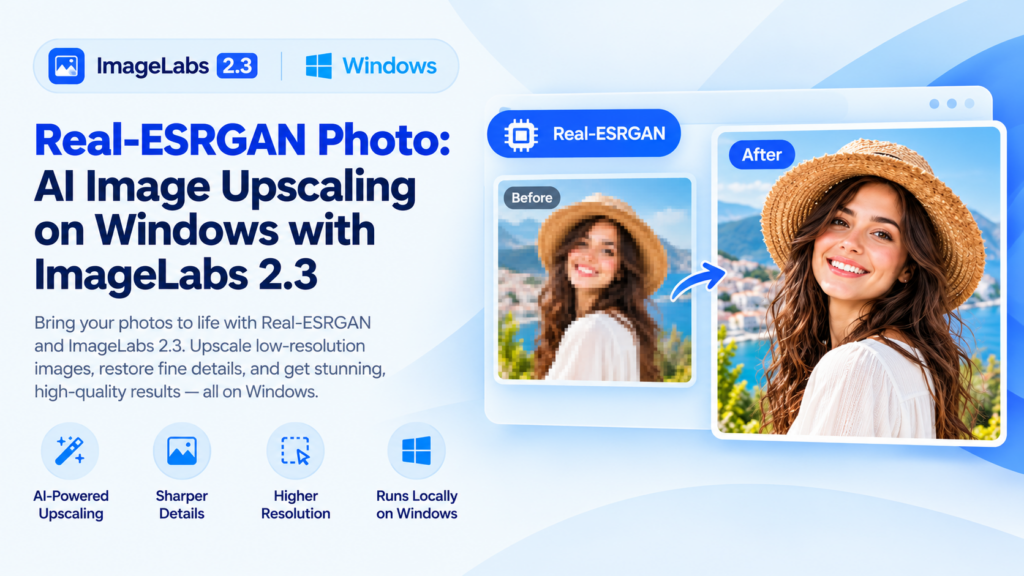
Real-ESRGAN Photo: AI Image Upscaling on Windows with ImageLabs 2.3
Have an old photograph that looks too small, a product image that needs a higher resolution, or a picture that becomes blurry when enlarged? AI image upscaling offers an alternative to ordinary resizing by using a trained model to reconstruct visual details as an image is enlarged.
ImageLabs 2.3 includes Real-ESRGAN Photo, an AI upscaling model designed for photographic images. With a model size of approximately 67 MB, it brings AI-assisted image enlargement to a Windows desktop workflow.
What Is Real-ESRGAN Photo?
Real-ESRGAN is a family of image-restoration and super-resolution models designed to improve images affected by common quality problems. Unlike conventional resizing, which mainly interpolates existing pixels, AI upscaling uses learned image patterns to estimate plausible details at a higher resolution.
The Photo model in ImageLabs is intended for photographic content, including pictures of people, everyday scenes, and other natural images. Its purpose is to create a larger image with visually convincing detail rather than merely increasing the pixel dimensions.
When Is AI Photo Upscaling Useful?
1. Enlarge Small Photographs
Images downloaded from older websites, captured with older devices, or saved at small dimensions may not be large enough for a new project. AI upscaling can help enlarge these images for viewing, reuse, or further editing.
2. Prepare Product Images
Online catalogs and product listings often benefit from clear, appropriately sized images. If the original photograph is small, AI upscaling may improve its appearance when displayed at a larger size.
It cannot recover details that were never captured with certainty, so always compare the result with the original before using an enlarged image in a commercial listing.
3. Improve Images for Documents and Presentations
A small picture can look acceptable on screen but become visibly soft when placed in a larger document or presentation. Upscaling can help prepare images for these uses, although the final quality still depends on the source image and the intended output size.
4. Enlarge Photos Before Further Editing
You may want to enlarge an image before cropping, compositing, or making other edits. Starting with a higher-resolution version can provide more pixels to work with, but it does not guarantee that every later edit will look sharper.
AI Upscaling vs. Ordinary Image Resizing
Traditional resizing calculates new pixels from the existing image. This is fast and useful for routine size changes, but enlarging a small image often makes its limitations more visible.
AI upscaling takes a different approach. A trained model estimates details and textures based on patterns learned during training. Depending on the image, this can produce a more natural-looking enlargement than basic interpolation.
- Ordinary resizing: Best for quick dimension changes when preserving the original appearance is the priority.
- AI upscaling: Useful when enlarging an image while attempting to improve its perceived detail and clarity.
- Important limitation: AI may generate plausible-looking details that do not exactly match the original scene.
For evidence, archival material, identification, or any situation where exact detail matters, retain the original and do not treat AI-generated detail as proof of what was present in the source.
Why Use a Photo-Specific Model?
Photographs contain textures, lighting transitions, skin tones, and natural detail that differ from the clean edges and flat colors common in illustrations. A photo-oriented model is intended for this kind of content.
ImageLabs 2.3 also includes a separate Real-ESRGAN model for anime and line-art images. Choosing a model suited to the source material can help you avoid applying a photographic enhancement approach to artwork that has very different visual characteristics.
Run AI Upscaling Locally on Windows
ImageLabs brings AI-assisted image processing into a desktop application. Real-ESRGAN Photo can be used as part of a local editing workflow without requiring you to upload every photograph to a cloud-based enhancement website.
Local processing can be useful for personal photographs, work images, and projects where you prefer to keep source files on your own computer. Processing speed depends on your hardware, image dimensions, and system configuration.
Tips for Better Upscaling Results
- Start with the best source available. A cleaner original generally gives the model more useful information.
- Inspect faces and fine textures. AI may alter small features or create artificial texture.
- Compare at the intended display size. A result that looks good when zoomed out may show artifacts at full resolution.
- Keep a copy of the original. This lets you compare results and return to the untouched image.
- Choose the right model. Use the photo model for photographs and the anime/line-art model for suitable artwork.
Try Real-ESRGAN Photo in ImageLabs 2.3
If you regularly work with small photographs and need larger images for editing, documents, presentations, or product listings, ImageLabs 2.3 offers AI photo upscaling alongside a wider set of image-editing tools.
ImageLabs 2.3 — AI-Powered Image Editing for Windows
Upscale photographs with AI, remove backgrounds, select objects, colorize images, repair damage, and explore other image-editing tools in one Windows application.
Leave a Reply