
BackendsideFTP – FTP, FTPS & SFTP Client for Windows
A free, modern file transfer client for power users — connect to many servers at once in tabbed sessions, transfer over FTP, FTPS and SFTP, drag files between your computer and the server in both directions, and watch everything in one unified transfer queue with live progress, speed and pause / resume.
Download Desktop Version 3.2.0
Free on the Microsoft Store — no subscription, no ads.

Changelog — what’s new in each release
Full release history through 3.2.0 — SSH key login, much faster SFTP on distant servers, a live log in every session, per-transfer speed limits, Retry all, and a long run of reliability fixes tested against real servers.
View the full changelogUser Guide — every step explained
A plain-English walkthrough of connecting with a password or SSH key, saved sites, trusting servers, transferring files, the transfer queue and every setting.
Read the User GuideFeatures
🗂️ Multiple Sessions in Tabs
Open as many servers as you like at the same time, each in its own tab with its own dedicated worker. Switch between connections instantly while transfers keep running in the background.
🔒 FTP, FTPS & SFTP
Connect over plain FTP, FTPS with explicit or implicit TLS encryption, or SFTP over SSH — all in one client. Log in with a password or an SSH private key (with passphrase), including servers that only allow keyboard-interactive login, with friendly, plain-English messages when a connection fails. SFTP keeps many requests in flight, so it stays fast even on distant servers.
📊 Unified Transfer Queue
Every upload and download lands in one shared queue shown as a tree — folders with their child files nested underneath. Live progress bars, real-time speed, and rolled-up totals on parent folders let you see the whole job at a glance.
⏯️ Pause, Resume, Cancel & Retry
Take control of any transfer in the queue — or a whole folder at once. Pause and resume picks up where it left off, failed transfers retry automatically (0–10 times, your choice), Retry all re-runs every failure in one click, and a ⚠ marker tells you exactly why something failed or was skipped. Choose whether existing files are overwritten, skipped, renamed or treated as a failure.
🖱️ Drag-and-Drop Both Directions
Drag files and folders from your computer to the server to upload, or from the server to your computer to download. Multi-select and whole-folder transfers are recursive — drop a folder and the entire tree comes along.
🗄️ Saved Site Manager
Save site configurations — hostname, port, username, password or SSH key, default remote directory, protocol, and Active/Passive mode — and reconnect in one click, straight into the site’s default folder. Passwords are encrypted on disk; per-site settings override your global defaults.
⚡ Quick Connect
Connect instantly by entering host, port, username and password without saving a full profile. The port auto-fills from the protocol you pick (21 for FTP, 990 for implicit FTPS, 22 for SFTP), and a custom port you type is always respected.
🛡️ Host-Key & Certificate Trust
SFTP connections verify the server's SSH host key against a known-hosts store, and FTPS connections verify the TLS certificate — with a clear Trust once / Trust always / Reject prompt the first time, and a warning if a fingerprint ever changes. Trust once covers the whole session, so a big folder upload asks only once, and Reject is the safe default button.
🔑 File Permissions (CHMOD)
View and change Unix file permissions from a visual editor — read, write and execute checkboxes for Owner, Group and Public, with the resulting octal mode shown live as you click.
🗃️ Remote File & Folder Management
Browse remote directories, create folders, rename files, and delete files or entire folders (with recursive deletion and a confirmation prompt before anything is removed) — all from a right-click context menu or toolbar. Symbolic links are always handled as links, so deleting one never touches the file it points to.
🔐 Encrypted Credential Storage
Saved site passwords are protected with Windows encryption tied to your user account — your credentials are never written to disk in plain text.
🕑 Transfer History & Speed Limits
A persisted history keeps a record of your recent completed transfers across launches. An app-wide speed limit caps total bandwidth, and a per-transfer limit can throttle any single job or folder — live, while it runs.
🔄 Auto-Reconnect & Keep-Alive
A live session that drops unexpectedly reconnects on its own with exponential backoff and restores the folder you were browsing. Keep-alive pings stop idle sessions from being dropped by the server's timeout.
🌓 Light & Dark Themes
A clean, modern interface with native Windows file and folder icons in both panes. Switch between light and dark themes from the toolbar — your choice is remembered, along with your window size and layout.
📝 Live Session Log
Every session tab has a collapsible Log panel showing what that connection is doing right now — the full command-and-reply transcript for FTP/FTPS, one line per operation for SFTP — with Copy and Clear. Passwords never appear in it. Dial the log files up to a full protocol transcript when diagnosing a tricky server, and open the log folder in one click.
⌨️ Tray & Keyboard Shortcuts
Minimize to the system tray and restore with a double-click; launching it again just brings the open window forward. Keyboard shortcuts speed up the essentials — new session, Site Manager, upload the selected file, and close the active tab — every button is labelled for screen readers, and dialog buttons have Alt+letter shortcuts.
Screenshots
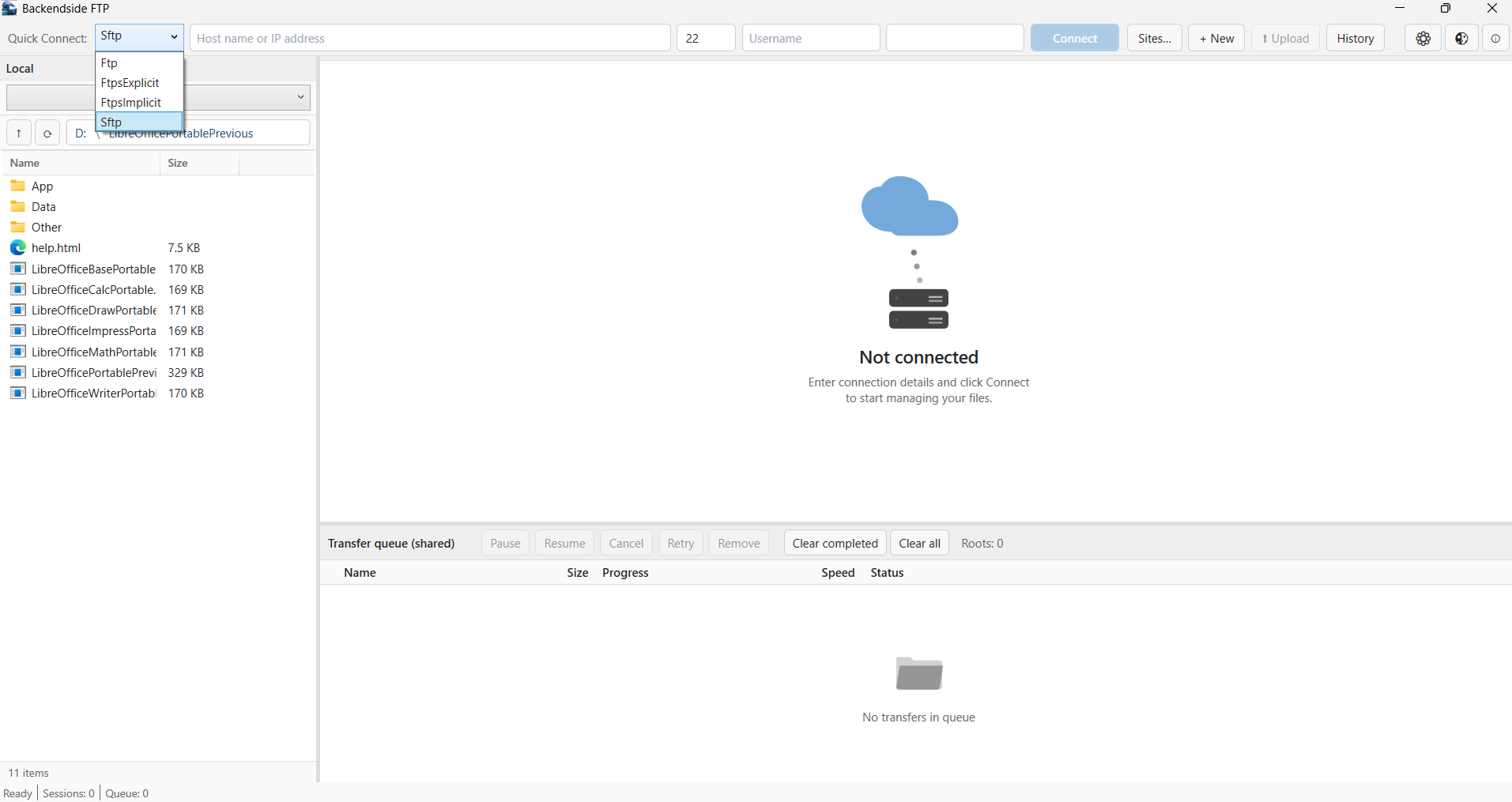
Main Application Interface
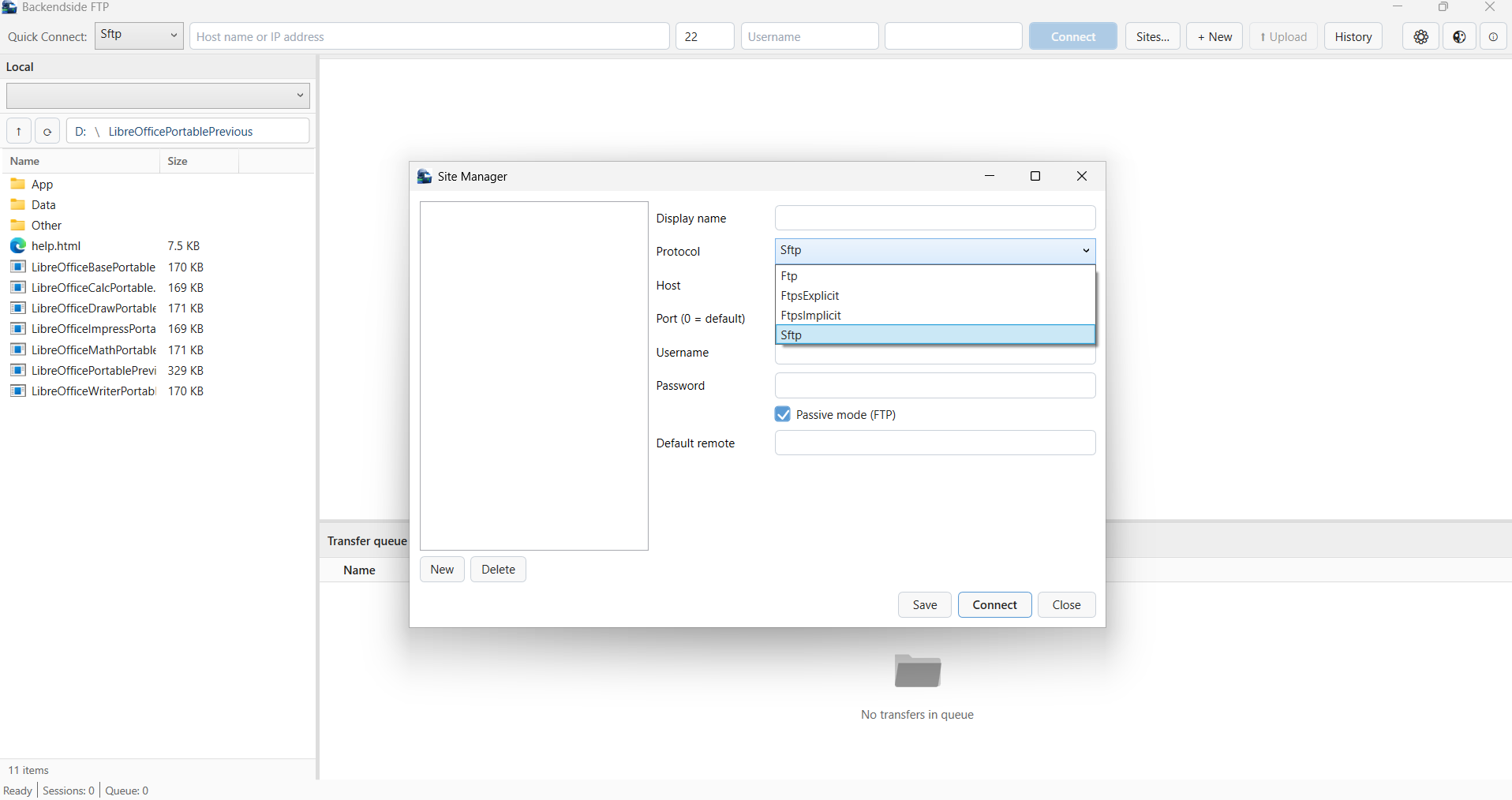
Multi-Session Tabs & Remote Browser
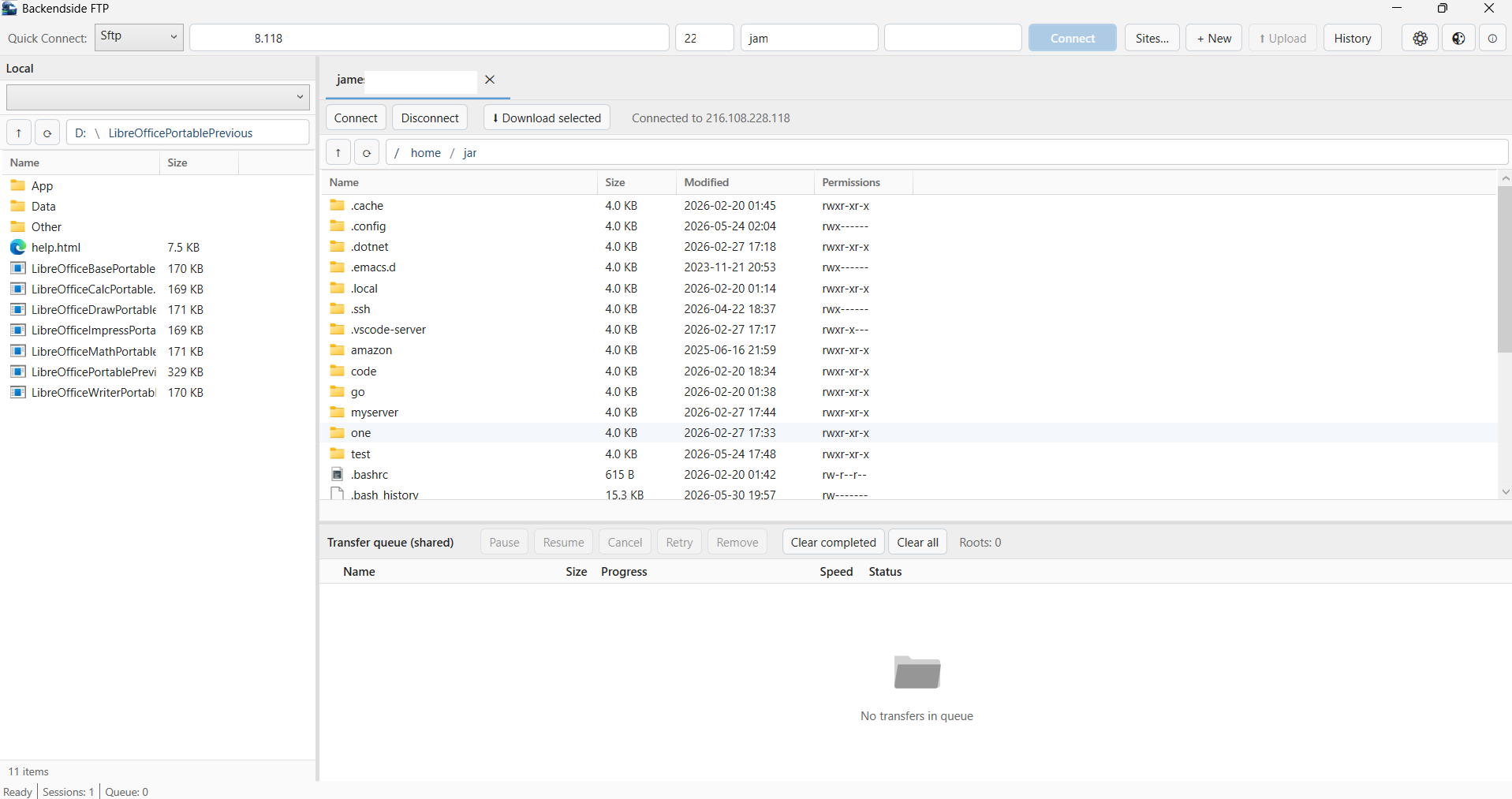
Unified Transfer Queue with Live Progress & Speed
Latest Release
Version 3.2.0 — October 15, 2026
SSH private-key login in the interface, “Trust once” that asks only once per session, overwrite and auto-retry settings, failure reasons in the queue, folder controls that work, and a fix for SFTP deleting a link’s target. Follows 3.1.0: much faster SFTP, a live log in every session, per-transfer speed limits and Retry all.