

VideoTech Video Converter – AI Video Converter for Windows
Convert • Compress • Enhance
VideoTech converts video and audio on your own PC — and runs five AI models locally on the way through. Write subtitles from speech, strip background noise out of a recording, cut the silence out of a long one, blur faces for privacy, and rebuild old low-resolution clips at four times the size. Every model runs on your machine. Nothing is uploaded, there is no account and no subscription, and once a model is downloaded the whole app works with no internet connection at all.
Download Version 0.3.0
Available on the Microsoft Store. Every AI feature is included in the price — there is nothing extra to buy, and nothing held back for an upgrade.

Or view the listing at apps.microsoft.com.
The AI runs here, not on somebody else’s server
Most AI video tools work by uploading your footage and charging you monthly for the privilege. VideoTech doesn’t. The models read your video on your own hardware — nothing is uploaded, stored on a server, or used to train anything. That matters most for exactly the footage you would least want to hand over: family recordings, client work, medical or legal material, anything filmed in a public place.
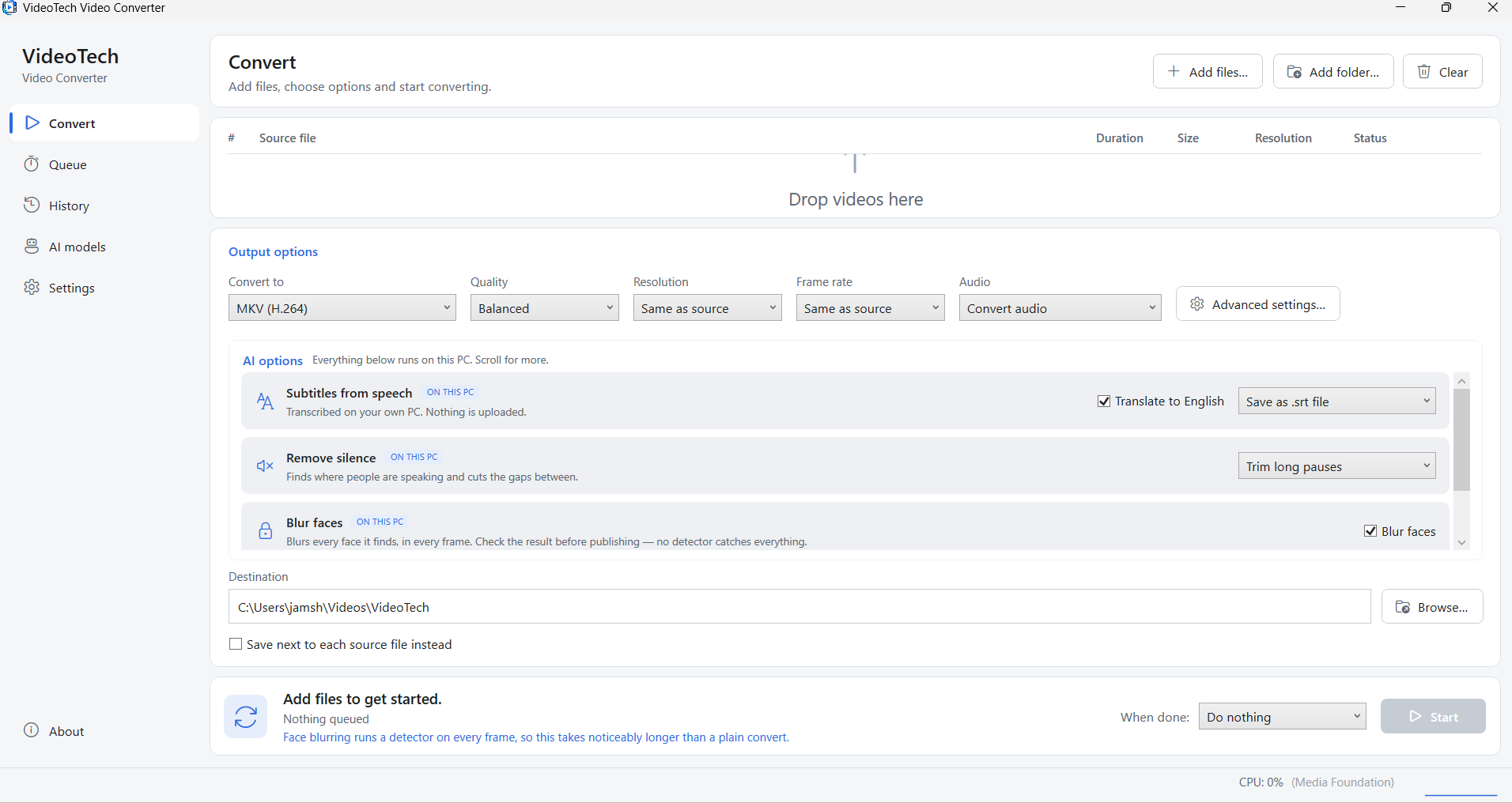
Five AI models, all running on your machine
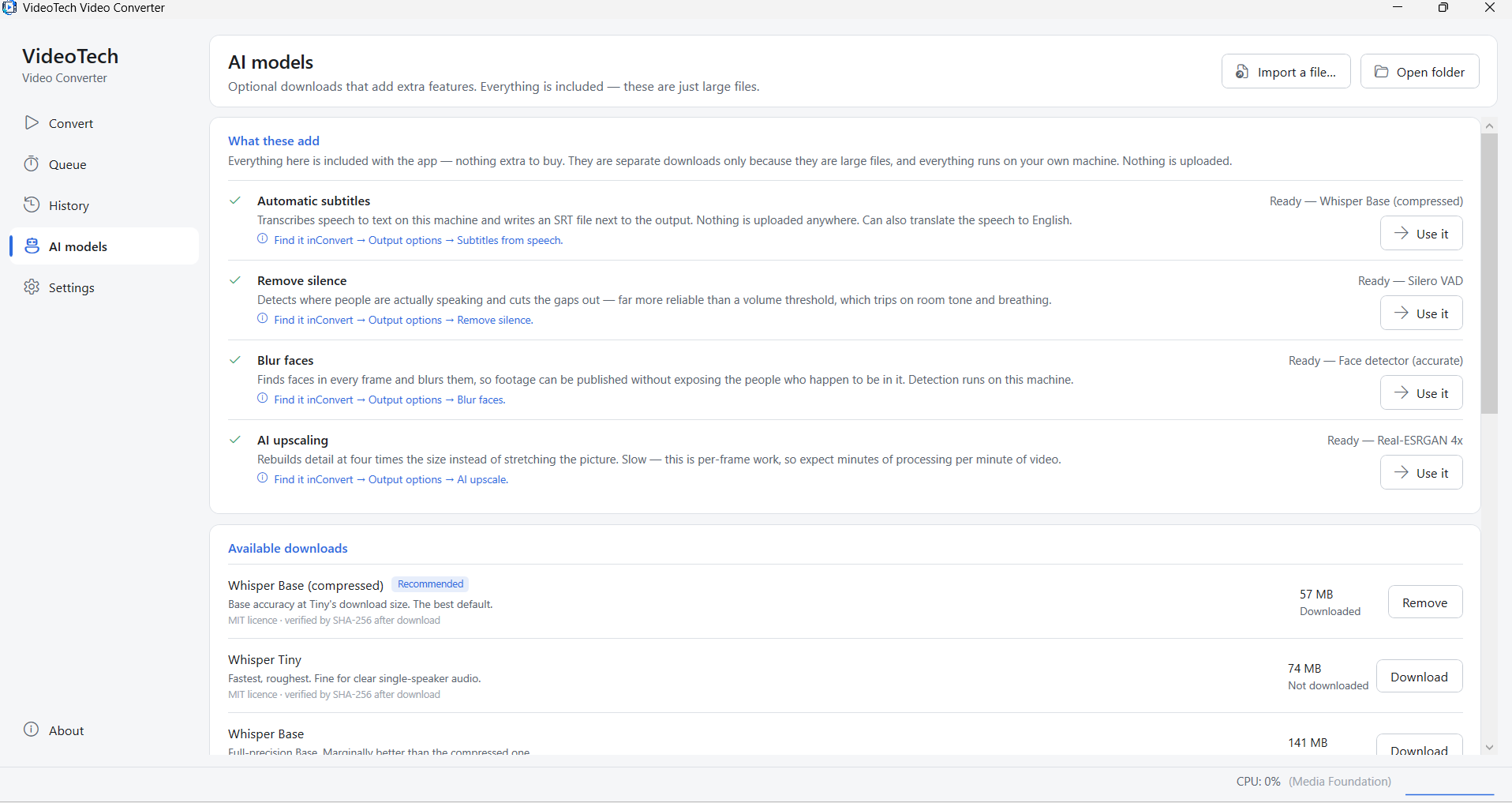
Models are fetched from inside the app, once, only for the features you actually want — they are separate downloads purely because they are large files. Each one is checked against a known size and SHA-256 fingerprint before it is accepted, so a half-finished or substituted download can never be used by mistake. Offline machines can import a model file from disk instead.
| Feature | Model | Download | What it does |
|---|---|---|---|
| Automatic subtitles | Whisper — eight tiers, from Tiny to Large v3 Turbo | 57 MB recommended tier |
Transcribes the speech in your video and writes subtitles from it, on your own machine. Can translate other languages straight into English. |
| Clean up audio | DeepFilterNet 3 | 8 MB | Separates the voice from the noise and keeps the voice — traffic, hum, hiss, air conditioning, room tone. A speech-enhancement model, not an equaliser or a noise gate. |
| Remove silence | Silero VAD | 2 MB | Finds where people are actually speaking and cuts the gaps between, in the same single conversion pass. |
| Blur faces | Face detector (accurate) | 2 MB | Detects faces on every frame and blurs them — nothing to draw and nothing to keyframe. |
| AI upscale | Real-ESRGAN 4x | 64 MB | Rebuilds the picture at four times the size, reconstructing edges and texture instead of stretching the pixels that were already there. |
Changelog — what's new in each release
Full release history from 0.1.0 — the conversion engine and 20 output formats, container remuxing, the batch queue and the tested encoder ladder, automatic subtitles; then 0.2.0, which added silence removal, face blur and upscaling on a shared frame pipeline; then 0.3.0 and audio cleanup.
View the full changelogUser Guide — every option explained
A plain-English walkthrough of choosing a format, subtitles, audio cleanup, removing silence, face blur, AI upscaling, the AI models page, batch settings and the command line — including what each AI feature costs you in time.
Read the User GuideThe AI features in detail
💬 Subtitles written from speech
Save them as a separate .srt, embed them as a real track the viewer can switch off, or burn them into the picture for social platforms that ignore subtitle tracks. Translate to English transcribes other languages straight into English subtitles. Eight Whisper tiers are offered — and when more than one is installed, the most accurate one is used rather than the first in the list. The .srt is always kept beside the output, even when burned in, so you can correct it and run the file again.
🔇 Clean up noisy audio
DeepFilterNet 3 pulls the voice out from behind traffic, hum, hiss and room tone. It is speech enhancement, not a noise gate — it doesn’t simply turn the quiet parts down. Measured on a test mix: 20 dB of noise removed with the speech level within 1 dB of the clean reference. Three strengths, from taking the edge off to removing everything the model can. Stereo stays stereo, each channel processed separately. It is quick — audio, not video, so it adds seconds rather than minutes.
✂️ Remove silence, properly
A speech model rather than a volume threshold, and that is the whole difference: room tone, breathing, a fan and a door down the hall all clear a volume gate, while a word trailing off at the end of a sentence often doesn’t. Three strengths, padding left around every phrase so the cut never clips the first or last word, and the cutting happens inside the single conversion pass — one re-encode, no temporary fragments, nothing that can drift out of sync at a join.
🫥 Blur faces for privacy
Detection runs on every frame rather than on samples with interpolation between them, and a face lost for a moment stays blurred for a short while afterwards — a one-frame dropout is invisible while scrubbing and perfectly legible when paused. No image and no face leaves your computer, and the app keeps no record of anyone it has seen. No detector catches everything and the blur is permanent, so check the output before you publish it.
🔍 AI upscaling for old footage
Real-ESRGAN 4x, applied per frame with overlapping tiles so no seams appear. Old phone videos, downloaded clips and screen recordings get edges and texture reconstructed rather than smeared. Limited to sources up to about 480p — 4× of that is 1080p, and 4× of anything larger is past 4K. Set Resolution as well to cap the result.
⚙️ One encode, whatever you switch on
A shared frame pipeline sits behind the per-frame models: the source is decoded to raw frames, the models run, and the frames are piped straight into the conversion that was going to happen anyway. One encode and no intermediate file — and everything else you picked (format, resolution, frame rate, subtitles, silence removal) still applies on top.
And underneath, a complete converter
🎬 20 output formats
MP4 (H.264, HEVC or AV1), WebM (VP9 / AV1), MKV, MOV (ProRes or H.264), AVI, and animated GIF. Audio out as MP3, AAC, Opus, FLAC, WAV, ALAC or Vorbis — picking an audio format for a video file extracts its sound.
⚡ Change container, no re-encode
The one worth knowing about. A player rejects your .mkv even though the video inside is perfectly fine — VideoTech rewraps it into another container without touching the video. Seconds instead of minutes, and no quality loss at all. Most converters make you re-encode instead.
📦 Batch by the folder
Drop a file, a selection, or a whole folder and it finds every media file inside, including subfolders. One set of options applies to the whole list — that is the entire promise of the app. Each file is checked as it is added, so a corrupt one is refused straight away rather than failing halfway through a long batch.
🖥️ An encoder ladder that is tested, not trusted
H.264 and HEVC come from a hardware encoder — NVENC, Quick Sync or AMF — or from the encoder built into Windows. Each candidate is test-encoded before it is chosen, because the driver list advertises NVENC even on a machine with no NVIDIA card, so the list alone cannot be trusted.
⏱️ Progress and ETAs you can believe
Per file and overall, mirrored onto the taskbar button so you can leave it running behind other windows. The ETA is withheld for the first two seconds because encoders spend that moment initialising, and an estimate that swings wildly reads as a bug.
🚫 Impossible jobs rejected up front
Extracting audio from a silent file, remuxing HEVC into AVI, burning subtitles into a stream being copied untouched, upscaling something already bigger than 480p — all refused before the batch starts, with a sentence explaining why instead of a wall of encoder output.
🕓 History and safe naming
History is kept across restarts, showing what each conversion did to the file size. Name clashes add a number, overwrite or skip, as you prefer — except converting a file into its own folder in the same format, which always gets a suffix, because reading and writing one file at once would destroy it.
⌨️ Fully scriptable
Everything the window does runs headless, including the AI features: --subs, --translate, --clean-audio, --remove-silence, --blur-faces and --upscale, alongside format, quality, resolution and frame rate. The exit code is 0 when every file converted.
🌙 “When done”
Do nothing, open the folder, close the app, sleep, or shut down. Sleep and shutdown go through a 60-second delay, so an unattended batch that finishes while you are back at the keyboard can still be stopped with shutdown /a.
🎞️ Details that were measured, not guessed
GIF gets a two-pass palette, because a naive one-pass GIF is 8-bit mud. Thumbnails are taken 10% into each file, not from the first frame, which is usually black or a title card and made every row look identical. Conversions run one at a time by default, because parallel encodes fight over the same GPU session and usually finish slower.
Common Uses
🎙️ A two-hour interview into something publishable
Clean up the audio, cut the silence, and write the subtitles — in one pass, with the captions remapped onto the shortened timeline so they still line up. The row tells you how much dead air it removed.
🏙️ Footage filmed in public, going online
Blur every face the detector finds, on every frame, without drawing a single box or setting a keyframe — and without the footage ever leaving your machine. Check the result before publishing.
📼 An old phone clip worth keeping
Rebuild a 480p video at four times the size so it is watchable at 1080p, then cap the result with the resolution setting. Start with a short clip and watch the estimate first.
🎥 A folder of clips that won’t play
Point VideoTech at the folder and change the container with no re-encoding — the whole batch finishes in seconds with nothing lost. Or convert the lot to MP4 (H.264) and let the hardware encoder do the work.
🎧 A video podcast into an audio one
Extract to MP3 with the noise cleaned out and a .srt written beside it for show notes — a sidecar subtitle file alongside an audio-only output works, which is not a given elsewhere.
🤖 A scheduled job on a server
Run the same queue headless from a script or a scheduled task, AI options included, and let the exit code tell you whether every file converted.
.srt before you publish it. No face detector catches every face, and the blur is baked into the picture once written, so a partially blurred video is not a partially private one: check the output. AI upscaling is fixed at 4× and limited to sources up to about 480p. Face blur has no preview, and burned-in subtitle styling is not yet adjustable.
Latest Release
Version 0.3.0 — August 2026
Clean up audio — the fifth AI feature, and the first one that makes the others better. DeepFilterNet 3 strips hiss, hum, traffic and room tone out of speech and leaves the voice, then silence removal and transcription both read the cleaned track rather than the noisy one. Also fixes a bug that release exposed: every subtitle could be discarded when cleanup and silence removal were switched on together.