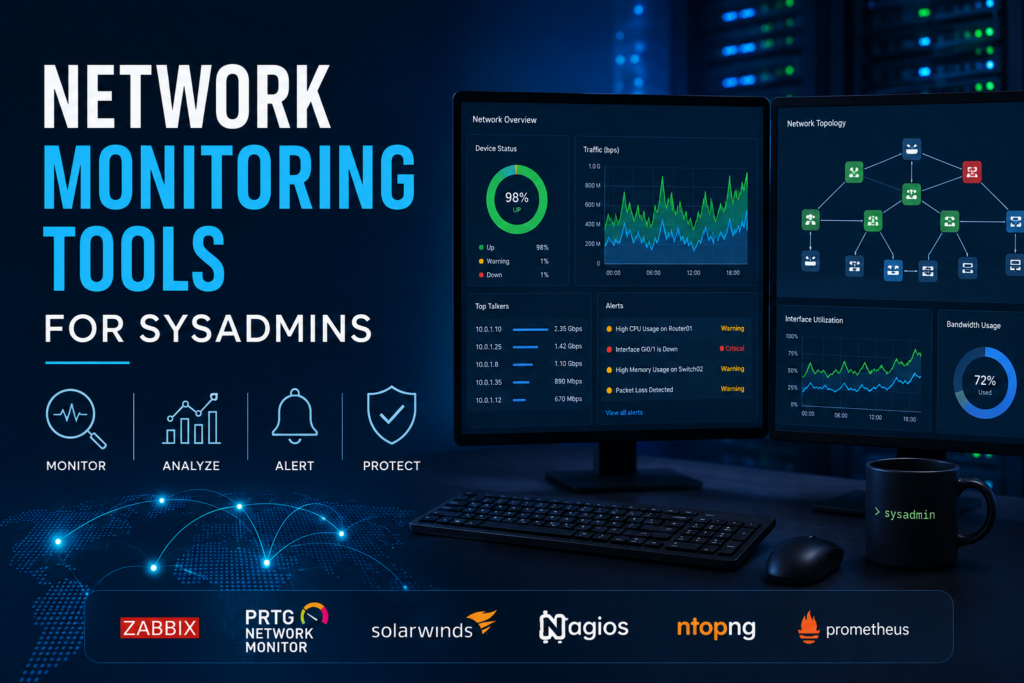
“Network monitoring” covers a lot of ground — from a quick check of which process is hogging your bandwidth, to enterprise-wide flow analysis that spots a DDoS in progress. The right tool depends on the question you are answering. Here are the tools worth knowing, starting with our own, grouped by what they do best.
What to look for
- Scope — a single host, or your whole network?
- Data source — live packet/socket inspection, exported flow records (sFlow/NetFlow), or polled metrics (SNMP/agents)?
- Alerting — can it tell you the moment something crosses a threshold, with low false-positive noise?
- Retention & reporting — can you see trends over time, not just the current instant?
1. NetPulse — real-time monitoring for a Windows host
When you need to know what a specific Windows machine is doing on the wire right now, NetPulse is the fastest answer.
NetPulse — Real-Time Network Monitor for Windows
NetPulse gives you a live dashboard of your Windows machine’s traffic: TCP/UDP/IP/ICMP protocol charts, per-adapter interfaces, connections grouped by process, built-in ping/DNS/traceroute probes, history, and threshold alerts — everything you need to spot a spike or a leak the moment it happens.
2. sFlow Analyzer — network-wide flow analysis
Once you care about the whole network rather than one box, flow data from your switches and routers is the way to scale. sFlow Analyzer turns those exports into actionable insight.
sFlow Analyzer — Enterprise Traffic Analysis
For network-wide visibility, sFlow Analyzer turns the sFlow exports from your switches and routers into insight: DDoS detection, VLAN monitoring, MAC tracking and more than 30 charts that show exactly who is talking to whom and where your bandwidth is going.
3. BackendSideMon — continuous server & connection monitoring
For always-on monitoring of servers (Windows and Linux) with a web dashboard and alerting, BackendSideMon keeps an eye on TCP/UDP/ICMP stats, processes and connections as a background service.
BackendSideMon — Real-Time Server Monitoring
Running commands by hand tells you how a server is doing right now; BackendSideMon tells you around the clock. It tracks TCP/UDP/ICMP stats, processes and connections through a clean web dashboard, and runs as a service on both Windows and Linux — so problems surface before your users report them.
4. Process & Port Analyzer — per-process forensics on Windows
Sometimes the question is simply “what opened this port?” or “which process is making that connection?” Process & Port Analyzer maps every active TCP/UDP connection and listening port to its owning process, with a built-in packet sniffer and a view of your firewall rules.
5. HostDesk — network diagnostics in your pocket
For checks on the move, HostDesk puts DNS lookups, port scanning and connectivity troubleshooting on your Android phone — handy when you are standing in front of a rack rather than sitting at your desk.
Other established tools worth knowing
No round-up is complete without the well-known names that have earned their place in the field:
- Wireshark — the gold standard for deep, packet-level analysis when you need to see every byte.
- Nagios / Icinga — long-standing infrastructure monitoring with a huge plugin ecosystem.
- Zabbix — open-source metrics collection, alerting and dashboards at scale.
- ntopng — flow and traffic visibility with a friendly web interface.
- PRTG — an all-in-one commercial sensor-based monitoring suite.
How to choose
Start from the question you most need answered. For a single Windows host, reach for NetPulse or Process & Port Analyzer. For network-wide traffic, use flow analysis like sFlow Analyzer. For always-on server health with alerts, run BackendSideMon. Most teams end up with two or three complementary tools — one for live inspection, one for continuous monitoring, and one for deep analysis when something genuinely strange happens.
Leave a Reply