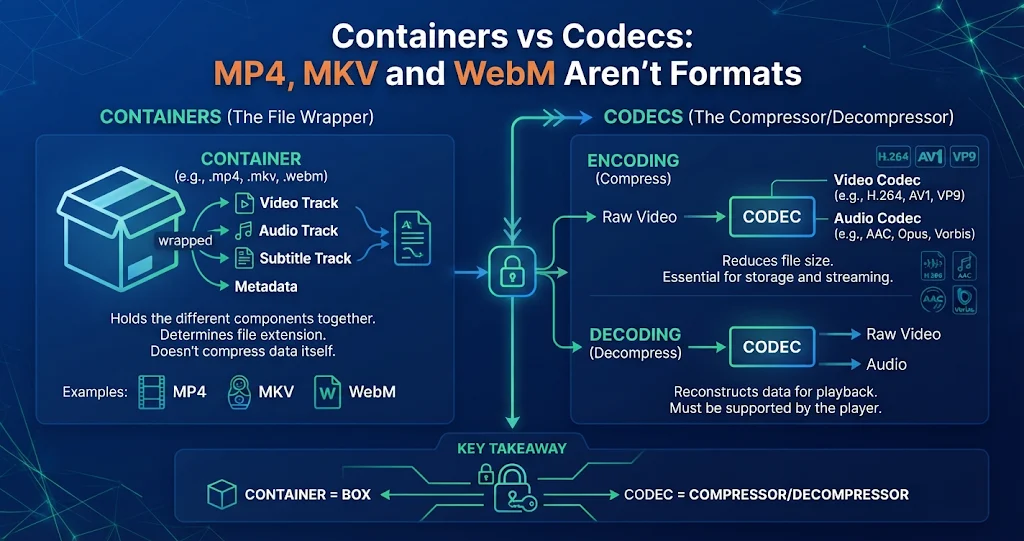
“What format is it?” “MP4.” It is the most natural exchange in the world, and it is only half an answer. MP4, MKV and WebM are not video formats in the sense most people mean — they are containers: boxes that hold video, audio, subtitles and metadata. What is inside the box, the codec, decides how big the file is and whether your device can play it. Once that clicks, a whole class of “this file won’t play” problems becomes easy to fix.
The box and the contents
Think of a container like a ZIP file. The .zip extension tells you how the archive is organised; it tells you nothing about whether the files inside are spreadsheets or photos. A video container works the same way. It defines how streams are stored and interleaved, how the player finds a given moment in the file, and where things like the title, chapters and language tags go.
A typical video file contains several streams:
- One or more video streams, encoded with a codec such as H.264, HEVC, VP9 or AV1.
- One or more audio streams, encoded with AAC, Opus, MP3, AC-3, FLAC and so on — for example, several languages.
- Subtitle streams, in formats such as SRT, WebVTT, ASS or image-based PGS.
- Metadata: title, chapters, rotation, cover art.
So two files both called holiday.mp4 can be completely different: one H.264 with AAC audio that plays on a ten-year-old TV, the other AV1 with Opus that the same TV cannot open. The extension did not lie. It just never promised anything about the codec.
The common containers compared
| Container | Typical video | Typical audio | Subtitles | Strengths | Watch out for |
|---|---|---|---|---|---|
| MP4 (.mp4, .m4v) | H.264, HEVC, AV1 | AAC, MP3, AC-3; Opus with newer players | Limited (simple text) | Plays nearly everywhere; streaming-friendly | Fussy about less common codecs and styled subtitles |
| MKV (Matroska) | Almost anything | Almost anything | Excellent: SRT, ASS, PGS, many tracks | Multiple audio and subtitle tracks, chapters | Patchy support on some TVs, phones and editors |
| WebM | VP8, VP9, AV1 only | Vorbis, Opus only | WebVTT | Royalty-free, made for browsers | Strict codec list; limited outside browsers |
| MOV (QuickTime) | H.264, HEVC, ProRes | AAC, PCM | Limited | Editing and Apple workflows | Large files when it holds ProRes |
| AVI | Older codecs (MPEG-4 Part 2, etc.) | MP3, PCM | Not really | Very old players and devices | Poor fit for modern codecs such as HEVC |
WebM is the odd one out in a useful way: it is a restricted subset of Matroska that only allows royalty-free codecs, so a browser that supports WebM knows exactly what it might find inside.
Why a file plays here but not there
When a file fails to play, one of three things is usually going on:
- The player does not understand the container. A smart TV that handles MP4 but not MKV will reject a perfectly ordinary H.264 file in an
.mkv. The video is fine; the box is the problem. - The player does not have the codec. An older laptop without HEVC or AV1 decoding will open the MP4 but show a black screen, stutter, or play sound only.
- One stream is the problem. Video plays but there is no sound, because the audio is DTS or AC-3 and the device does not decode it. Or the subtitles are missing because they are an image-based format the player ignores.
The fix is different in each case, and the first case is the cheapest by far.
Find out what is really inside
Before converting anything, look inside the box. The free ffprobe tool, part of ffmpeg, lists every stream:
ffprobe -v error -show_entries stream=index,codec_type,codec_name:stream_tags=language -of compact movie.mkv

stream|index=0|codec_name=h264|codec_type=video
stream|index=1|codec_name=aac|codec_type=audio|tag:language=eng
stream|index=2|codec_name=subrip|codec_type=subtitle|tag:language=eng
Here the video is H.264, the audio is AAC and the subtitles are SRT (“subrip”). Every one of those can live happily in an MP4, which means this file does not need converting at all — it needs rewrapping.
Remux, don’t re-encode
Remuxing copies the existing streams, untouched, into a new container. Transcoding decodes the video and compresses it again. The difference is dramatic:
| Remux | Transcode | |
|---|---|---|
| What changes | Only the box | The video itself |
| Speed | Seconds, limited by disk speed | Minutes to hours |
| Quality | Identical, bit for bit | A little lower with every lossy pass |
| File size | Roughly the same | Whatever you choose |
| When it works | When the target container supports the codecs inside | Always |
With ffmpeg, the magic words are -c copy:
# MKV to MP4 without re-encoding; convert SRT subtitles to MP4's text format
ffmpeg -i movie.mkv -map 0 -c copy -c:s mov_text movie.mp4

# Keep only the first video and the English audio track
ffmpeg -i movie.mkv -map 0:v:0 -map 0:a:m:language:eng -c copy movie.mp4

# Move the index to the front so a web page can start playing before the download finishes
ffmpeg -i movie.mp4 -c copy -movflags +faststart movie-web.mp4
If ffmpeg refuses, it is telling you the target container cannot hold one of the streams — for example, image-based PGS subtitles or certain audio formats in MP4. In that case drop or convert just that stream (-c:a aac re-encodes only the audio, leaving the video copied) rather than re-encoding everything.
VideoTech — Change the Container, Keep the Video
A player rejects your .mkv even though the video inside is perfectly fine? VideoTech rewraps it into another container without touching the video — seconds instead of minutes, and no quality loss at all. Point it at a whole folder and the batch finishes in seconds. Impossible jobs, such as remuxing HEVC into AVI, are refused before the batch starts with a sentence explaining why.
When you really do need to re-encode
Remuxing cannot help when the codec is the problem. If an older device cannot decode HEVC or AV1, the only fix is to transcode to something it can, usually H.264. The same applies when you need a smaller file, a lower resolution, or a codec a platform insists on. And image-based subtitles cannot become text without either burning them into the picture or running them through OCR.
A quick decision guide:
- Player rejects the file, codecs are common (H.264/HEVC + AAC): remux to MP4.
- Video plays, no sound: re-encode just the audio to AAC and copy the video.
- Black screen or stutter on an older device: transcode the video to H.264.
- File too big: transcode, ideally to a more efficient codec or lower resolution.
- Need several languages and subtitle tracks in one file: MKV, if the player supports it.
- Embedding in a web page: MP4 with H.264 for reach, optionally WebM with VP9 or AV1 as a second source.
Picking a container on purpose
A short rule set covers most cases. Use MP4 for anything you share, upload or play on phones and TVs. Use MKV for your own archive, especially with multiple audio and subtitle tracks — and because it tolerates interruption well, it is a good format to record into. Use WebM for royalty-free web delivery. Use MOV when an editing workflow asks for it. Leave AVI for hardware that will not accept anything else.
For a walkthrough of a Windows converter that handles both remuxing and full conversions, plus on-device AI tools, see our introduction to VideoTech.
VideoTech — 20 Output Formats, Subtitles Included
When a re-encode really is needed, VideoTech converts to MP4 (H.264, HEVC or AV1), WebM (VP9 or AV1), MKV, MOV (ProRes or H.264), AVI and animated GIF, or extracts the audio to MP3, AAC, Opus, FLAC, WAV, ALAC or Vorbis. It can also write subtitles from speech on your own PC — saved as a separate .srt, embedded as a real track the viewer can switch off, or burned into the picture.
Key takeaways
- MP4, MKV and WebM are containers — boxes holding video, audio and subtitle streams. The codec inside decides size and compatibility.
- Two files with the same extension can be completely different; use
ffprobeto see what is really inside. - Playback failures come from the container, a codec, or one stream — each has a different fix.
- Remuxing (
-c copy) changes only the box: seconds instead of minutes, with zero quality loss. - Re-encode only what you must — often just the audio track.
- VideoTech can change the container without re-encoding, convert to 20 output formats when you do need to, and refuse impossible jobs up front.
VideoTech — Change the Container, Keep the Video
A player rejects your .mkv even though the video inside is perfectly fine? VideoTech rewraps it into another container without touching the video — seconds instead of minutes, and no quality loss at all. Point it at a whole folder and the batch finishes in seconds. Impossible jobs, such as remuxing HEVC into AVI, are refused before the batch starts with a sentence explaining why.
Leave a Reply