
Kinzo for Windows – Wi-Fi / LAN Messenger for Your PC
Your PC and your phone, over your own network • No internet • No accounts
Kinzo for Windows is a messenger that works without the internet. Your PC and your Android phone find each other on the same network and talk directly — no account, no server in the middle, nothing uploaded anywhere. Drag a photo onto a conversation and it lands on the phone; a video from the phone opens on the PC in Kinzo’s own viewer. Messages travel encrypted, straight from one device to the other, and because there is no server there is nothing in between to hold a copy.
Download Kinzo for Windows 1.0
Available on the Microsoft Store — no account, no sign-up, no ads.
Or view the listing at apps.microsoft.com.
You need Kinzo on your phone too
Kinzo for Windows talks to Kinzo for Android, free on Google Play. Install it on your phone, open both, and your PC appears on the phone’s list — pair once and they find each other from then on. Phones on Kinzo 1.2 work today.

Phone to PC without cables, cloud or email
Kinzo needs a network, not a connection to the outside world. As long as your PC and your phone share one, they can talk:
- Getting photos and videos from your phone onto your PC — no cable, no cloud upload, no emailing yourself
- At home when the internet is down but the router is still up
- Workshops, offices and classrooms passing things around without the cloud
- Anywhere your connection is slow, metered, or nobody else’s business
Changelog — what’s in each release
Release notes for Kinzo for Windows. 1.0 is the first release — finding devices, pairing, messaging and media, stickers, the firewall setup, the tray, and the honest list of known limitations.
View the full changelogUser Guide — every screen, every workflow
Step-by-step walkthrough of Kinzo for Windows — pairing with your phone and the six-digit code, what to do when nothing appears, messaging and receipts, sending by drag and drop or paste, the viewer, stickers, the Windows Firewall setup, staying reachable from the tray, settings, managing conversations, privacy, and troubleshooting.
Read the User GuideFeatures
📡 Devices Find Each Other
Open the Available tab and phones running Kinzo on your network appear on their own. A device that has merely gone quiet is checked before it is dropped, so an idle phone does not vanish from the list — and one that has really left does.
🤝 Pairing With a Six-Digit Code
Click a device, then Pair. Both screens show the same six-digit code; matching numbers mean nothing is sitting in between. Pairing is a one-time step — after that, the phone and the PC recognise each other by key.
📷 A QR Code for Your Phone
Settings shows a QR code carrying every address this PC can be reached at, plus its key. Scan it with the phone and it connects and pairs in one step, picking whichever address it can actually reach — the way round networks that block discovery.
💬 Text With Receipts
One tick when a message has left this PC, two when the other device has stored it. Messages written while a phone is away are queued and sent the moment it comes back, and a message that failed can be retried with a right-click.
🖼 Drag, Drop or Paste
Send photos, videos and voice notes by dragging them onto the conversation, pasting with Ctrl+V — a screenshot included — or the paperclip. Large files move in pieces with a progress bar.
🎥 A Built-in Viewer
Click a photo or video to open it in Kinzo’s own viewer — zoom, pan, play and seek — with Open, Save as… and Show in folder a right-click away. A file Windows would run rather than open is shown in Explorer, never launched.
✨ Stickers & Big Emoji
The smiley beside the paperclip opens the 24-sticker Kinzo pack. Stickers arrive without a bubble, and a message of one to three emoji is shown large. Phones on Kinzo 1.2 receive stickers as ordinary pictures.
🛡 A Firewall Setup That Asks
For a phone to reach your PC, Windows Firewall has to let Kinzo in. Kinzo names the network you are on and asks which kinds of network to allow. Its rules cover only Kinzo, only its own ports and only your local network — and it never changes your network’s category.
🔔 Reachable From the Tray
Closing the window keeps Kinzo running by the clock, because a Kinzo that is not running cannot be reached. Notifications for new messages, unread count in the tooltip, Quit on the right-click menu, and an optional start with Windows.
👤 Your Conversations, Your Way
Profile pictures shared only with paired devices, your own nicknames for devices, per-conversation mute, and Delete chat that clears this PC only. Removing a device keeps the conversation readable, with a Pair again button.
🔐 Encrypted, Device to Device
Every connection is encrypted with TLS and authenticated at both ends. Each device’s key is remembered when you pair: only the device you paired with can reconnect, and anything presenting a different key is refused. A saved address is treated as a hint, never as the device — Kinzo will not send to a stranger who has taken it.
🔒 Private by Construction
No account, no sign-up, no phone number, no email. We run no servers and collect nothing — there is nowhere for your messages to be uploaded to. Choose the name other devices see, so your PC’s real name stays private.
Good to know
- The PC and the phone must be on the same network. Guest networks, Wi-Fi extenders running in router mode and routers with client isolation can stop devices finding each other. The QR code and Connect to a device cover most of these; the user guide walks through them.
- Windows Firewall has to let Kinzo in for the phone to start a conversation with the PC. Kinzo offers to set this up, which asks for administrator permission once. Dialling out from the PC always works.
- Photos, videos and voice notes only. Documents and archives are refused, because the phone app cannot show them.
- Messages are stored unencrypted on your own PC, in your Windows user profile. Connections between devices are always encrypted.
- Emoji are drawn in black and white on Windows, and stickers need Microsoft’s free WebP Image Extensions, which Windows 11 normally has.
Screenshots
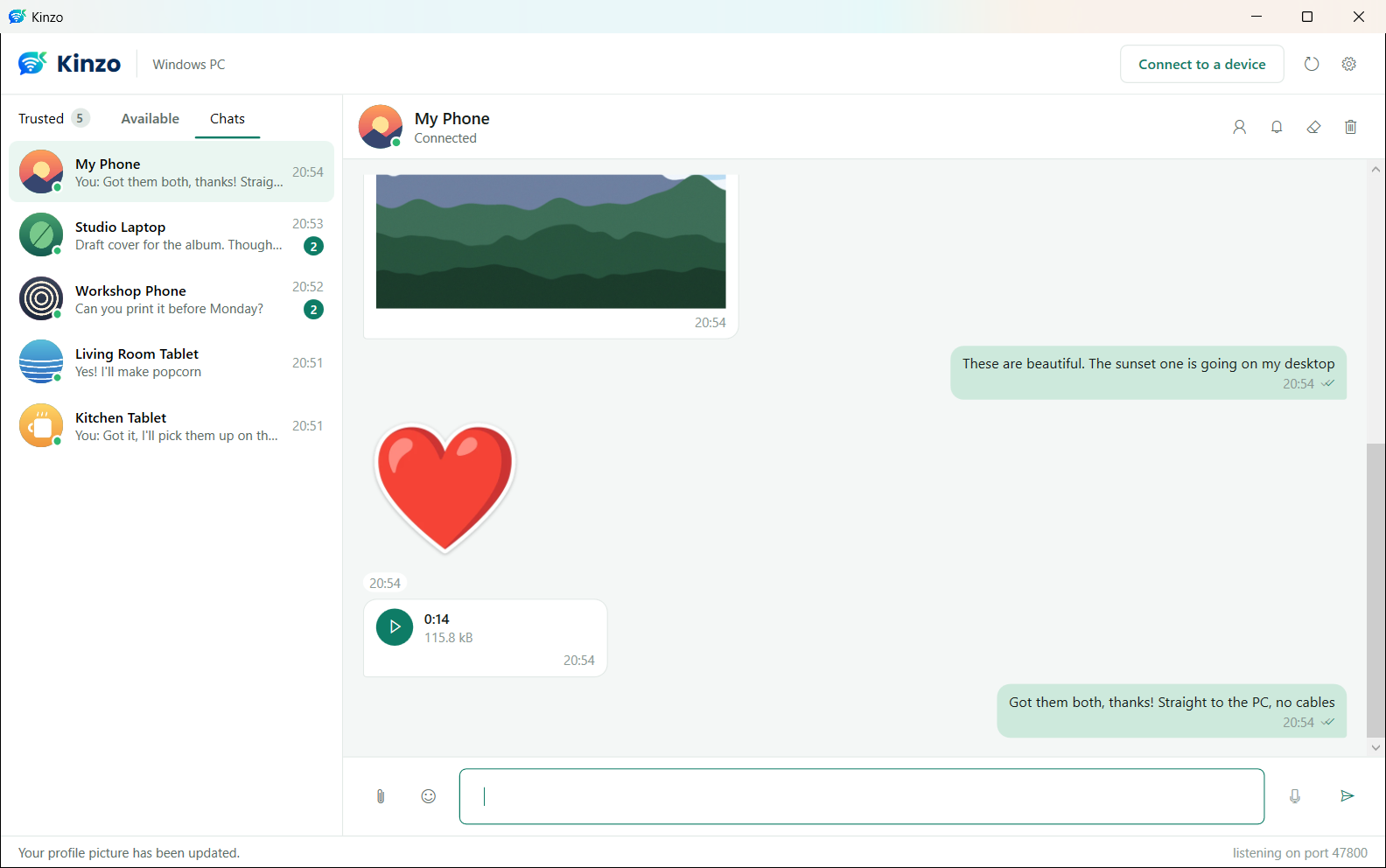
Conversations with previews and unread badges — a sticker, a voice note and replies marked delivered
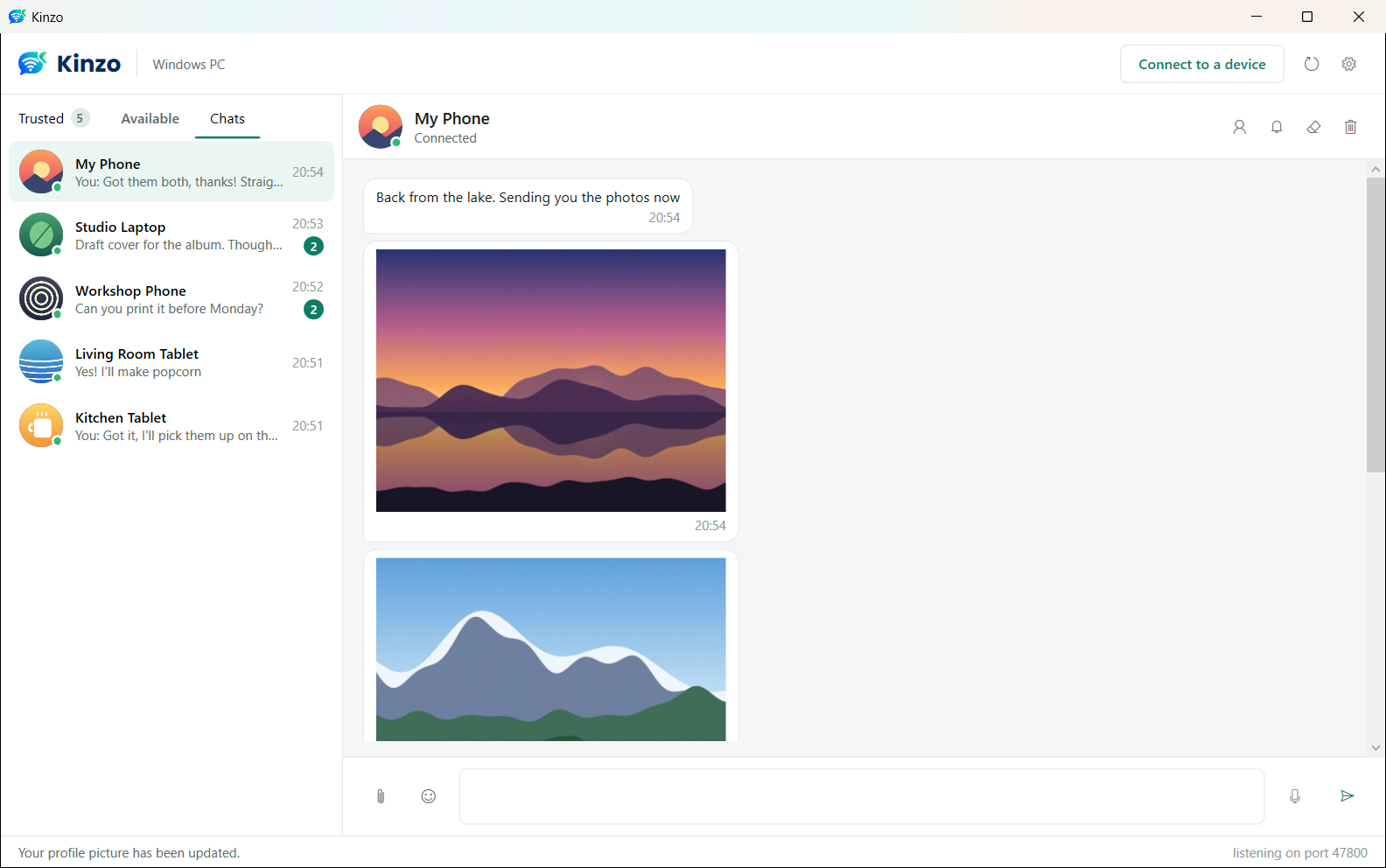
Photos from the phone, straight onto the PC — no cable, no cloud
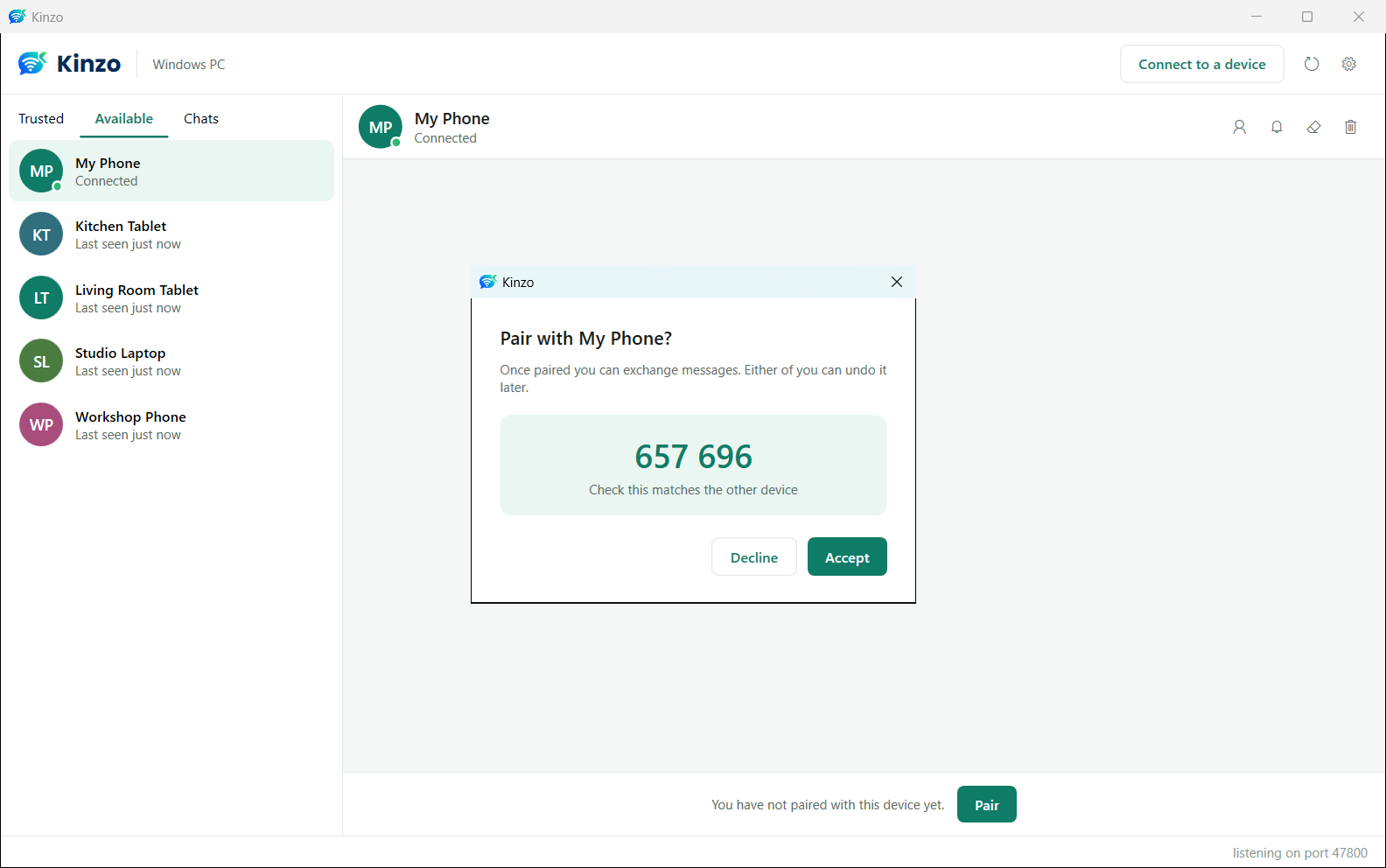
A pair request, with the six-digit code to check against the phone
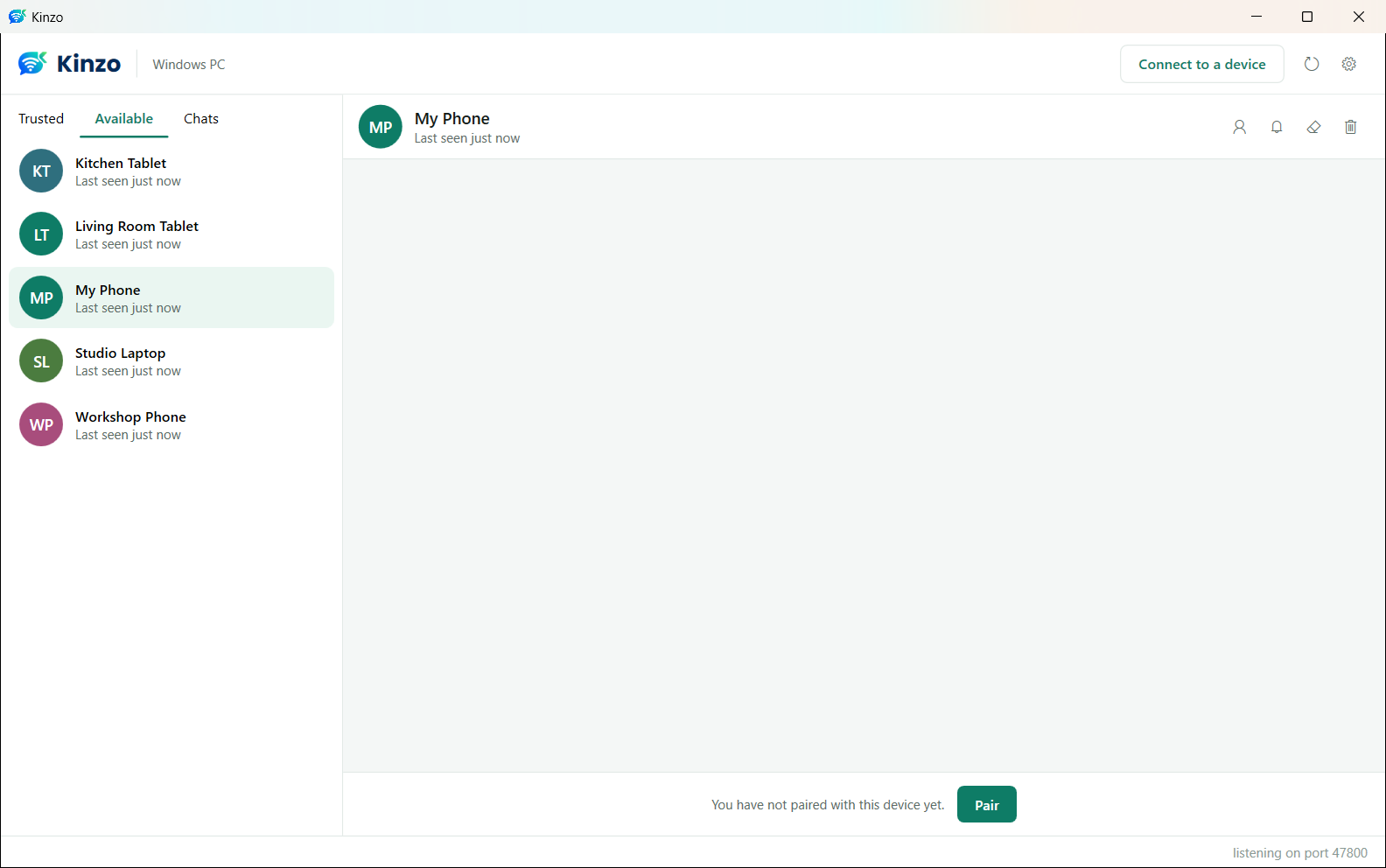
Available — devices on your network, found automatically
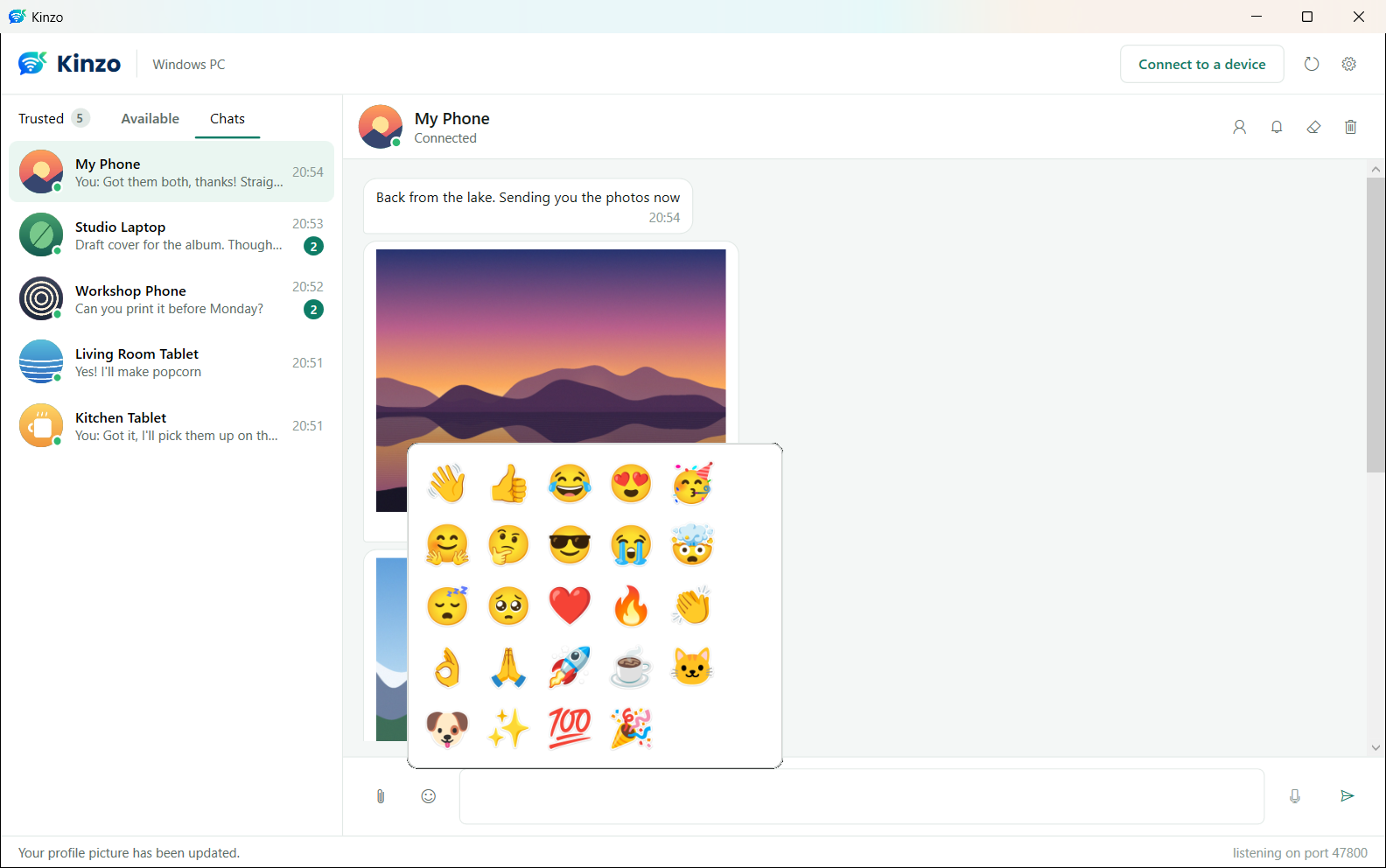
The sticker picker — the same 24-sticker Kinzo pack the phone has
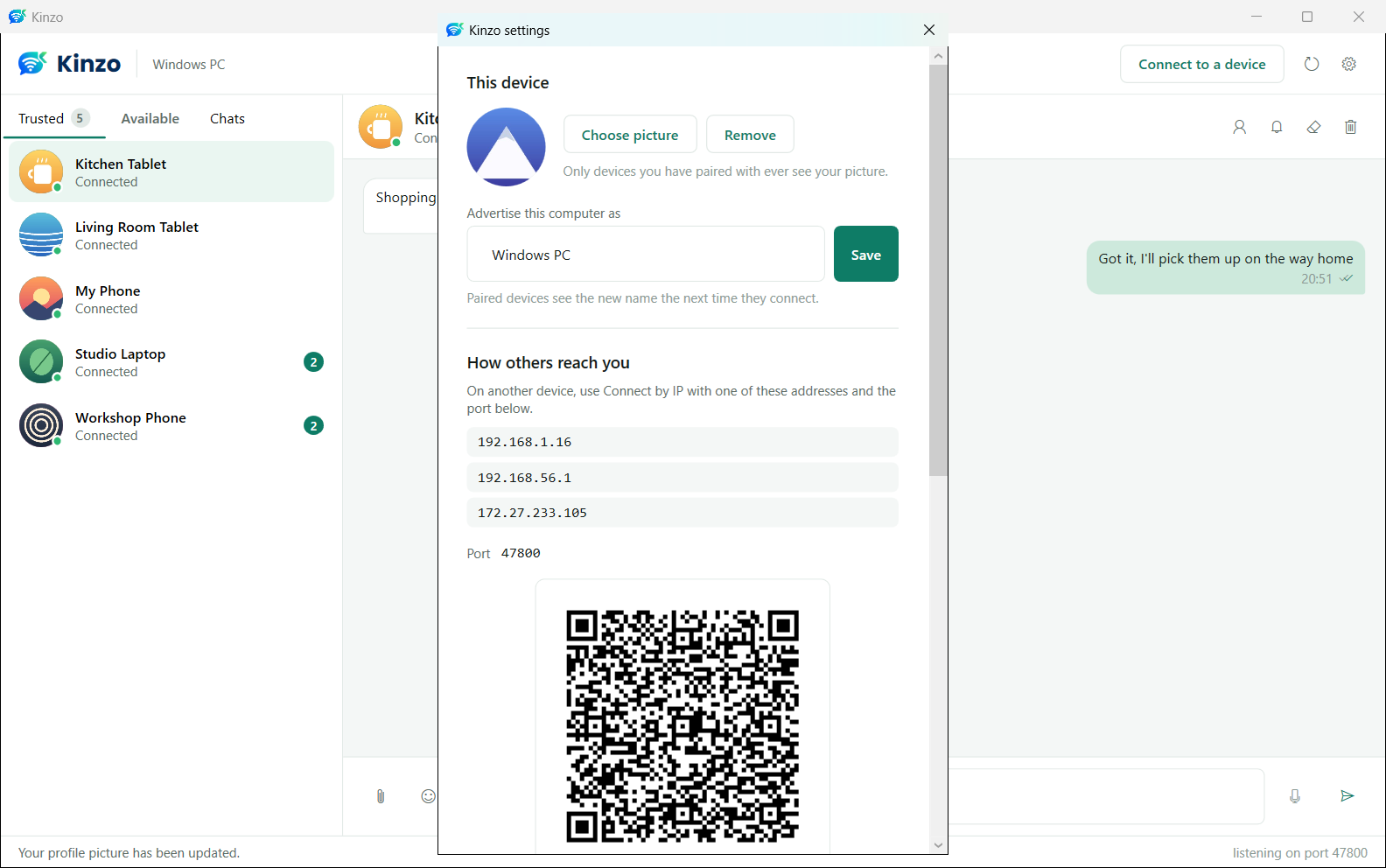
Settings — your picture, the name others see, this PC’s addresses and its QR code
Latest Release
Version 1.0 — October 23, 2026
The first release of Kinzo for Windows. It pairs and talks with Kinzo for Android 1.2 over your own network — text with receipts and an offline queue, photos, videos and voice notes by drag and drop or paste, a built-in viewer, stickers and big emoji, a QR code for the phone to scan, a Windows Firewall setup that asks rather than assumes, and a tray icon that keeps your PC reachable. Encrypted device to device, with no account and no server.