There is a particular kind of video you would never upload to a website. A consultation you recorded for your own notes. A deposition. Footage of your children. A client’s unreleased product. An interview with someone who agreed to talk to you and not to a data-processing agreement in a jurisdiction they have never heard of. And yet almost every AI video tool worth using works exactly one way: you hand over the file, a server somewhere does the clever part, and you pay monthly for the privilege.
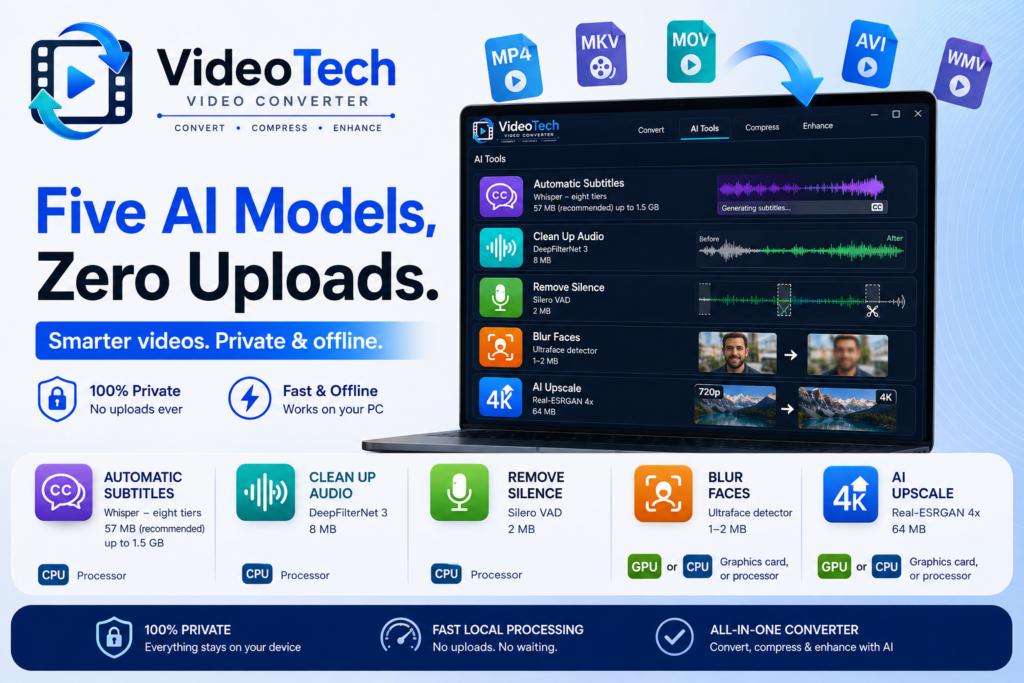
VideoTech Video Converter takes the other road. It is a straightforward Windows video converter — drop in a file or a folder, pick a format, press Start — with five AI features built into the conversion. All five run on your own processor and your own graphics card. Nothing is uploaded, nothing is stored on a server, nothing is used to train anything, and once a model is on your machine the whole application works with the network cable pulled out.
This post is about those five models: what each one actually is, how big it is, what it is good at, and — the part most product pages skip — what it costs you in time on a machine without a graphics card.
What “runs on your PC” actually means here
The phrase gets used loosely, so it is worth being precise about what happens.
The models are not bundled inside the installer. They are fetched from inside the app, once, and only the ones you actually want — a speech model is a few dozen megabytes and there is no sense making somebody who only wants face blurring download it. That first fetch is the only moment VideoTech needs the internet. After it, the feature works offline forever.
Downloads are checked against a known exact byte size and a SHA-256 fingerprint before they are accepted, and written through a temporary file so a download that dies halfway can never be mistaken for a working model. The URLs are pinned to fixed revisions rather than to a moving “latest” pointer — if an upstream project ever re-uploaded a file, a moving link would quietly fetch different bytes, fail the fingerprint check, and break every user at once with nothing in the app to explain why.
If a machine has no internet at all, you can copy a model file from another PC and use Import a file… instead. Models live in %LOCALAPPDATA%VideoTechmodels, and removing one simply switches its feature back off — the rest of the app carries on.
The five models
| Feature | Model | Download | Runs on |
|---|---|---|---|
| Automatic subtitles | Whisper — eight tiers | 57 MB (recommended) up to 1.5 GB | Processor |
| Clean up audio | DeepFilterNet 3 | 8 MB | Processor |
| Remove silence | Silero VAD | 2 MB | Processor |
| Blur faces | Ultraface detector | 1–2 MB | Graphics card, or processor |
| AI upscale | Real-ESRGAN 4x | 64 MB | Graphics card, or processor |
1. Subtitles from speech — Whisper
VideoTech listens to the speech in your video and writes subtitles from it, then saves them as a separate .srt, embeds them as a real track the viewer can switch off, or burns them permanently into the picture for platforms that ignore subtitle tracks. It will also translate other languages straight into English subtitles while transcribing.
Eight tiers are offered, and the trade-off is honest rather than hidden. Base (compressed) at 57 MB is the recommended default — it gives you Base-level accuracy at roughly the download size of the Tiny model. Above it, Large v3 Turbo (compressed) at 547 MB is the accuracy upgrade actually worth taking: markedly better on accents, proper nouns and noisy rooms, with a decoder fast enough to be realistic on a processor. The full-precision variants exist for completeness and buy very little over their compressed counterparts at three times the size.
One small detail that matters if you experiment: when you have more than one speech model installed, VideoTech uses the most accurate one, not the first one it finds. That sounds obvious, and it is precisely the sort of thing that is easy to get wrong — downloading a better model and silently carrying on with the old one is a bug users would never think to look for.
Transcription runs before the conversion and can take longer than the conversion itself. And it should be said plainly: automatic transcription is automatic, not accurate. It mishears names, technical terms and numbers, and no model is exempt. VideoTech always keeps the .srt beside the output — even when you burn the subtitles in — specifically so you can correct it and run the file again.
VideoTech Video Converter — AI That Runs on Your PC
VideoTech converts video and audio on your own machine — MP4, HEVC, AV1, WebM, MKV, MOV, ProRes, GIF and every common audio format, batch conversion by the folder, hardware-accelerated encoding, and container changes with no re-encode at all. Built into it are five AI features that never touch the internet: subtitles from speech, background-noise removal, silence cutting, face blurring and 4× upscaling. Every one is included in the price — nothing extra to buy, ever.
2. Clean up audio — DeepFilterNet 3
At 8 MB this is the smallest meaningful model in the set and, for most people, the one that changes the most. It strips background noise out of speech — traffic, air conditioning, hum, hiss, a fan, the sound of the room itself — and leaves the voice.
The important distinction is that this is a speech-enhancement model, not an equaliser or a noise gate. A gate turns the quiet parts down, which is why gated audio sounds like it is breathing: the noise vanishes between words and reappears underneath them. A speech model separates the voice from everything else and reconstructs it. Measured on a test mix at full strength, VideoTech removes 20 dB of background noise while leaving the speech within 1 dB of the clean reference — the noise goes and the voice does not.
There are three strengths, and they are derived from the model’s own attenuation limit rather than picked by feel, so “light” means a measured 12 dB ceiling instead of a guess. Stereo stays stereo, each channel enhanced separately. It is quick — this is audio rather than video, so it adds seconds to a job, not minutes.
Turn it on even when it is not the feature you came for. Audio cleanup runs first in the chain, and both silence removal and transcription then read the cleaned track instead of the noisy one. Noisy audio is exactly the case where a speech detector gets confused and where transcription starts guessing at words, so cleaning first makes the other two features measurably better rather than merely coexisting with them.
3. Remove silence — Silero VAD
Podcasts, lectures, interviews and screen recordings are mostly gaps. This finds where people are actually speaking and cuts the rest out.
Nearly every “silence remover” you have used measures volume, and that is the whole problem with them. Room tone, breathing, a fan and a door closing down the hall all clear a volume threshold comfortably; a word trailing off at the end of a sentence often does not. The result is a tool that keeps the noise and clips your speech. Silero VAD is a voice-activity model — it is answering “is this speech?”, not “is this loud?” — which is a different and much more useful question.
Three strengths run from trimming only long dead air to removing everything that is not speech, and padding is always left around each phrase, because cutting exactly on the boundary clips the start of the first word and the end of the last. The cutting happens inside the single conversion pass, so there is one re-encode, no temporary fragments, and nothing that can drift out of sync at a join. When the row finishes it tells you what it took out — Removed 2m 14s of silence.
If you are generating subtitles at the same time, the captions are remapped onto the shortened timeline for you. Without that step they would slide further out of sync with every gap removed.
4. Blur faces — Ultraface
A one-to-two megabyte detector that finds faces and blurs them, for footage filmed in public that is going to be published: a street scene, a conference, a classroom.
Two design decisions are worth knowing. First, detection runs on every single frame rather than on sampled frames with interpolation between them. Second, a face that is lost for a moment stays blurred for a short while afterwards. That second rule exists because of how people actually check this kind of work: a one-frame dropout is invisible while you scrub through a video and perfectly legible the instant someone pauses on it.
And a limit stated in the app itself, which we will repeat here rather than bury: no face detector catches everything, and the blur is baked into the picture once the file is written. A partially blurred video is not a partially private one. Check the output before you publish it. The accurate detector catches smaller and more distant faces than the fast one and is the sensible default for anything you actually intend to release.
5. AI upscale — Real-ESRGAN 4x
Old phone footage, downloaded clips and screen recordings rebuilt at four times the size — reconstructing edges and texture rather than smearing the pixels that were already there. A 480p clip comes out watchable at 1080p, looking upscaled instead of blurry. The model is applied per frame with overlapping tiles so no seams appear across the picture.
It is deliberately limited to sources up to about 480p, because four times that is 1080p and four times anything larger is past 4K, which nobody needs. This is also comfortably the most expensive thing in the application, which brings us to the question that actually decides whether these features are usable for you.
With a graphics card, and without one
The three audio models — speech, noise and voice-activity — run on your processor and are not demanding. The two per-frame models are a different matter: face blur and upscaling have to run on every frame of the video, so their cost scales with length and frame rate rather than file size.
Those two use your graphics card when you have a DirectX 12 one, and fall back to the processor when you do not. For upscaling the difference is not a percentage; it is minutes per minute of video with a GPU, and hours without one.
We are stating both numbers on purpose. Quoting only the good one would be a refund request from everyone running a laptop with integrated graphics. VideoTech handles this the same way in the application itself: the job row tells you which one it got, saying Upscaling on the CPU — this is slow when it has fallen back, rather than leaving you to wonder why a five-minute clip has been going for an hour. Try a short clip first and watch the estimate before committing to a long one.
The thing to be careful with is length, not resolution. Because the cost is per frame, a small but long source is just as slow as a large one.
Video encoding is separate and better supported: where your PC has a hardware encoder — NVIDIA, Intel or AMD — VideoTech uses it, and falls back to the encoder built into Windows otherwise. It test-encodes each candidate before choosing it rather than trusting the driver’s own list, which cheerfully advertises NVENC on machines with no NVIDIA card in them.
What privacy means when the models are local
Because everything runs on your machine, the privacy claims are structural rather than promises about how data is handled at the other end:
- No account and no sign-in. There is nothing to register and nothing to log in to.
- No subscription. All five AI features are included in the price of the app. Nothing is held back, nothing needs upgrading, and there is nothing extra to buy.
- Nothing is uploaded. Not the video, not the audio, not the transcript, not a face. The app works with no internet connection once its models are downloaded.
- No record is kept of anyone the detector sees. Face detection is a computation on a frame, not a database entry.
- No advertising and no tracking of any kind.
This matters most for exactly the footage you would least want to hand to a third party — family recordings, client work, medical or legal material, anything filmed somewhere public where other people did not consent to being in your video, let alone in someone’s training corpus.
The converter underneath
None of the above would be worth much if the conversion itself were an afterthought. VideoTech outputs to MP4 (H.264, HEVC or AV1), WebM, MKV, MOV including ProRes, AVI and animated GIF, plus MP3, AAC, Opus, FLAC, WAV, ALAC and Vorbis for audio. You can add hundreds of files at once or point it at a folder and let it find everything inside.
The feature most people do not know they want is “change container, no re-encode”. When a player refuses your .mkv even though the video inside it is perfectly fine, VideoTech rewraps it into a different container without touching the video at all: seconds instead of minutes, and no quality loss whatsoever. Most converters make you re-encode for this.
Everything the window does also runs from the command line, AI features included, so a scheduled job can clean up audio and burn in subtitles without anyone present.
Key takeaways
- Five AI models run entirely on your own PC — Whisper for subtitles, DeepFilterNet 3 for noise, Silero VAD for silence, Ultraface for face blurring, Real-ESRGAN for 4× upscaling.
- Models are downloaded once, on demand, verified by exact size and SHA-256, and importable from disk for machines with no internet.
- Audio cleanup runs first and improves the other features — silence detection and transcription both read the cleaned track.
- The two per-frame models use a DirectX 12 graphics card where present and the processor otherwise; for upscaling that is minutes per minute versus hours, and the app tells you which it got.
- Nothing is uploaded, no account is needed, and there is no subscription. Every AI feature is included in the price.
- Honest limits, stated up front: transcription mishears, no face detector catches every face, and upscaling is capped at 4× from sources up to about 480p.
Available now on the Microsoft Store for Windows 10 and 11. If you have been pasting footage into a website to get subtitles out of it, this is the same job done on your own machine — and the file never leaves the room.
VideoTech Video Converter — AI That Runs on Your PC
VideoTech converts video and audio on your own machine — MP4, HEVC, AV1, WebM, MKV, MOV, ProRes, GIF and every common audio format, batch conversion by the folder, hardware-accelerated encoding, and container changes with no re-encode at all. Built into it are five AI features that never touch the internet: subtitles from speech, background-noise removal, silence cutting, face blurring and 4× upscaling. Every one is included in the price — nothing extra to buy, ever.
Leave a Reply