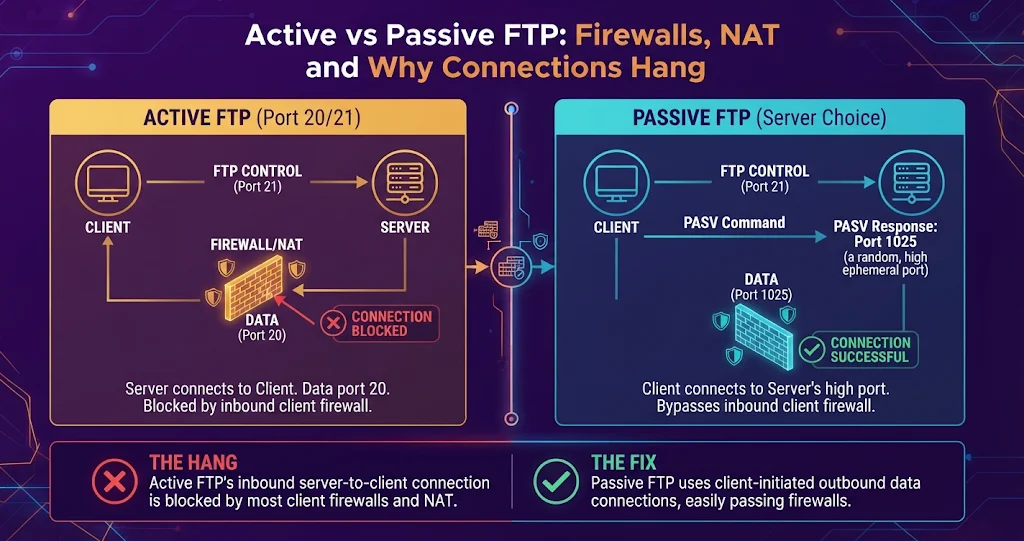
It is one of the most familiar failures in IT: the FTP client connects, the login succeeds, and then… nothing. The directory listing spins, times out, or the client reports “Failed to retrieve directory listing”. The password is fine and the server is up. The culprit is almost always the same thing — FTP’s separate data channel running into a firewall or a NAT router. Once you understand how active and passive mode open that channel, the fix is usually a two-line configuration change.
Why FTP needs a second connection
FTP predates firewalls and NAT. It uses one TCP connection, the control channel on port 21, for commands like USER, CWD and RETR. Every time it needs to move actual data — a file, or even just a directory listing — it opens a brand-new TCP connection for that one job. The two modes differ only in who opens that second connection, and to which port.
That is why logins work while listings hang: logging in uses only the control channel. The first time the data channel is needed is when you ask to see a folder.
Active mode: the server calls you back
In active mode, the client tells the server “connect back to me here” with a PORT command, and the server opens the data connection from its port 20 to the client:
Client 192.168.1.50:52000  -->  Server :21      (control)
PORT 192,168,1,50,203,20                         (= port 203*256+20 = 51988)
200 PORT command successful
LIST
Server :20  -->  Client 192.168.1.50:51988       (data, server-initiated)
Two things go wrong here on modern networks:
- The client’s firewall (Windows Defender Firewall, a corporate perimeter) sees an unsolicited inbound connection and drops it.
- NAT: the client advertised its private address
192.168.1.50. The server cannot route to that from the internet, so the connection goes nowhere.
Active mode works well only when the client has a public address or sits on the same network as the server. For a laptop behind a home router, it is nearly always the wrong choice.
Passive mode: you call the server twice
In passive mode the client sends PASV (or EPSV), the server picks a port, and the client opens the data connection outbound:
PASV
227 Entering Passive Mode (203,0,113,10,195,80)  (= 203.0.113.10 port 195*256+80 = 50000)
LIST
Client  -->  Server 203.0.113.10:50000           (data, client-initiated)
Because both connections are outbound from the client, client-side firewalls and NAT are happy. The burden moves to the server side: its firewall must allow inbound connections on whatever port it hands out, and the address in the 227 reply must be one the client can actually reach. Those two requirements cause almost every remaining passive-mode problem.
The comparison at a glance
| Active mode | Passive mode | |
|---|---|---|
| Data connection opened by | Server (from port 20) | Client |
| Client firewall must allow | Inbound on a high port | Outbound only |
| Server firewall must allow | Inbound 21, outbound from 20 | Inbound 21 + passive port range |
| Client behind NAT | Usually breaks | Works |
| Server behind NAT | Works | Needs the public address configured |
| Typical use today | Legacy / internal networks | Default almost everywhere |
BackendsideFTP — Active or Passive, Saved Per Site
The Saved Site Manager in BackendsideFTP remembers each server’s hostname, port, username, protocol, default remote folder and Active/Passive mode, so the one legacy box that needs active mode never forces it on the rest. Per-site settings override your global defaults, and you reconnect in one click straight into the right folder. Free on the Microsoft Store.
Fixing passive mode on the server
1. Pin a passive port range
By default many servers pick any ephemeral port, which is impossible to firewall sensibly. Restrict it to a known range. For vsftpd:
# /etc/vsftpd.conf
pasv_enable=YES
pasv_min_port=50000
pasv_max_port=50100
ProFTPD uses PassivePorts 50000 50100; Pure-FTPd uses -p 50000:50100; IIS has a “Data Channel Port Range” under FTP Firewall Support. A hundred ports is plenty for most small servers — each concurrent transfer needs one.
2. Open that range in the firewall
# Ubuntu / Debian with ufw
sudo ufw allow 21/tcp
sudo ufw allow 50000:50100/tcp

# firewalld (RHEL, Fedora, Alma, Rocky)
sudo firewall-cmd --permanent --add-port=21/tcp
sudo firewall-cmd --permanent --add-port=50000-50100/tcp
sudo firewall-cmd --reload

# Windows Server (PowerShell)
New-NetFirewallRule -DisplayName "FTP passive" -Direction Inbound `
  -Protocol TCP -LocalPort 50000-50100 -Action Allow
Remember cloud security groups too: on most cloud providers the instance firewall and the provider’s network-level rules are separate, and both must allow the range.
3. Advertise the public address when the server is behind NAT
This is the sneakiest one. A server on a private address behind a router or cloud NAT will happily reply 227 Entering Passive Mode (10,0,0,5,...). The client tries to connect to 10.0.0.5, which is not reachable, and the listing hangs. Tell the server its public face:
# vsftpd
pasv_address=203.0.113.10

# ProFTPD
MasqueradeAddress 203.0.113.10
Then forward port 21 and the whole passive range from the router to the server. Some clients work around a private address in a 227 reply by reusing the control-channel address instead, and EPSV sidesteps it by sending only a port — but fixing the server is the reliable answer.
Why FTPS makes this harder
Older firewalls and routers include an “FTP helper” (on Linux, the nf_conntrack_ftp module; on many routers, an “FTP ALG”) that reads the control channel, spots the 227 or PORT line and opens the matching port automatically. With FTPS the control channel is encrypted, so the helper is blind — which is the whole point of encryption. That means FTPS always needs the explicit passive range and public-address settings above. Occasionally the helper causes the opposite problem by mangling plain FTP traffic; if a router rewrites addresses wrongly, disabling its FTP ALG often fixes it.
A troubleshooting checklist
- Login works, listing hangs? It is the data channel. Switch to passive mode first.
- Passive still hangs? Read the
227reply in your client’s log. A private address (10.x, 172.16–31.x, 192.168.x) means the server needspasv_addressor its equivalent. - Public address but still timing out? The passive range is blocked — check the server firewall, then the cloud security group, then any router port forwarding.
- Plain FTP works but FTPS hangs? You were relying on an FTP helper. Configure the range explicitly.
- Transfers stop after a long idle period? A firewall or NAT dropped the quiet control connection mid-transfer; keep-alives help.
- Test from outside. Checking from the server itself proves nothing about NAT. Use a phone hotspot or another network.
BackendsideFTP — Read the Conversation, Not Just the Error
Every session tab in BackendsideFTP has a live Log panel with the full command-and-reply transcript for FTP and FTPS — so you can see the 227 reply and the address it hands back, right where the hang starts. Passwords never appear in it. Keep-alive pings stop idle sessions being dropped by a server timeout, and a session that drops unexpectedly reconnects on its own and returns to the folder you were browsing.
The real fix: stop needing a data channel
Every problem in this article comes from FTP’s two-connection design. SFTP has none of them: it runs entirely over a single SSH connection on port 22, with commands and file data multiplexed inside it. One inbound rule on the server, nothing to forward, no NAT rewriting, no passive range. If you have SSH access to the server, moving to SFTP removes this whole category of support tickets — and encrypts everything as a bonus. For a deeper look at the security side, see our overview of FTP, FTPS and SFTP in 2026.
BackendsideFTP speaks all three, so you can keep the FTPS-only hosting account and the SFTP server side by side in separate tabs while you migrate.
Key takeaways
- FTP uses a control channel for commands and opens a new data connection for every listing and file — that is why logins succeed while listings hang.
- Active mode has the server connect back to the client; it breaks behind client firewalls and NAT.
- Passive mode has the client connect out twice; it is the right default, but the server must allow its passive port range.
- Behind NAT, the server must advertise its public address in the
227reply, or clients try to reach a private IP. - FTPS hides the control channel from firewall helpers, so pin and open the passive range explicitly.
- SFTP avoids all of this with a single connection on port 22.
Leave a Reply