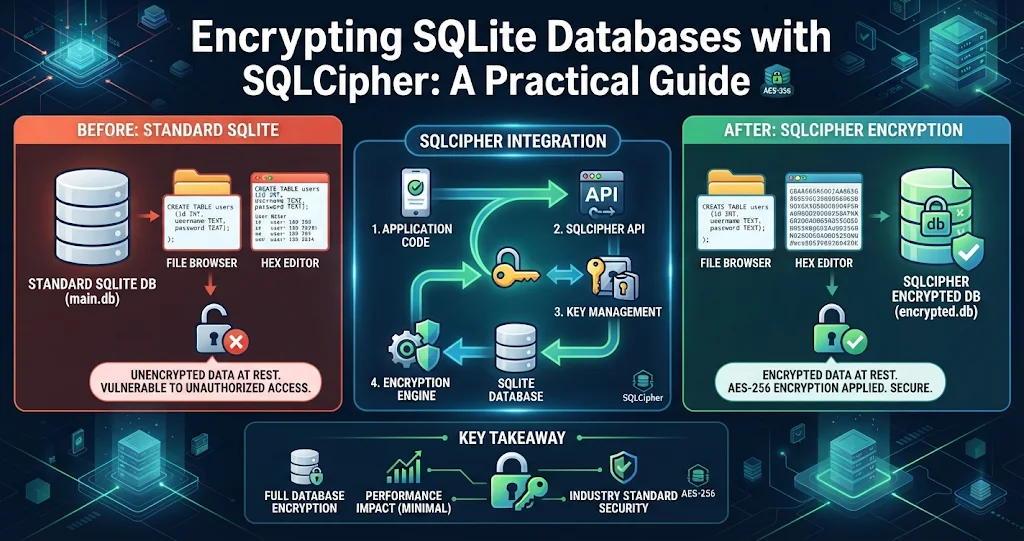
A standard SQLite database is an open book. Copy the file to another machine, open it in any SQLite tool, and every table is readable — no password, no permission check. For customer records, credentials, health data or anything else private, that is not good enough. SQLCipher is the widely used open-source extension that fixes it by encrypting the entire database file. This guide covers how it works, how to open, create, encrypt, decrypt and re-key databases, the version differences that trip people up, and the mistakes that undo the protection.
What SQLCipher actually encrypts
SQLCipher is a modified build of SQLite that encrypts at the page level. Every page of the database file — tables, indexes, the schema, even the free space — is encrypted before it is written to disk and decrypted when it is read. Without the key, the file looks like random bytes; there is no readable SQLite header and no visible table names.
With the default SQLCipher 4 settings:
- Each page is encrypted with AES-256 using a fresh random initialisation vector.
- Each page carries an HMAC (SHA-512) so tampering or a wrong key is detected instead of silently returning garbage.
- Your passphrase is turned into a key with PBKDF2-HMAC-SHA512 and 256,000 iterations, using a random salt stored in the first 16 bytes of the file. The high iteration count makes guessing passphrases slow.
- WAL and journal files are encrypted too, so the companion files do not leak data.
Once a connection is keyed, everything works exactly like normal SQLite: same SQL, same PRAGMAs, same file. The one catch is that only SQLCipher-aware tools can open it — a stock SQLite build will report “file is not a database”.
Opening and creating an encrypted database
The key is supplied with PRAGMA key, and it must be the first statement after opening the connection. SQLCipher does not actually check the key until the first real read, so the usual pattern is to key the connection and then run a cheap query to verify it:
-- Open (or create) customers.db, then immediately:
PRAGMA key = 'correct horse battery staple';

-- Verify the key: fails with "file is not a database" if it is wrong
SELECT count(*) FROM sqlite_master;

-- Confirm you are running a SQLCipher build at all
PRAGMA cipher_version;
Creating a new encrypted database is the same: open a path that does not exist yet, issue PRAGMA key, then create your tables. The first write produces an encrypted file.
If your application manages its own key material, you can skip the passphrase derivation and pass a raw 256-bit key as hex:
-- 64 hex characters = 32 bytes; no PBKDF2 step
PRAGMA key = "x'2DD29CA851E7B56E4697B0E1F08507293D761A05CE4D1B628663F411A8086D99'";SQLiteDesk — Open Encrypted Databases with a Password Prompt
SQLiteDesk is SQLCipher-aware out of the box: open an encrypted .db and it simply asks for the password, then you browse, edit and query it like any other database. Passwords are never persisted — not in settings, not in logs — and encrypted databases are never prompted for at startup; their saved query tabs simply attach when you open them.
SQLCipher 3 vs SQLCipher 4
The single most common “my password is right but it will not open” problem is a version mismatch. SQLCipher 4 changed its defaults, so a database created with SQLCipher 3 will not open in a SQLCipher 4 build with default settings, and vice versa:
| Setting | SQLCipher 3 default | SQLCipher 4 default |
|---|---|---|
| Page size | 1024 bytes | 4096 bytes |
| KDF iterations | 64,000 | 256,000 |
| KDF algorithm | PBKDF2-HMAC-SHA1 | PBKDF2-HMAC-SHA512 |
| Page HMAC | HMAC-SHA1 | HMAC-SHA512 |
You have two options. Open the old database in compatibility mode for the session, or permanently upgrade it to the new format in place:
-- Option 1: read a SQLCipher 3 database without changing it
PRAGMA key = 'secret';
PRAGMA cipher_compatibility = 3;
SELECT count(*) FROM sqlite_master;

-- Option 2: upgrade it to SQLCipher 4 format (back it up first!)
PRAGMA key = 'secret';
PRAGMA cipher_migrate;          -- returns 0 on success
Individual settings such as cipher_page_size and kdf_iter can also be set by hand, but every tool that opens the file must then use exactly the same values. Unless you have a reason, stick to the defaults.
Encrypting an existing plain database
You cannot encrypt a plaintext database in place with PRAGMA rekey. Instead, open the plain database without a key, attach a new encrypted database, and copy everything across with sqlcipher_export():
-- Connected to plain.db (no PRAGMA key)
ATTACH DATABASE 'encrypted.db' AS encrypted KEY 'new passphrase';
SELECT sqlcipher_export('encrypted');
DETACH DATABASE encrypted;
Two details are easy to miss. First, sqlcipher_export() copies schema and data but not the user_version header value many apps use to track schema migrations — read it from the source and set PRAGMA encrypted.user_version yourself before detaching. Second, check the new file opens with the key before you delete the original.
Decrypting and changing the password
Decrypting is the same trick in reverse: open the encrypted database with its key and export into an attached database with an empty key.
PRAGMA key = 'current passphrase';
ATTACH DATABASE 'plain.db' AS plaintext KEY '';
SELECT sqlcipher_export('plaintext');
DETACH DATABASE plaintext;
To change the passphrase of an encrypted database, key it with the current passphrase and then issue PRAGMA rekey. This rewrites every page, so on a large database it takes a while, and it should not be interrupted:
PRAGMA key = 'old passphrase';
PRAGMA rekey = 'new passphrase';
rekey only changes the key. To change cipher settings such as page size or iteration count, export into a new database configured the way you want.
SQLiteDesk — Encrypt, Decrypt and Change the Password from a Menu
Skip the ATTACH-and-export ritual. In SQLiteDesk you can encrypt, decrypt or change the password on any existing database from the Maintenance menu. The rewritten file is verified before it replaces the original, so an interrupted operation never costs you your data. New passwords are typed twice, and the database’s user_version, application_id and journal mode are preserved.
Mistakes that undo the encryption
Strong encryption on disk does nothing if the passphrase leaks somewhere else. These are the usual culprits:
| Mistake | Why it hurts | Better |
|---|---|---|
| Passphrase hard-coded in the app | Anyone with the program can extract it | Derive from user input or the OS credential store |
PRAGMA key saved in query history or logs |
The secret sits in plain text next to the database | Use tools that keep keys out of history |
| Passphrase in command-line arguments | Visible in shell history and process lists | Prompt for it interactively |
| Exporting a decrypted copy “temporarily” | Plain copies get forgotten, synced or backed up | Decrypt only when you truly must, then delete |
| Weak or short passphrase | PBKDF2 slows guessing, it does not stop it | Long passphrases or random raw keys |
| No record of the passphrase | There is no recovery — lost key means lost data | Store it in a password manager |
Also remember what encryption at rest does not do. While your app has the database open and keyed, the data is decrypted in memory, and anything running as the same user may be able to reach it. SQLCipher protects copied files, lost laptops and stray backups — not a compromised running machine.
Backing up encrypted databases
Good news: a copy of an encrypted database is still encrypted, so backups are safe to store on external drives or shared storage. The same backup rules as plain SQLite apply — avoid copying the file while it is being written, and prefer an online backup. Test a restore occasionally, and test it with the passphrase as you have it recorded, not as you remember it.
SQLiteDesk — Encrypted Backups, No Leaked Keys
In SQLiteDesk, backup and restore work on encrypted databases too, with the option to re-encrypt the result. SQLCipher keys never reach your query history, and the app runs 100% offline — no telemetry, no cloud sync, no accounts. Available on the Microsoft Store with a free trial, no subscription and no ads.
Key takeaways
- Plain SQLite files are not encrypted; SQLCipher encrypts every page, including the schema and the WAL.
- Open with
PRAGMA keyas the first statement, then verify with a query onsqlite_master. - “File is not a database” with the right password usually means a SQLCipher 3 vs 4 mismatch — use
cipher_compatibilityorcipher_migrate. - Encrypt or decrypt existing files with
ATTACH+sqlcipher_export()(and copyuser_versionyourself); change passwords withPRAGMA rekey. - Protect the passphrase as carefully as the data: no hard-coding, no logs, no query history, and keep it somewhere you can recover it.
- SQLiteDesk opens SQLCipher databases with a password prompt and encrypts, decrypts and changes passwords from its Maintenance menu, verifying the result before replacing the original.
Leave a Reply