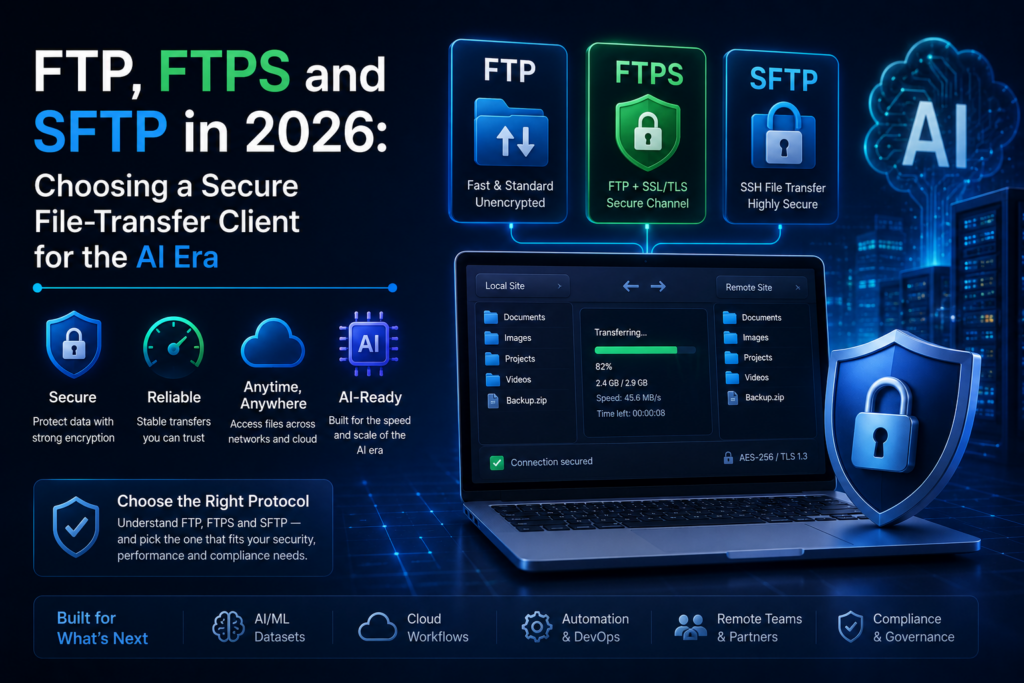
It is fashionable to claim that file transfer in 2026 happens over object storage, Git, or whatever bucket your CI pipeline pushes to. It is also — for anyone running a real workflow — demonstrably untrue. Every web team still SFTPs to a server somewhere. Every CI/CD setup still pushes build artefacts to a host. Every backup script still copies to or from a remote machine. The protocols haven’t gone away. They have just grown up. And the AI era has, if anything, increased the file-transfer surface area: model checkpoints, training datasets, vector indices, build artefacts, log bundles, customer datasets — all moving over the wire to and from machines that need to authenticate the sender and not leak the contents.
This is what a serious file-transfer client looks like in 2026, why it has to be more than a 1990s FTP window, and what we built for that with BackendsideFTP.
FTP, FTPS, SFTP — what each one actually is
The three protocols people lump together are radically different on the wire. Knowing which is which is the difference between a transfer that’s safe and one that’s broadcasting credentials to anyone on the network.
- FTP (RFC 959, 1985) — the original. Two TCP channels: control on port 21, data on a separate negotiated port. Everything is plaintext, including the username and password. Active and passive modes exist to work around NAT, but neither adds encryption. Still appropriate inside a closed LAN; never appropriate over the internet.
- FTPS — the same FTP protocol, wrapped in TLS. Comes in two variants: explicit FTPS, which starts on port 21 and upgrades the connection with an
AUTH TLScommand, and implicit FTPS, which expects TLS from the first byte on port 990. The protocol is otherwise identical to FTP; the difference is that the wire is now encrypted, the server certificate is verified, and credentials can’t be sniffed. - SFTP — not “FTP with an S”. A completely separate protocol, defined as part of the SSH-2 spec (RFC 4253 plus the SFTP draft), running over a single encrypted SSH channel on port 22. Authenticates with a password or, much better, an SSH private key; verifies the server with the host’s SSH public key fingerprint. Modern, well-understood, and what almost every Linux server you connect to is offering you.
The short version: FTP is the diary you read on a billboard. FTPS is the diary in a TLS envelope. SFTP is the diary in a vault. A modern client must speak all three — many corporate environments still require FTPS, and many appliances still only offer FTP — but it should default people toward SFTP whenever possible.
Security in the AI era is more than the wire
Encrypting the bytes in flight is necessary, but it is not where modern file-transfer security ends. The interesting risks in 2026 are around the transfer:
- Credential exposure. An attacker who lifts your
.ftpconfig,filezilla.xmlor browser-saved password gets every site you’ve ever connected to. Any client that writes credentials to disk in plaintext is a vulnerability waiting to happen. Encrypting them at rest, tied to the OS user account, is now baseline. - Host-key trust on first connect. SFTP’s security model only works if you actually verify the server’s SSH host key. Clients that auto-trust on first connect (and never warn when the fingerprint changes) silently lose the man-in-the-middle protection SSH was designed to give you.
- TLS certificate validation for FTPS. The same problem in the TLS world. A client that doesn’t verify the server’s certificate — or that lets you click through a warning with no fingerprint-pinning — turns FTPS into “FTP with extra steps.”
- The AI-pipeline blast radius. Model files and training datasets are often dozens of gigabytes. Large, slow transfers are also the worst possible time for a credential or trust mistake — nobody is going to interrupt a 4-hour upload to read a host-key warning carefully. Getting the trust decisions right before the bytes start moving is non-negotiable.
- Workflow leakage. An AI assistant that pastes a connection string with credentials into a chat window is a 2026 problem nobody had in 2015. The client’s job is to make the credentials live in the client, not in shared text.
BackendsideFTP — FTP, FTPS & SFTP Client for Windows
BackendsideFTP is a free, modern file-transfer client for power users: tabbed multi-sessions, FTP / FTPS (explicit and implicit) / SFTP, drag-and-drop both ways, a unified transfer queue with pause / resume, SSH host-key and TLS certificate verification with fingerprint pinning, encrypted credential storage tied to your Windows account, CHMOD editor, auto-reconnect, light and dark themes — no subscription, no ads.
What “modern” should mean for an FTP client
Security is the floor. The reason a serious workflow needs a serious client is that the day-to-day shape of file transfer has changed:
- Tabbed multi-sessions. A real workflow has at least three servers open at once — staging, production, and a third-party drop. Each in its own tab, each with its own worker, transfers running independently.
- A unified transfer queue. Every upload and download lands in one shared queue shown as a tree, with parent folders rolling up their children’s progress. The user sees one job, not twenty.
- Pause, resume, cancel, retry. A 12 GB model file is going to fail at 78% one day. The recovery has to be a single click, not an hour of re-uploading.
- Drag-and-drop both ways. From Explorer to the server, from the server to Explorer, including whole folder trees. Recursive transfers should be the default behaviour, not a feature flag.
- Saved sites with encrypted credentials. A site manager with per-site settings, encrypted on disk, that overrides the global defaults. Connect in one click.
- Quick Connect for the one-off case — without saving credentials.
- CHMOD editor. Yes, you can SSH in and run
chmod 755. You can also just check the right boxes for Owner / Group / Public and watch the octal mode change live. The fast option wins. - Auto-reconnect with backoff and keep-alive. Idle sessions get reaped by server timeouts; networks blip. The client should keep itself alive, and on a real drop reconnect on its own and restore the folder you were in.
- Activity log with verbosity control. Quiet by default, full protocol transcript when you need to diagnose a connection. Open the log folder in one click.
- Light and dark themes, native Windows icons, system-tray minimise, keyboard shortcuts. The interface should respect a working day, not a 1998 colour palette.
Our take: BackendsideFTP
BackendsideFTP is our answer to all of the above — a complete rewrite for 2026, free on the Microsoft Store, designed around the security floor and the workflow ceiling described in this article.
What it gives you, in the same shape as the checklist:
- FTP, FTPS (explicit and implicit), and SFTP in one client. SFTP authenticates with a password or an SSH private key. The port auto-fills from the protocol you pick (
21/990/22), and a custom port you type is always respected. - Tabbed multi-sessions with a dedicated worker per tab — transfers in one tab don’t block another.
- Unified transfer queue shown as a tree with parent-folder rollups, live progress bars and real-time speed.
- Pause / Resume / Cancel / Retry on any item in the queue. Failed transfers retry automatically with backoff; a configurable concurrency cap protects the server.
- Drag-and-drop both directions, recursive on folders, multi-select supported.
- Saved Site Manager — per-site host, port, username, password, default remote directory, protocol, Active / Passive — with passwords encrypted at rest. Per-site settings override your global defaults.
- Quick Connect for the one-off case without saving a profile.
- Host-key & certificate trust. SFTP connections verify the SSH host key against a known-hosts store; FTPS connections verify the TLS certificate — with a clear Trust once / Trust always / Reject prompt the first time, and a loud warning if a fingerprint ever changes.
- Encrypted credential storage tied to your Windows user account. Saved passwords are never written in plaintext.
- Remote file & folder management — browse, create, rename, delete (with recursive deletion and a confirmation prompt) from a right-click menu or the toolbar.
- CHMOD editor with checkbox Owner / Group / Public read / write / execute, octal mode live as you click.
- Transfer history and an app-wide speed limit.
- Auto-reconnect with exponential backoff and folder restore; keep-alive pings to defeat server-side timeouts.
- Light and dark themes, native Windows icons in both panes, system-tray minimise, keyboard shortcuts for the essentials.
- Activity log with verbosity control, including a full protocol transcript for diagnostics; open log folder in one click.
The whole thing is free on the Microsoft Store. No subscription, no ads, no telemetry.
Key takeaways
- FTP, FTPS and SFTP are three different protocols, not three variants of one. Plain FTP is plaintext and unsafe over the internet; FTPS wraps FTP in TLS; SFTP is a separate, modern protocol over SSH-2.
- In 2026, the interesting security is around the wire, not on it: credential storage, host-key trust, certificate validation, and the integration with AI-era pipelines that move very large files.
- A modern client should provide tabbed multi-sessions, a unified transfer queue with pause / resume, drag-and-drop both ways, a Site Manager with encrypted credentials, fingerprint-checked SSH and TLS trust, auto-reconnect with backoff, and a CHMOD editor.
- BackendsideFTP is our take on all of that — for Windows, free on the Microsoft Store, no subscription, no ads.
The protocols may be old. The way we use them shouldn’t be.
BackendsideFTP — FTP, FTPS & SFTP Client for Windows
Free on the Microsoft Store — tabbed multi-sessions, drag-and-drop both ways, a unified transfer queue, SSH host-key and TLS certificate verification, encrypted credential storage, CHMOD editor, light and dark themes. No subscription, no ads.
Leave a Reply