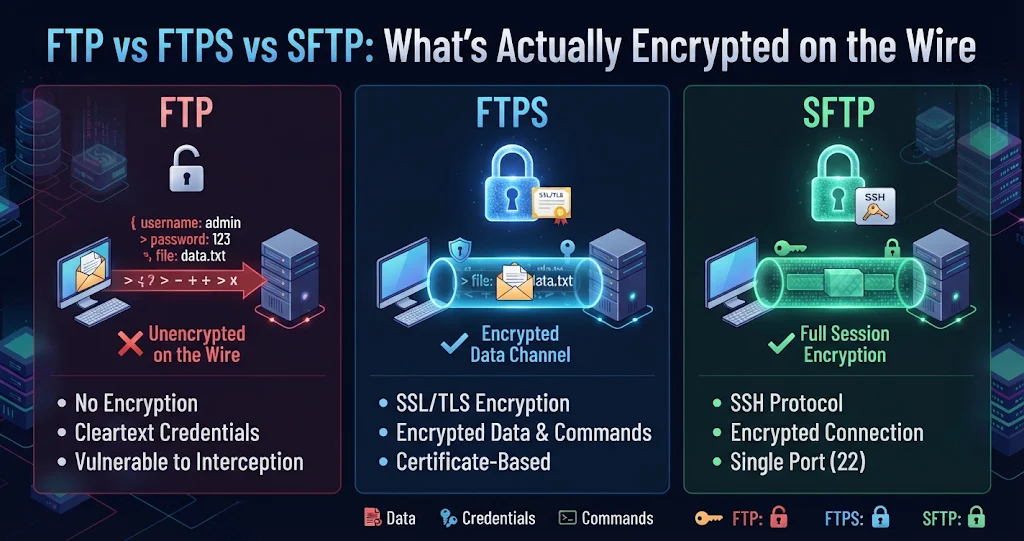
“Use SFTP, not FTP” is advice almost everyone has heard, but far fewer people can say exactly what an eavesdropper on the network sees in each case. Is the username visible? The file names? The directory listing? The file itself? This tutorial goes down to the wire: what travels in cleartext for plain FTP, for explicit and implicit FTPS, and for SFTP, how the handshakes work, and why host key and certificate checks matter as much as the encryption itself.
If you are still deciding which kind of client to use in the first place, start with our earlier overview, FTP, FTPS and SFTP in 2026: Choosing a Secure File Transfer Client. This post assumes you know the three names and want to understand the packets.
Plain FTP: two channels, both in cleartext
FTP is unusual among internet protocols because it uses two separate TCP connections:
- The control channel (normally port 21) carries text commands and numeric replies: who you are, which directory you want, what to send.
- The data channel is opened separately for every directory listing and every file transfer, on a port negotiated over the control channel (with the
PORTorPASVcommands).
Neither channel is encrypted. Anyone who can capture traffic between you and the server — on shared Wi-Fi, a compromised router, or a hosting provider’s network — sees a session that reads like a script:
220 Welcome to example.com FTP
USER deploy
331 Password required for deploy
PASS Summer2026!
230 User deploy logged in
CWD /var/www/shop
250 Directory changed
PASV
227 Entering Passive Mode (203,0,113,10,195,80)
RETR config.php
150 Opening BINARY mode data connection
226 Transfer complete
The username and password are right there, as is the directory structure. The file config.php then flows over the data channel byte for byte — including whatever database credentials it contains. Nothing in plain FTP even tries to authenticate the server, so an attacker in the path can also modify what you download or upload.
FTPS: FTP wrapped in TLS, in two flavours
FTPS keeps the FTP command set and the two-channel design, and adds TLS — the same encryption that protects HTTPS. The confusing part is that there are two ways to start it.
Explicit FTPS (FTPES)
The client connects to the normal FTP port, 21, in plaintext, and then asks to upgrade:
220 Welcome to example.com FTP        <-- cleartext
AUTH TLS                              <-- cleartext
234 Proceed with negotiation          <-- cleartext
[TLS handshake: certificate, key exchange]
USER deploy                           <-- encrypted from here on
PASS ********
PBSZ 0
PROT P                                <-- "protect the data channel too"
200 Protection level set to Private
Before AUTH TLS, an observer sees the server banner (often including software name and version) and the fact that you requested TLS. After the handshake, commands, replies and credentials are encrypted. The important detail is PROT P: it tells the server to encrypt the data channel as well. With PROT C (“clear”), your login is protected but the files and directory listings still travel in plaintext. A well-configured server refuses PROT C; a sloppy one silently allows it.
Implicit FTPS
Implicit FTPS skips the negotiation. The client connects to a dedicated port, conventionally 990, and starts the TLS handshake immediately — there is no cleartext phase at all, not even the banner. It is older and was never formally standardised, but plenty of servers and managed hosts still offer it. If you point an implicit-FTPS client at port 21, or an explicit one at 990, the connection fails during the handshake, which is one of the most common FTPS support questions.
What FTPS still leaks
Even with TLS on both channels, an observer can see the server’s IP address, the ports in use, the timing and size of each data connection (which roughly reveals file sizes), and — in explicit mode — the opening banner. The FTP-level content (names, paths, credentials, file bytes) is protected.
BackendsideFTP — FTP, Explicit & Implicit FTPS, and SFTP in One Client
BackendsideFTP is a free file transfer client for Windows that speaks all three protocols in this article: plain FTP, FTPS with explicit or implicit TLS, and SFTP over SSH. Quick Connect fills in the right port for the protocol you pick (21, 990 or 22), and log in with a password or an SSH private key with passphrase. Free on the Microsoft Store — no subscription, no ads.
SFTP: a completely different protocol over SSH
Despite the name, SFTP is not FTP with security added. It is a file transfer subsystem of SSH, the same protocol used for remote shells, and it runs over a single connection on port 22. There is no separate data channel: commands, listings and file contents are all multiplexed inside one encrypted SSH stream.
An SSH connection goes through these steps before any file operation happens:
- Version exchange. Both sides send a cleartext identification string such as
SSH-2.0-OpenSSH_9.6. This is the only readable application data an observer gets. - Algorithm negotiation. Client and server list the key exchange, cipher, MAC and host-key algorithms they support and pick the best common ones. These lists are visible but contain nothing secret.
- Key exchange. A Diffie-Hellman-style exchange (commonly curve25519) produces shared session keys without ever sending them over the wire.
- Server authentication. The server proves it holds the private half of its host key by signing the exchange. The client checks that key against what it has seen before.
- User authentication, now fully encrypted: password, keyboard-interactive, or public key.
- The SFTP subsystem starts and every
open,read,writeandreaddirtravels as an encrypted binary packet.
Because everything shares one connection, SFTP is also far friendlier to firewalls and NAT than FTP or FTPS: one outbound port, no negotiated data ports.
Packet-level comparison
Here is what a passive observer on the network path can read, protocol by protocol:
| Visible to an eavesdropper | Plain FTP | Explicit FTPS (PROT P) | Implicit FTPS | SFTP |
|---|---|---|---|---|
| Server banner / software | Yes | Yes (before AUTH TLS) | No | SSH version string only |
| Username | Yes | No | No | No |
| Password | Yes | No | No | No |
| Commands and paths | Yes | No | No | No |
| Directory listings | Yes | No (Yes with PROT C) | No | No |
| File contents | Yes | No (Yes with PROT C) | No | No |
| Approximate file sizes / timing | Yes | Yes | Yes | Harder (one shared stream) |
| Server identity verified | No | Yes, by TLS certificate | Yes, by TLS certificate | Yes, by SSH host key |
| Connections / ports | 21 + data ports | 21 + data ports | 990 + data ports | 22 only |
Encryption without verification is half a lock
Encryption stops someone reading your traffic. It does not, by itself, prove you are talking to the right server. An attacker who can intercept your connection can run their own server, complete a perfectly encrypted handshake with you, and relay everything to the real host while reading it in the middle. The only defence is server authentication:
- FTPS relies on the TLS certificate. A certificate from a public authority matching the hostname is verified automatically. Many internal and shared-hosting FTPS servers use self-signed certificates, so the client must ask you to confirm the fingerprint — and you should compare it with one your host published, not just click through.
- SFTP relies on the host key. SSH uses “trust on first use”: the first connection shows you a fingerprint, you confirm it, and the client remembers it. If the key ever changes, that is either a legitimate server rebuild or an attack — and the client must warn you loudly.
You can fetch a server’s fingerprints yourself to compare against what your client shows:
# SSH host key fingerprints (run on the server itself for a trusted answer)
ssh-keygen -lf /etc/ssh/ssh_host_ed25519_key.pub

# The same, collected remotely
ssh-keyscan -t ed25519 sftp.example.com | ssh-keygen -lf -

# Explicit FTPS certificate (STARTTLS-style upgrade on port 21)
openssl s_client -connect ftp.example.com:21 -starttls ftp </dev/null
  | openssl x509 -noout -fingerprint -sha256

# Implicit FTPS certificate (TLS from the first byte on port 990)
openssl s_client -connect ftp.example.com:990 </dev/null
| openssl x509 -noout -fingerprint -sha256BackendsideFTP — Host Keys and Certificates You Actually Check
In BackendsideFTP, SFTP connections verify the server’s SSH host key against a known-hosts store and FTPS connections verify the TLS certificate. The first time, you get a clear Trust once / Trust always / Reject prompt (Reject is the safe default button), and a warning if a fingerprint ever changes — exactly the check that stops a man-in-the-middle.
See it for yourself with a packet capture
The fastest way to make all of this concrete is to watch it. Install Wireshark, start a capture on your network interface, and connect to a test server three times — once with each protocol. Useful display filters:
ftp                      # plain FTP control commands, decoded (USER, PASS...)
ftp-data                 # plain FTP file and listing contents
tcp.port == 21 && tls    # explicit FTPS after AUTH TLS
tcp.port == 990          # implicit FTPS
ssh                      # SFTP: version strings, then encrypted packets
For plain FTP, right-click a packet and choose Follow → TCP Stream: you will see your password in full. Do the same for SFTP and you get a version string followed by noise. Use a throwaway test account for this exercise, never a real one.
Choosing between FTPS and SFTP
Both are secure when configured properly. In practice the choice is usually made for you by the server:
- Pick SFTP when you have SSH access (VPS, dedicated server, most developer hosting). One port, key-based login, no data-channel surprises.
- Pick FTPS when the host offers FTP accounts but no SSH, which is common on shared hosting and older managed services. Insist on
PROT P, and prefer explicit mode on port 21 unless your host documents implicit on 990. - Pick plain FTP only for public, non-sensitive downloads on a network you control — and even then, think twice.
BackendsideFTP — See What Your Session Is Doing
Every session tab in BackendsideFTP has a collapsible live log: the full command-and-reply transcript for FTP/FTPS and one line per operation for SFTP — with passwords never shown. If an FTPS connection fails during encryption, it says so (with a port-990 hint for implicit FTPS) instead of blaming your password. Saved site passwords are encrypted with your Windows account, never stored in plain text.
Key takeaways
- Plain FTP sends everything in cleartext on both channels — username, password, paths, listings and file contents — and never verifies the server.
- Explicit FTPS starts in cleartext on port 21 and upgrades with
AUTH TLS; the banner leaks, and the data channel is only protected ifPROT Pis set. - Implicit FTPS encrypts from the first byte, conventionally on port 990; mixing up the two modes is the classic “handshake failed” error.
- SFTP is SSH, not FTP: one connection on port 22, only a version string in the clear, and everything else encrypted in a single stream.
- Verification matters as much as encryption. Check TLS certificate and SSH host key fingerprints on first connect, and treat an unexpected change as a red flag.
- Every protocol still reveals the server address and rough traffic sizes; encryption hides the content, not the fact that you connected.
Leave a Reply