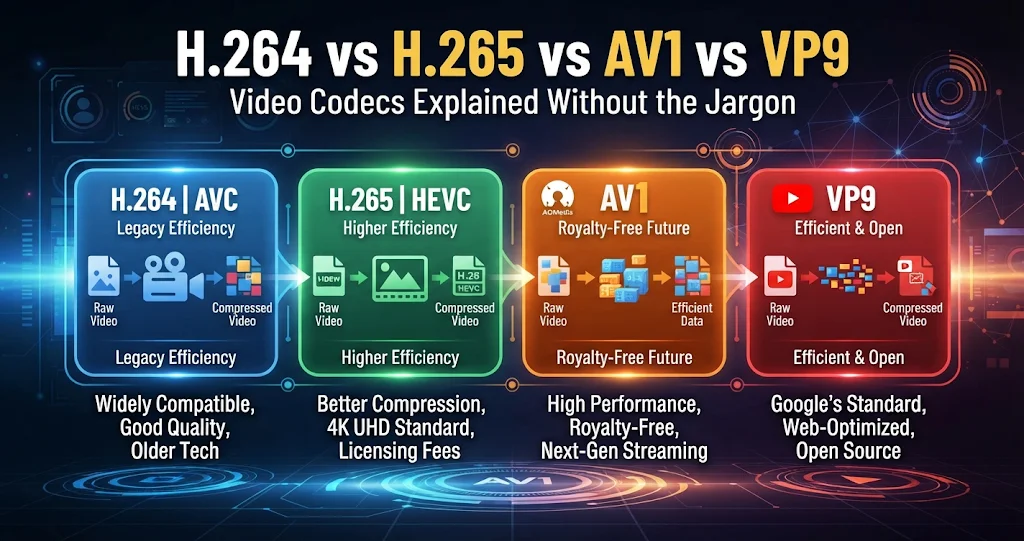
Open the export settings of almost any video tool and you are asked to choose between H.264, H.265, VP9 and AV1 — usually with no explanation beyond the letters. The choice matters: the same video can be twice the size in one codec as in another, and play everywhere in one but stutter or refuse to open in another. Here is what each codec actually is, what it is good at, and how to choose, without the acronym soup.
What a codec actually does
Raw video is enormous. One minute of uncompressed 1080p at 30 frames per second is roughly 10 GB. A codec (coder–decoder) is the set of rules for squeezing that down and unpacking it again for playback. Every modern video codec leans on the same two tricks:
- Within a frame, it stores areas of similar colour and texture compactly, much as a JPEG does for a photo.
- Between frames, it stores mostly what changed. A newsreader in front of a static background barely changes from one frame to the next, so most of the picture is described as “same as before, shifted slightly”.
Every so often the encoder writes a complete picture called a keyframe (or I-frame); the frames in between are predicted from it. Newer codecs are smarter about both tricks — more flexible block sizes, better motion prediction, better filtering — which is why they reach the same quality with fewer bits. The cost is more computing work, especially when encoding.
One thing a codec is not is the file type. .mp4, .mkv and .webm are containers that hold encoded video; that distinction gets its own article.
The four codecs at a glance
| H.264 (AVC) | H.265 (HEVC) | VP9 | AV1 | |
|---|---|---|---|---|
| Released | 2003 | 2013 | 2013 | 2018 |
| Developed by | ITU-T / ISO standards bodies | ITU-T / ISO standards bodies | Alliance for Open Media | |
| Size at similar quality | Baseline | Roughly 25–50% smaller | Similar to HEVC | Roughly 30% smaller than HEVC/VP9 |
| Licensing | Patent pool, royalty-bearing | Several patent pools, fragmented | Royalty-free | Royalty-free |
| Hardware decode | Practically everything | Most devices from ~2016 on | Most devices from ~2017 on | Newer devices (roughly 2020 on) |
| Encoding speed | Fast | Moderate | Slow in software | Slowest in software |
| Typical home | Everywhere | Phones, cameras, 4K Blu-ray, streaming | YouTube, the web | Streaming services, the web |
The size figures are rough rules of thumb. Real savings depend heavily on the content, the encoder, its settings and the resolution — the newer codecs pull further ahead at 4K than at 480p.
H.264: the one that plays everywhere
H.264, also called AVC, is more than twenty years old and still the safest choice in video. Every phone, browser, TV, games console and video editor can play it, almost always with dedicated hardware that makes decoding effortless. It encodes quickly, and hardware encoders on NVIDIA (NVENC), Intel (Quick Sync) and AMD (AMF) graphics chips make it faster still.
Its weakness is efficiency. At the same quality, an H.264 file is noticeably larger than the newer codecs produce. When the file has to play on an unknown device — an email attachment, a client delivery, a USB stick for someone’s TV — that trade is usually worth it.
H.265 / HEVC: smaller files, messier licensing
HEVC was designed as H.264’s successor and delivers the same quality at substantially lower bitrates, which is why phones record in it and 4K Blu-ray uses it. Hardware decode has been standard in phones, PCs and TVs for years, and it supports 10-bit colour and HDR well.
The catch is licensing. HEVC patents are split across several pools with different terms, which made browser makers and some software vendors reluctant to support it. On Windows, playback in many apps depends on the HEVC Video Extensions from the Microsoft Store, and browser support still varies with the device’s hardware. HEVC is excellent for your own library and modern devices; less ideal for files you send to strangers.
VideoTech — Every Codec in This Article, One Dropdown
VideoTech converts video on your own PC to 20 output formats: MP4 with H.264, HEVC or AV1, WebM with VP9 or AV1, MKV, MOV with ProRes or H.264, AVI and animated GIF. H.264 and HEVC use your NVIDIA, Intel or AMD hardware encoder where one is present — each candidate is test-encoded before it is chosen — and fall back to the encoder built into Windows. Drop in a whole folder and one set of options applies to the batch.
VP9: the web’s royalty-free workhorse
Google created VP9 as a royalty-free alternative to HEVC, with broadly similar compression. It powers a large share of YouTube and is supported by every major browser, and hardware decoding is widespread on devices from the last several years. It normally lives in the WebM container alongside Opus or Vorbis audio.
VP9’s practical downside is encoding speed: software encoding is slow, and hardware VP9 encoders are far less common than hardware decoders. It is a great delivery format for the web and a poor choice when you just want a quick conversion.
AV1: the future that has mostly arrived
AV1 comes from the Alliance for Open Media, a consortium that includes most of the large browser, streaming and chip companies. It is royalty-free and the most efficient of the four, typically beating HEVC and VP9 by a useful margin at the same quality — especially at higher resolutions and lower bitrates. Major streaming services use it to cut bandwidth.
Two things hold it back. Hardware decoding is only standard on fairly recent devices — for example NVIDIA RTX 30-series and newer, Intel 11th-generation and newer processors, and most AMD RX 6000-series and newer graphics. Older machines fall back to software decoding, which can stutter at high resolutions. On Windows, playback in the built-in apps uses the free AV1 Video Extension from the Microsoft Store. And software encoding is slow: expect AV1 to take much longer than H.264 on the same machine unless you have a recent graphics card with an AV1 encoder.
Trying them yourself with ffmpeg
The free command-line tool ffmpeg can encode all four, which makes it easy to compare them on your own footage. These are generic starting points:
# H.264 - maximum compatibility
ffmpeg -i input.mov -c:v libx264 -crf 23 -preset medium -c:a aac -b:a 128k out-h264.mp4

# H.265 / HEVC - the hvc1 tag helps Apple devices recognise it
ffmpeg -i input.mov -c:v libx265 -crf 28 -preset medium -tag:v hvc1 -c:a aac -b:a 128k out-hevc.mp4

# VP9 in WebM - -b:v 0 tells it to use pure constant quality
ffmpeg -i input.mov -c:v libvpx-vp9 -crf 31 -b:v 0 -c:a libopus -b:a 96k out-vp9.webm

# AV1 with the SVT-AV1 encoder
ffmpeg -i input.mov -c:v libsvtav1 -crf 32 -preset 8 -c:a libopus -b:a 96k out-av1.mkv

# Check what a file really contains
ffprobe -v error -select_streams v:0 -show_entries stream=codec_name,width,height,pix_fmt -of default=nw=1 out-av1.mkv
The -crf numbers are not comparable between encoders — each uses its own scale — so judge the results by eye and by file size, not by the number. Encode a one-minute clip with each and watch them side by side on the device you care about; that will teach you more than any table.
Which one should you pick?
| Situation | Pick | Why |
|---|---|---|
| Sending to someone, unknown device | H.264 in MP4 | It will play |
| Your own library, modern devices | HEVC in MP4 or MKV | Much smaller, fast hardware decode |
| Embedding on a web page | H.264 MP4, plus AV1 or VP9 WebM if you can | Universal fallback plus an efficient option |
| Archiving for the long term, time to spare | AV1 | Smallest files, royalty-free, broad future support |
| Older PC or TV | H.264 | Newer codecs may not have hardware decode |
| Editing afterwards | An intermediate codec such as ProRes | Delivery codecs are hard work for editors to scrub through |
One last rule: every re-encode with a lossy codec loses a little quality. Converting H.264 to HEVC will never make the picture better, only smaller. If a player simply refuses a file whose codec is fine, changing the container without re-encoding is often the real fix.
If you want to see how all of this fits into a single Windows app, our introduction to VideoTech walks through the converter and its on-device AI features.
VideoTech — A Converter With Five AI Models On Board
Picking a codec is half the job. VideoTech also runs five AI models locally on the way through: automatic subtitles written from speech, audio cleanup that pulls the voice out from behind background noise, silence removal, face blur for privacy, and 4× upscaling for old low-resolution clips. Nothing is uploaded, there is no account and no subscription, and every AI feature is included in the price.
Key takeaways
- A codec compresses video; a container (
.mp4,.mkv,.webm) just holds it. - H.264 plays everywhere and encodes fast — the default whenever compatibility matters.
- HEVC gives much smaller files with wide hardware support, but fragmented licensing limits it on the web.
- VP9 and AV1 are royalty-free; AV1 is the most efficient but needs recent hardware to decode smoothly and is slow to encode in software.
- Encoder quality numbers (CRF) are not comparable between codecs — test on your own footage.
- Re-encoding never improves quality. VideoTech covers all four codecs, uses hardware encoders where it can, and adds five on-device AI tools on top.
VideoTech — Every Codec in This Article, One Dropdown
VideoTech converts video on your own PC to 20 output formats: MP4 with H.264, HEVC or AV1, WebM with VP9 or AV1, MKV, MOV with ProRes or H.264, AVI and animated GIF. H.264 and HEVC use your NVIDIA, Intel or AMD hardware encoder where one is present — each candidate is test-encoded before it is chosen — and fall back to the encoder built into Windows. Drop in a whole folder and one set of options applies to the batch.
Leave a Reply