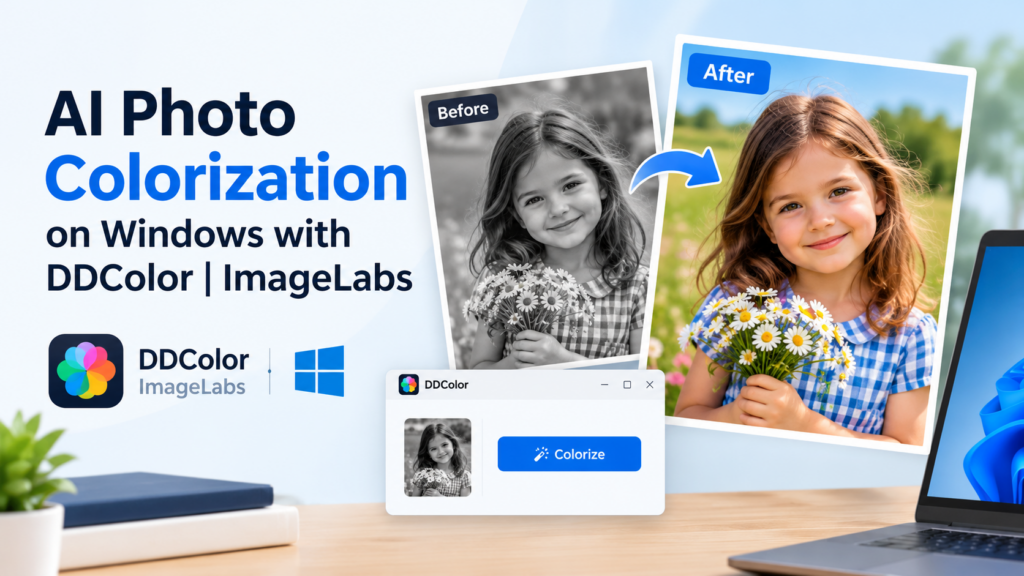
DDColor AI: Colorize Black-and-White Photos on Windows
Black-and-white photographs preserve moments from the past, but sometimes you want to see those scenes with color. AI photo colorization can estimate suitable colors for people, clothing, landscapes, and other objects, helping transform a monochrome photograph into a colorized version.
ImageLabs 2.3 includes DDColor, an AI model designed for automatic image colorization. It brings AI-assisted colorization to a Windows desktop workflow, without requiring you to send your photographs to an online colorization service.
What Is DDColor?
DDColor is an AI-based image colorization approach designed to predict color information for grayscale images. Rather than applying one uniform tint to an entire photograph, the model analyzes visual content and estimates different colors for different regions.
For example, it may estimate colors for a person’s clothing, surrounding vegetation, buildings, or the sky. The result depends on the source image and the model’s predictions.
Colorization is an interpretation, not a recovery of the photograph’s original colors. Unless you have a reliable color reference, the AI cannot know with certainty what color an object originally was.
What Can You Colorize with DDColor?
1. Old Family Photographs
Family photographs are among the most interesting candidates for colorization. A monochrome portrait can take on a different appearance when the model estimates skin tones, hair colors, clothing, and background details.
For historically important or personal photographs, keep the original untouched and treat the colorized version as an artistic interpretation rather than a definitive record of the past.
2. Portraits and People
Portraits contain recognizable visual cues such as skin, hair, clothing, and facial features. AI colorization attempts to use these cues to produce a coherent color image.
Results can vary with faded photographs, strong shadows, scratches, and low-resolution faces. Inspect the output carefully before sharing or printing it.
3. Landscapes and Outdoor Scenes
Black-and-white photographs of trees, gardens, mountains, streets, and outdoor scenes can also be candidates for AI colorization. The model estimates colors for natural and built environments based on the visible content.
These estimates may look plausible, but a green landscape or blue sky in the output does not prove that the original scene had those exact colors or conditions.
4. Historical and Archival Images
Colorization can make archival images more approachable for personal projects, presentations, and creative work. It can also help viewers imagine how a scene might have appeared in color.
For museums, research, journalism, and educational material, clearly label AI-colorized images and preserve the original grayscale version to avoid confusing an interpretation with historical evidence.
How AI Photo Colorization Works
A grayscale image contains brightness information but does not directly specify the original colors of its objects. AI colorization models learn patterns from image data and use those patterns to estimate plausible color information.
The model considers the visual structure of the image and predicts colors that fit the content. This can create a convincing result, but multiple different color combinations could fit the same grayscale photograph.
For that reason, colorization should be understood as AI-assisted reconstruction rather than a guaranteed restoration of original colors.
AI Colorization Compared with Manual Tinting
Traditional tinting often applies a chosen color to selected areas or to the entire photograph. This can create a stylized effect, but it requires additional work to give different objects distinct colors.
AI colorization attempts to estimate colors across the scene automatically, which can be useful when you want to explore a color version without manually painting each region.
- Manual tinting: Useful when you want direct artistic control over the colors.
- AI colorization: Useful for quickly generating an estimated color version of a grayscale photograph.
- Historical accuracy: Neither method can establish original colors without reliable reference information.
Why Use DDColor in ImageLabs 2.3?
ImageLabs brings multiple AI image-processing tools into one Windows application. DDColor provides a dedicated colorization option alongside models for background removal, image upscaling, image repair, object selection, and other workflows.
This means you can use a desktop image editor for several different enhancement tasks instead of relying on a separate website for every operation.
Tips for Better Colorization Results
- Start with a clear scan. If possible, use a source with good contrast and visible details.
- Check faces and hands. Skin tones and small details may not always look natural.
- Inspect clothing and backgrounds. AI may choose plausible colors that differ from the original scene.
- Preserve the original. Save a separate colorized copy so you can compare it with the grayscale photograph.
- Use colorization thoughtfully. Label AI-generated color when accuracy or historical context matters.
Colorize Images Locally on Windows
ImageLabs 2.3 brings DDColor into a Windows desktop workflow. Local processing can be useful when working with personal photographs that you prefer not to upload to a remote service.
The DDColor model has substantial storage requirements, so make sure your computer has sufficient disk space for the model and the application’s other resources. Processing time and performance depend on your hardware and image dimensions.
Try DDColor in ImageLabs 2.3
If you want to explore AI colorization for old photographs, portraits, or creative projects, ImageLabs 2.3 combines DDColor with a collection of other AI-assisted image tools in one Windows application.
ImageLabs 2.3 — AI-Powered Image Editing for Windows
Colorize black-and-white photographs, remove backgrounds, select objects, upscale images, repair damaged photos, and explore other editing tools in one Windows application.
Leave a Reply