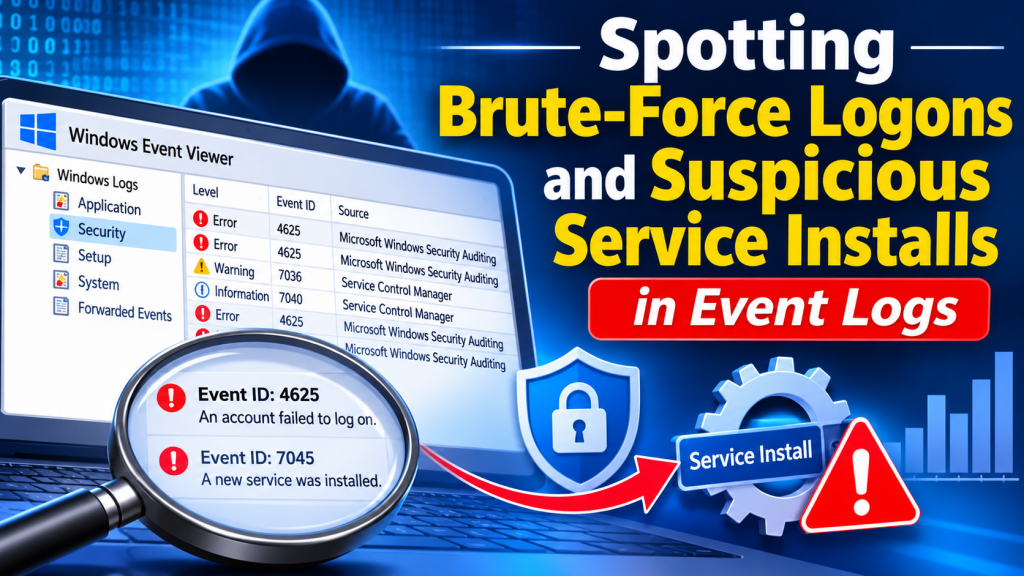
Put a Windows machine on the internet with Remote Desktop or file sharing open and the password guessing starts within hours. Most of it fails. The attempts that succeed tend to be followed by the same move: install something that survives a reboot, very often as a Windows service. Both halves of that story — the guessing and the persistence — leave clear, specific tracks in the event logs. This is how to find them.
You will need administrator rights to read the Security log. If you want a refresher on the event IDs used below, our Windows Event Viewer guide covers the basics of finding and filtering events.
Part 1: Password attacks
The events involved
- 4625 — a failed logon. The raw material of every password attack.
- 4624 — a successful logon. The one you are really worried about.
- 4740 — an account was locked out. Only appears if a lockout threshold is set.
- 4648 — logon with explicit credentials. Useful once an attacker starts moving between machines.
Inside each 4625, three fields do most of the work: TargetUserName (which account), IpAddress (from where) and LogonType (how). The SubStatus adds why: 0xC000006A is a wrong password for a real account, 0xC0000064 is an account that does not exist, 0xC0000234 is an account already locked out.
Brute force versus password spraying
| Brute force | Password spraying | |
|---|---|---|
| Strategy | Many passwords against one or a few accounts | One or a few common passwords against many accounts |
| Shape in the log | Hundreds of 4625s, same user name, short interval | Few 4625s per user name, but many different names |
| Typical sub status | 0xC000006A, then 0xC0000234 once locked |
Mix of 0xC000006A and 0xC0000064 |
| Lockouts (4740) | Likely, if a threshold is set | Rare — designed to stay under the threshold |
| Pace | Fast and noisy | Often slow, spread over hours or days |
Spraying is the sneakier of the two precisely because no single account looks hammered. You only see it when you count distinct user names per source.
Counting failures by source
This turns the last 24 hours of 4625s into a ranked list: how many failures each address produced, and how many different accounts it tried.
$since = (Get-Date).AddHours(-24)

$fails = Get-WinEvent -FilterHashtable @{ LogName = 'Security'; Id = 4625; StartTime = $since } |
  ForEach-Object {
    $d = @{}
    ([xml]$_.ToXml()).Event.EventData.Data | ForEach-Object { $d[$_.Name] = $_.'#text' }
    [pscustomobject]@{
        Time      = $_.TimeCreated
        User      = $d.TargetUserName
        Source    = $d.IpAddress
        LogonType = $d.LogonType
        SubStatus = $d.SubStatus
    }
  }

$fails | Group-Object Source | Sort-Object Count -Descending |
  Select-Object Count,
    @{ n = 'Source';   e = { $_.Name } },
    @{ n = 'Accounts'; e = { ($_.Group.User | Sort-Object -Unique).Count } },
    @{ n = 'First';    e = { ($_.Group.Time | Measure-Object -Minimum).Minimum } },
    @{ n = 'Last';     e = { ($_.Group.Time | Measure-Object -Maximum).Maximum } }
Read the output like this: a high Count with Accounts of 1 or 2 is brute force; a moderate count spread across dozens of accounts is spraying. A source of - or empty usually means a local logon attempt rather than a network one.
Mind the logon type
Failures of type 3 (network) cover SMB file sharing and similar — and also most failed Remote Desktop attempts, because with Network Level Authentication the password is checked before a desktop session exists. Successful RDP logons appear as type 10. So “thousands of type 3 failures, then one type 10 success from the same address” is the classic shape of an RDP brute-force that worked.
The question that matters: did any of it work?
Failures are noise you can block. A success from an address that just produced hundreds of failures is an incident. This cross-checks the two:
# Sources with 20+ failures in the window
$noisy = $fails | Group-Object Source | Where-Object Count -ge 20 | ForEach-Object Name

# Successful logons from those same sources
Get-WinEvent -FilterHashtable @{ LogName = 'Security'; Id = 4624; StartTime = $since } |
  ForEach-Object {
    $d = @{}
    ([xml]$_.ToXml()).Event.EventData.Data | ForEach-Object { $d[$_.Name] = $_.'#text' }
    if ($noisy -contains $d.IpAddress) {
      [pscustomobject]@{ Time = $_.TimeCreated; User = $d.TargetUserName; Source = $d.IpAddress; LogonType = $d.LogonType; LogonId = $d.TargetLogonId }
    }
  }
Any row that comes back deserves immediate attention: reset that account’s password, look at what the session did (follow its Logon ID), and check for the persistence covered in Part 2.
DeepDig — Brute Force, Spraying and Lockouts, Detected for You
The scripts in this article work. DeepDig saves you writing them: its built-in detection rules cover credential access — brute force, password spraying and account lockouts — along with lateral movement including RDP logons. Related alerts are correlated into a single plain-English incident with severity, recommended fixes and a MITRE ATT&CK mapping. Flip on Live to stream new alerts as they happen. Everything runs locally.
Reducing the noise at the source
- Do not expose RDP directly to the internet. Put it behind a VPN or gateway. This removes most of the problem outright.
- Set an account lockout policy. Check the current one with
net accounts; a threshold makes brute force visible as 4740 and slows it down. - Rename or disable unused accounts, and use long, unique passwords on any that can log on remotely.
- Keep Network Level Authentication on for Remote Desktop.
Part 2: Suspicious service installs
Services start automatically, run without anyone logged on and often run as LocalSystem — exactly what an attacker wants. Remote-execution tools also commonly work by creating a temporary service on the target. Two events record a new service:
- 7045 in the System log, from the Service Control Manager. Always on. Fields:
ServiceName,ImagePath,ServiceType,StartType,AccountName. - 4697 in the Security log. Includes the account that installed the service, but only appears if Audit Security System Extension is enabled.
What a suspicious one looks like
Legitimate services install from C:Program Files, C:WindowsSystem32 or a driver store, with a recognisable name, usually during an install or update you can account for. Red flags:
| Signal | Example |
|---|---|
| Image path in a user-writable folder | C:UsersPublic, %TEMP%, AppData, C:ProgramData |
| A shell as the “service” | The command interpreter or PowerShell as the image path, often followed by a long encoded command |
| Random or misleading name | Eight random characters, or a near-copy of a real Windows service name |
| Odd timing | Installed minutes after a remote logon, at night, with no software change planned |
| Short-lived | Installed and gone again — typical of remote-execution tools |
| Next to other bad signs | Defender protection disabled, a new admin account, a cleared log |
Hunting with PowerShell
# Every service install recorded in the System log, flagged if the path looks wrong
$pattern = 'users\public|\temp\|appdata|programdata|cmd|powershell'

Get-WinEvent -FilterHashtable @{ LogName = 'System'; ProviderName = 'Service Control Manager'; Id = 7045 } |
  ForEach-Object {
    $d = @{}
    ([xml]$_.ToXml()).Event.EventData.Data | ForEach-Object { $d[$_.Name] = $_.'#text' }
    [pscustomobject]@{
        Time    = $_.TimeCreated
        Name    = $d.ServiceName
        Path    = $d.ImagePath
        Start   = $d.StartType
        Account = $d.AccountName
        Flag    = if ($d.ImagePath -match $pattern) { 'CHECK' } else { '' }
    }
  } | Sort-Object Time -Descending | Format-Table -AutoSize
A flag is a prompt to look, not a verdict — some legitimate software does install from ProgramData. For each flagged entry, check whether the file still exists, who signed it, and what happened on the machine in the minutes before it appeared. And compare against what is installed right now:
Get-CimInstance Win32_Service |
  Where-Object { $_.PathName -notmatch 'Windows\System32|Program Files' } |
Select-Object Name, State, StartMode, StartName, PathNameDeepDig — A Security Audit That Checks the Services Too
Logs show what was installed; the registry shows what is still there. On a local scan DeepDig runs a read-only Security audit covering suspicious services, unquoted service paths with real folder-permission checks, startup keys, Startup-folder shortcuts resolved to what they really run, Defender disabling and exclusions, and remote-access tools — each finding with evidence, remediation and a MITRE ATT&CK mapping. Its detection rules also flag security services disabled and any log cleared.
Putting the two together
The strongest signal is not either half alone but the sequence: a burst of 4625s, a 4624 from the same source, then a 7045 within minutes. Add a 4720/4732 (new admin account) or a 1102 (log cleared) and there is very little room for an innocent explanation. If you find that sequence, treat the machine as compromised: isolate it, export the logs before anything else, and work through the full timeline. For background on what Windows records and why, see There’s a Black Box in Your PC.
Key takeaways
- Password attacks live in 4625; the one that matters is the 4624 that follows from the same source.
- Brute force hammers one account; spraying touches many accounts lightly — count distinct user names per source to see it.
- Failed RDP under NLA usually shows as type 3; successful RDP is type 10.
- New services appear as 7045 (System, always on) and 4697 (Security, needs auditing). User-writable paths, shells and random names are red flags.
- Close RDP to the internet, set a lockout policy, and look for the failures → success → service sequence.
- DeepDig ships detection rules for brute force, password spraying and lockouts, plus a read-only security audit that checks services — all explained in plain English.
DeepDig — Brute Force, Spraying and Lockouts, Detected for You
The scripts in this article work. DeepDig saves you writing them: its built-in detection rules cover credential access — brute force, password spraying and account lockouts — along with lateral movement including RDP logons. Related alerts are correlated into a single plain-English incident with severity, recommended fixes and a MITRE ATT&CK mapping. Flip on Live to stream new alerts as they happen. Everything runs locally.
Leave a Reply