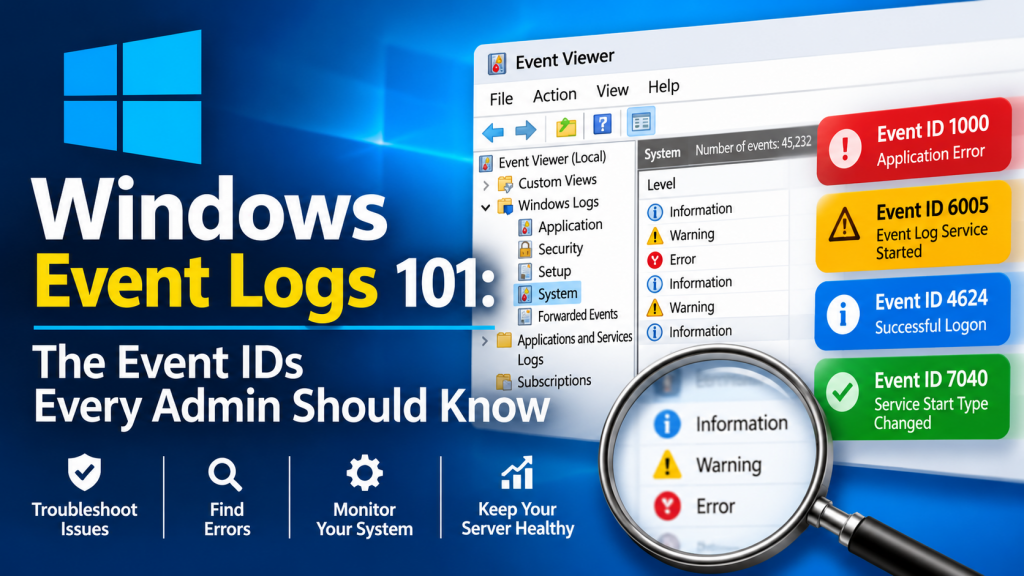
A typical Windows PC writes thousands of event-log entries a day, and a server can write millions. Nobody reads them all — and nobody needs to. A surprisingly small set of event IDs covers most of what an administrator actually cares about: who logged on, from where, with what privileges, what they ran, which accounts and services appeared, and whether somebody tried to erase the evidence. Learn these and the Security and System logs stop being noise.
If you have never opened Event Viewer, start with our Windows Event Viewer guide, which covers the console, the log channels and custom views. This article picks up where that one ends: it is the reference card to keep next to it.
Where these events live
Almost everything below lives in one of two logs. The Security log is written by the Local Security Authority and holds logons, account changes and audit events; reading it needs administrator rights. The System log holds events from Windows components and drivers, including the Service Control Manager and the event-log service itself. A few useful extras live in the Applications and Services Logs tree, such as Microsoft-Windows-PowerShell/Operational.
One caveat before the table: some Security events only appear if the matching audit policy is switched on. Logon and account-management auditing are enabled by default on modern Windows; process creation (4688) and service installation in the Security log (4697) are not. You can check what is being audited from an elevated prompt:
auditpol /get /category:*

# Turn on process-creation auditing (4688)
auditpol /set /subcategory:"Process Creation" /success:enable

# Turn on service-install auditing in the Security log (4697)
auditpol /set /subcategory:"Security System Extension" /success:enable
To get the full command line in 4688 events as well, enable the Group Policy setting Include command line in process creation events under Administrative Templates → System → Audit Process Creation.
The reference table
| Event ID | Log | What it means | Why you care |
|---|---|---|---|
| 4624 | Security | An account successfully logged on | The backbone of any investigation. Check the logon type and source address. |
| 4625 | Security | An account failed to log on | Bursts mean password guessing; the status code says why it failed. |
| 4634 | Security | An account was logged off | Closes a session opened by 4624 (match on the Logon ID). 4647 is a user-initiated logoff. |
| 4648 | Security | A logon was attempted using explicit credentials | “Run as”, mapped drives with other credentials — and a classic sign of lateral movement. |
| 4672 | Security | Special privileges assigned to a new logon | Logged right after 4624 for admin-equivalent sessions. Tells you which logons were powerful. |
| 4688 | Security | A new process has been created | What ran, who ran it, and its parent process. Needs auditing enabled. |
| 4720 | Security | A user account was created | Unexpected new accounts are a common persistence trick. |
| 4732 | Security | A member was added to a security-enabled local group | Especially Administrators or Remote Desktop Users. |
| 4740 | Security | A user account was locked out | The lockout policy did its job — something hammered that account. |
| 1102 | Security | The audit log was cleared | Rarely innocent outside a maintenance window. Records who did it. |
| 104 | System | A log (System, Application…) was cleared | The System-log counterpart of 1102. |
| 7045 | System | A service was installed | Logged by the Service Control Manager. Malware and remote-admin tools love services. |
| 4697 | Security | A service was installed in the system | Same story as 7045, but in the Security log and tied to the installing account. Needs auditing enabled. |
| 6005 / 6006 | System | Event-log service started / stopped | Effectively boot and clean shutdown markers. |
| 6008 / 41 | System | Unexpected shutdown / Kernel-Power: rebooted without a clean shutdown | Crashes, power loss — or someone pulling the plug. |
| 1074 | System | A process initiated a restart or shutdown | Who or what asked for the reboot, and the reason given. |
Logon types: the number that changes everything
A 4624 on its own says “somebody logged on”. The Logon Type field inside it says how, and that is usually what matters:
| Type | Name | Typical cause |
|---|---|---|
| 2 | Interactive | Someone at the keyboard (or a console session) |
| 3 | Network | File shares, remote management, most remote authentication |
| 4 | Batch | Scheduled tasks |
| 5 | Service | A service starting under its account |
| 7 | Unlock | Workstation unlocked |
| 8 | NetworkCleartext | Credentials sent in clear text (for example basic authentication) |
| 9 | NewCredentials | runas /netonly and similar |
| 10 | RemoteInteractive | Remote Desktop |
| 11 | CachedInteractive | Logon with cached domain credentials while offline |
Two rules of thumb. A type 10 logon from an address you do not recognise deserves a look every time. And a pile of type 3 failures from one address is password guessing over the network — note that with Network Level Authentication turned on, failed Remote Desktop attempts are usually recorded as type 3, not type 10, because the credentials are checked before the session starts.
Reading 4625 failure codes
Every 4625 carries a Status and a Sub Status. The sub status is the more precise of the two:
0xC000006A— correct user name, wrong password.0xC0000064— the user name does not exist. Many of these suggest someone is guessing account names.0xC0000234— the account is locked out.0xC0000072— the account is disabled.0xC0000071/0xC0000193— password expired / account expired.0xC000006F/0xC0000070— logon outside allowed hours / from a workstation that is not allowed.
A user who mistypes a password produces a handful of 0xC000006A events. An attacker working through a list produces hundreds, often mixed with 0xC0000064 for names that do not exist.
DeepDig — Your Event Logs, Explained in Plain English
Memorising event IDs is useful. Not having to is better. DeepDig reads the event logs your PC already keeps and correlates related alerts into plain-English incidents — each with a readable narrative, severity, recommended actions and a MITRE ATT&CK mapping. Scan this PC live or open an exported .evtx file; everything is processed locally, with no cloud, no account and no telemetry.
Pulling these events out with PowerShell
Event Viewer is fine for browsing, but for anything repeatable Get-WinEvent with -FilterHashtable is faster and filters at the source instead of loading the whole log. Run these from an elevated PowerShell window.
# Failed logons in the last 24 hours
Get-WinEvent -FilterHashtable @{
    LogName   = 'Security'
    Id        = 4625
    StartTime = (Get-Date).AddHours(-24)
}

# Account and group changes in the last 7 days
Get-WinEvent -FilterHashtable @{
    LogName   = 'Security'
    Id        = 4720, 4732, 4740, 1102
    StartTime = (Get-Date).AddDays(-7)
} | Select-Object TimeCreated, Id, @{ n = 'Summary'; e = { ($_.Message -split "`n")[0] } }

# New services, from the System log
Get-WinEvent -FilterHashtable @{ LogName = 'System'; Id = 7045 } -MaxEvents 20
The Message text is handy for reading, but for filtering you want the structured fields. Every event carries them as named XML data, and this small pattern turns them into properties you can sort and group:
# Remote Desktop logons (type 10) with user and source address
Get-WinEvent -FilterHashtable @{ LogName = 'Security'; Id = 4624 } -MaxEvents 2000 |
  ForEach-Object {
    $d = @{}
    ([xml]$_.ToXml()).Event.EventData.Data | ForEach-Object { $d[$_.Name] = $_.'#text' }
    [pscustomobject]@{
        Time      = $_.TimeCreated
        User      = $d.TargetUserName
        LogonType = $d.LogonType
        Source    = $d.IpAddress
        LogonId   = $d.TargetLogonId
    }
  } | Where-Object LogonType -eq '10'
Keep the Logon ID. It is the thread that ties a 4624 to the 4672 that follows it, the 4688 process events that session spawned, and the 4634 that closes it.
The same thing with wevtutil
wevtutil is built into every Windows install and works from a plain command prompt, which makes it handy on locked-down or older machines. It speaks XPath:
:: Last 20 failed logons, newest first, as readable text
wevtutil qe Security /q:"*[System[(EventID=4625)]]" /c:20 /rd:true /f:text

:: Service installs in the last 24 hours (86,400,000 ms)
wevtutil qe System /q:"*[System[(EventID=7045) and TimeCreated[timediff(@SystemTime) <= 86400000]]]" /f:text

:: How big is the Security log, and how much does it hold?
wevtutil gli Security
That last command matters more than it looks. The default Security log size is modest, and on a busy machine it can roll over in days. If you ever need to look back weeks, raise the maximum size before you need it.
What “normal” looks like
None of these IDs is suspicious by itself. Windows logs thousands of 4624s for services and the machine account; 7045 fires every time a legitimate driver or update installs a service; 4672 appears for every admin logon. The skill is spotting the combination: failures followed by a success, a type 10 logon followed by 4720 and 4732, a 7045 pointing into a temp folder, a 1102 at three in the morning. For the bigger picture of what Windows records and why it is worth reading, see There’s a Black Box in Your PC — Here’s How to Open It.
DeepDig — From Raw Event IDs to Real Answers
The IDs in this article are the raw material. DeepDig ships detection rules built on them — brute force, password spraying, account lockouts, RDP logons, security services disabled and any log cleared — and collapses recurring detections into a single “seen N×” card so the noise stays down. Search and filter by severity, narrow a scan to the last 24 hours, 7 days or 30 days, and export findings to CSV or JSON.
Key takeaways
- A short list of IDs covers most investigations: 4624, 4625, 4634, 4648, 4672, 4688, 4720, 4732, 4740, 1102, 7045 and 4697.
- The logon type inside 4624/4625 tells you how someone got in — 10 is Remote Desktop, 3 is network (including most failed RDP attempts under NLA).
- The sub status in 4625 separates a mistyped password from someone guessing account names.
- 4688 and 4697 need auditing switched on — check with
auditpolbefore you need them, and enlarge the Security log while you are there. - Use
Get-WinEvent -FilterHashtableorwevtutilto filter at the source, and follow the Logon ID to connect related events. - Single events rarely mean much; combinations do. DeepDig does that correlation for you and explains each incident in plain English.
DeepDig — Your Event Logs, Explained in Plain English
Memorising event IDs is useful. Not having to is better. DeepDig reads the event logs your PC already keeps and correlates related alerts into plain-English incidents — each with a readable narrative, severity, recommended actions and a MITRE ATT&CK mapping. Scan this PC live or open an exported .evtx file; everything is processed locally, with no cloud, no account and no telemetry.
Leave a Reply