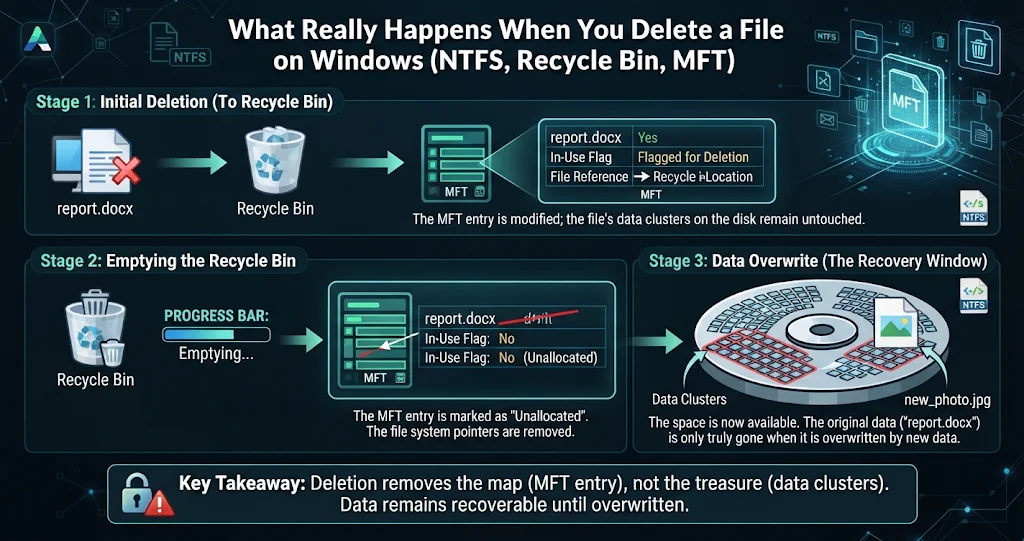
You press Delete, the file vanishes from Explorer, and it feels final. It almost never is. On a typical Windows NTFS drive, deleting a file is a handful of small bookkeeping edits — a rename, a flag flipped from 1 to 0, a few bits cleared in a map. The bytes of the file usually stay exactly where they were. This post walks through those mechanics layer by layer: the Recycle Bin, Shift+Delete, the Master File Table, the volume bitmap, cluster reuse and Volume Shadow Copies. If you are in the middle of an emergency right now, read what to do next after deleting a file first and come back for the theory later.
Layer 1: the Recycle Bin is just a rename
When you delete a file normally in Explorer, nothing is copied anywhere. Every NTFS volume has a hidden, system-protected folder at its root called $Recycle.Bin, with one subfolder per user named after that user’s security identifier (SID). Windows moves the file into your SID folder — and because a move within the same volume is just a rename, it is instant whether the file is 2 KB or 20 GB.
The moved file is split into a matched pair:
| File | What it holds |
|---|---|
$R + random suffix + original extension (e.g. $RX7K2QD.docx) |
The actual file contents, untouched. For a folder, the whole folder tree. |
$I + the same suffix (e.g. $IX7K2QD.docx) |
A small metadata record: a format version, the original file size, the deletion time, and the full original path. |
The $I file is how the Recycle Bin view knows where to put things back when you click Restore. Lose the $I and the $R file is still a perfectly good file — it has just lost its name and home. You can peek at your own Recycle Bin from PowerShell without opening the hidden folder:
# List what is currently in the Recycle Bin (shell namespace 10)
$bin = (New-Object -ComObject Shell.Application).NameSpace(10)
$bin.Items() | Select-Object Name, Path, Size

# The raw $I / $R pairs for drive C: (hidden + system, so -Force)
Get-ChildItem -Force 'C:$Recycle.Bin' -Recurse -ErrorAction SilentlyContinue |
  Select-Object FullName, Length, LastWriteTime
Only when you empty the Recycle Bin (or Windows trims it because it hit its size limit) do the $R and $I files get deleted for real — and “for real” turns out to mean the NTFS bookkeeping described below.
Layer 2: what Shift+Delete actually skips
Shift+Delete does not shred anything. It simply skips Layer 1 and goes straight to the file system deletion. Several other paths skip the Recycle Bin too:
delin Command Prompt andRemove-Itemin PowerShell.- Files deleted by most programs through their own code rather than through the shell.
- Files on network shares, and on many removable flash drives.
- Files larger than the Recycle Bin’s configured size for that drive (Windows warns you it will “permanently delete” them).
In every one of these cases the result on disk is the same as emptying the Recycle Bin: the steps in Layer 3 happen, and the data blocks are left behind.
Layer 3: the MFT record and its in-use flag
NTFS keeps a database of every file on the volume called the Master File Table ($MFT). Each file and folder gets a fixed-size record — usually 1 KB — that starts with the signature FILE and contains a list of attributes: the standard timestamps, the file name (often twice, a long name and a short 8.3 name), and the $DATA attribute that describes the contents.
For anything but the tiniest files, $DATA is non-resident: instead of the bytes themselves, it holds data runs — a compact list saying “the file lives in clusters 1,048,576 to 1,048,831, then 2,201,600 to 2,201,663”. Very small files (a few hundred bytes) are resident: their content sits inside the MFT record itself.
Here is what NTFS does when a file is deleted, in diagram form:
BEFORE                                   AFTER DELETE
------                                   ------------
Parent folder index ($I30)               Parent folder index
  report.docx -> MFT #48213                (entry removed)

MFT record #48213                        MFT record #48213
  flags: IN_USE                            flags: (cleared)
  $FILE_NAME: report.docx                  $FILE_NAME: report.docx   <- still there
  $DATA runs: 1048576+256                  $DATA runs: 1048576+256   <- still there

$MFT:$Bitmap  bit 48213 = 1              $MFT:$Bitmap  bit 48213 = 0
$Bitmap       clusters 1048576..831 = 1  $Bitmap       clusters 1048576..831 = 0

Clusters 1048576..1048831: file bytes    Clusters 1048576..1048831: file bytes (unchanged)
Four things change: the file’s entry is removed from its parent folder’s index, the in-use flag in the record header is cleared, the record is marked free in the MFT’s own bitmap, and the clusters it occupied are marked free in the volume bitmap. NTFS also writes the operation to its transaction log ($LogFile) and, on most system drives, appends a file delete entry to the change journal ($UsnJrnl) with the file name and a timestamp. What does not change: the name, the timestamps, the data runs, and the data itself.
That is why an MFT-based recovery tool can often bring back a deleted file with its original name, size and fragments intact: it scans for records whose in-use flag is clear and follows their data runs.
You can see the basic geometry of your own volume — cluster size, MFT size, record size — with a built-in command (run from an elevated prompt):
fsutil fsinfo ntfsinfo C:
:: look for: Bytes Per Cluster, Bytes Per FileRecord Segment, Mft Valid Data Length

:: The change journal: recent create / rename / delete events
fsutil usn queryjournal C:
fsutil usn readjournal C: csv | findstr /i "delete"DeepRecoveryDesk — Reads the MFT So You Don’t Have To
DeepRecoveryDesk reconstructs deleted files straight from the file system: it reads the NTFS master file table, cross-references the change journal to surface the names, times and folders of recently deleted files, and restores items emptied from the Recycle Bin without administrator rights. Source drives are opened strictly read-only, and every recovered file is verified with a SHA-256 checksum.
Layer 4: $Bitmap and the start of the countdown
The volume bitmap ($Bitmap, one of the hidden NTFS metadata files) has one bit per cluster: 1 means in use, 0 means free. Once your file’s clusters flip to 0, they are fair game for the next write. Nothing erases them; they are simply available.
This is the single most important idea in data recovery. Deletion starts a countdown, and every write to the drive is a chance for that countdown to end. On a system drive, writes never really stop: browser caches, Windows Update, log files, search indexing, app telemetry, the page file. A freed cluster on a busy C: drive can be reused within minutes; on an idle external archive drive it might survive for years.
Reuse is also usually partial. A new 40 KB file might land in the middle of your old 50 MB video, leaving the rest intact. That is why recovery results often come back as “partly overwritten”: the MFT record still promises clusters that now belong, in part, to someone else.
Layer 5: MFT record reuse
The MFT record itself is also marked free, so NTFS will eventually hand that record number to a brand-new file. When that happens, the old name and data runs are overwritten in one go, and MFT-based recovery for that file is over — even if the data clusters are still physically intact. At that point two weaker trails remain:
- The change journal may still remember that
report.docxexisted and when it was deleted — useful for knowing what you lost, but it does not say where the data lived. - Signature carving ignores metadata entirely and scans free clusters for known file headers (a JPEG starts with
FF D8 FF, a ZIP-based Office file withPK, and so on), then reconstructs files by structure. Carved files lose their names and folders, and fragmented files are hard to carve.
For a comparison of how this differs on FAT32 and exFAT — where the file allocation table is zeroed out and fragmented files are much harder to rebuild — see recovering deleted files on NTFS, FAT32 and exFAT, and what actually survives.
DeepRecoveryDesk — Honest About Reused Clusters
Because cluster reuse is the thing that actually destroys deleted data, DeepRecoveryDesk checks each deleted file’s storage against the drive’s own record of what is in use. Files whose space has since been taken are marked Overwritten or Partly overwritten and their confidence drops, so the results never promise data that is already gone. Its Deep scan reads the file system’s free-space map and carves unallocated space only — live files are never listed as deleted.
Layer 6: Volume Shadow Copies and Previous Versions
There is one more place old data can hide. The Volume Shadow Copy Service (VSS) creates point-in-time snapshots of a volume — for System Restore points, some backup tools, and the Previous Versions tab in a file’s or folder’s Properties. VSS is copy-on-write at the block level: after a snapshot is taken, whenever a block is about to be overwritten, its old contents are copied into a hidden diff area first. A deleted file that existed when the snapshot was taken can therefore be retrieved from the snapshot even after its clusters have been reused on the live volume.
# Elevated: list existing shadow copies on this PC
vssadmin list shadows

# Same information from PowerShell
Get-CimInstance Win32_ShadowCopy |
  Select-Object VolumeName, InstallDate, DeviceObject
Two caveats. On client editions of Windows, shadow copies only exist if System Restore (or a backup tool) is creating them for that drive, and many systems have it limited to C: or switched off. And the diff area has a size cap, so older snapshots are discarded as new ones arrive. If vssadmin lists nothing, this escape hatch is closed. Right-click the parent folder → Properties → Previous versions is the friendly way to check.
Putting the layers together
| What you did | Where the data is | How it comes back |
|---|---|---|
| Delete (Recycle Bin not emptied) | Intact, renamed to $R… |
Restore from the Recycle Bin |
| Emptied the bin / Shift+Delete | Clusters freed, MFT record flagged unused | MFT-based recovery: name, folder, fragments |
| Record reused, clusters not | Data present, metadata gone | Signature carving (no names); journal shows what it was |
| Clusters reused | Overwritten, fully or partly | Only a shadow copy or backup taken earlier |
One case is deliberately missing from this table: solid-state drives. On an SSD, Windows tells the drive which blocks were freed, and the drive may wipe them on its own schedule — that changes the whole picture and deserves its own article.
Why recovery tools must be read-only
All of the above leads to one hard engineering rule for recovery software: never write to the source drive. Installing a recovery tool onto the drive you are recovering from, saving recovered files back to it, or letting a tool “fix” the file system first can each overwrite exactly the clusters you are trying to save. A careful tool opens the volume read-only, refuses to recover onto the same drive, and verifies what it writes elsewhere.
That is how DeepRecoveryDesk is built: it reads the MFT and change journal directly, opens source drives strictly read-only, refuses to recover back onto the source drive, and lets you preview each result — a text snippet, an image thumbnail or a hex dump — before you recover it. For a drive that is starting to fail, it can copy the drive sector by sector into a disk image once and then scan and recover from the copy. It is still a pre-1.0 product, so treat it as a careful first-line tool rather than a forensic lab.
DeepRecoveryDesk — Reads the MFT So You Don’t Have To
DeepRecoveryDesk reconstructs deleted files straight from the file system: it reads the NTFS master file table, cross-references the change journal to surface the names, times and folders of recently deleted files, and restores items emptied from the Recycle Bin without administrator rights. Source drives are opened strictly read-only, and every recovered file is verified with a SHA-256 checksum.
Key takeaways
- A normal Delete is a rename into
$Recycle.Bin: the$Rfile is your data, the$Ifile remembers its original path, size and deletion time. - Shift+Delete,
del,Remove-Itemand most program deletions skip the bin but do not erase data. - An NTFS delete clears the MFT record’s in-use flag, removes the folder index entry, and frees clusters in
$Bitmap. Name, timestamps and data runs stay put. - Data is lost when clusters are reused (often partly); metadata is lost when the MFT record is reused. Carving and the change journal are the fallbacks.
- Shadow copies can hold pre-deletion blocks if System Restore or backups were creating them — check with
vssadmin list shadows. - Recovery only works if the source drive stays untouched: stop writing to it, and use a read-only tool such as DeepRecoveryDesk that recovers to a different drive.
Leave a Reply