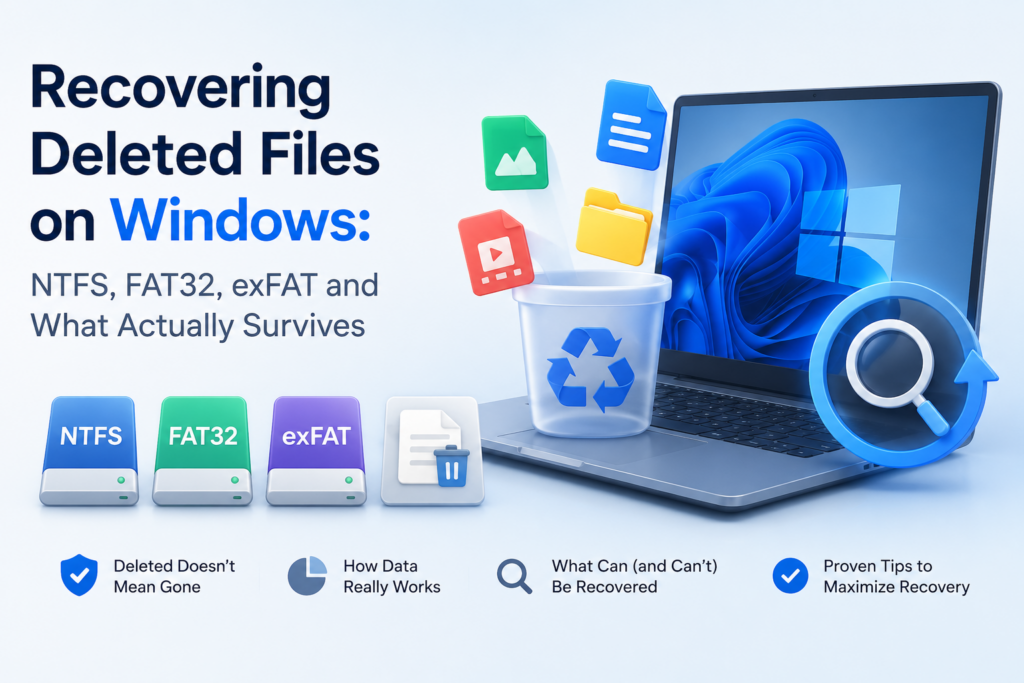
Recovering deleted files on Windows is, in most cases, a question of timing and filesystem internals — not magic. When you press Shift+Delete or empty the Recycle Bin, the bytes that made up your file are almost always still on the disk; what disappears is the bookkeeping that tells Windows where to find them. Understand how the bookkeeping works on NTFS, FAT32 and exFAT and you understand what is recoverable, when, and why.
This article is an overview of how deletion actually works on the three filesystems you’ll meet on Windows, what changes the odds of recovery, and how a dedicated tool such as DeepRecoveryDesk turns that into a practical, safe recovery workflow.
DeepRecoveryDesk — Recover Deleted Files on Windows
DeepRecoveryDesk recovers deleted files from the Recycle Bin, from NTFS, FAT32 and exFAT volumes, and through signature-based Deep Scan after a quick format. Drives are opened strictly read-only, every recovered file is verified with SHA-256, and nothing leaves your machine — no telemetry, no cloud, no account.
What “delete” really means
The intuition that a deleted file is “gone” is, at the storage layer, almost always wrong. Filesystems don’t erase data on delete; they mark the metadata as free, return the clusters that held the file to the available pool, and move on. The actual bytes — the contents of your document, photo, or spreadsheet — remain on disk until something else writes over them. Everything practical about Windows file recovery follows from that fact.
What differs between filesystems is precisely which piece of metadata is invalidated, how aggressively it is overwritten, and how much survives long enough to reconstruct the original file.
NTFS: the Master File Table and the USN journal
NTFS is the default filesystem for Windows system drives and almost every internal HDD or SSD. Every file and directory on an NTFS volume has a record in the Master File Table (MFT) — a structured database living inside the volume itself — that holds the name, timestamps, security descriptor, and, crucially, the data runs: the list of clusters where the file’s contents are stored. Small files (typically under ~700 bytes) live entirely inside their MFT record as resident data; larger files store their content in clusters elsewhere on the volume.
When a file is deleted on NTFS:
- The MFT record is flagged as unused, but the record itself — including the filename, timestamps and data runs — is left intact until that slot is reused.
- The clusters listed in the data runs are returned to the $Bitmap (NTFS’ cluster allocation map) as free, but the actual cluster contents are not zeroed.
- An event is appended to the USN change journal (
$UsnJrnl), recording the file’s name, parent directory and the type of change.
From a recovery standpoint, the MFT is the gift that keeps on giving. A flagged-unused record still points at the original clusters, so — provided those clusters haven’t been re-allocated — a tool can reconstruct the file byte-for-byte, with its original filename and full path. The USN journal is the second gift: even when an MFT record has been recycled for a new file, the journal often still names the deleted file and when it went away, giving a recovery tool something to look for during a signature pass. This is why NTFS deletions are typically the most recoverable of the three.
FAT32 and exFAT: directory entries and allocation chains
FAT32 and exFAT — the filesystems Windows still uses on USB sticks, SD cards, and almost every removable disk smaller than 32 GB — are simpler. There is no MFT and no transactional journal of metadata changes; the filesystem is a File Allocation Table (FAT), which is just an array of cluster pointers, plus a tree of directory entries describing each file.
When you delete a file on FAT32:
- The first byte of the directory entry is replaced with
0xE5, marking it “available.” The rest of the entry — the size, first cluster, and timestamps — is left alone, and the long filename (LFN) entries that precede it survive. - The chain of FAT entries that linked the file’s clusters is zeroed out, freeing them in the allocation table.
For a non-fragmented file (the common case on flash media), recovery is straightforward: you know the start cluster from the directory entry, you know the size, you read ceil(size / cluster_size) consecutive clusters from there. exFAT improves on FAT32 with 64-bit sizes, an allocation bitmap instead of a serial FAT chain, and a notion of contiguous extents — which, helpfully for recovery, means a deleted file’s extents are explicitly recorded in its directory entry, so even fragmented files can be reassembled by following the recorded allocation chain.
The catch on removable media is that flash storage tends to allocate aggressively and re-use clusters quickly — especially on cameras that loop-record — so the window in which directory entries and underlying clusters survive intact is often narrower than on a spinning NTFS volume.
When the metadata is gone: signature-based carving
A quick format writes a fresh, empty filesystem structure on top of an existing one. The MFT, FAT and directory tree are replaced with a clean slate, but the body of the volume — gigabytes of actual file data — is left untouched. The same is true after a partition has been deleted, or when metadata has been overwritten by normal use even though older file data still lingers in unallocated space.
This is where signature-based file carving earns its name. Instead of trusting the filesystem to tell it where the files are, a carver scans the raw bytes of the volume looking for known file signatures — the magic numbers that identify a file format. JPEG starts with FF D8 FF, PNG with 89 50 4E 47, PDF with %PDF, ZIP and modern Office documents with PK\x03\x04, SQLite with SQLite format 3, and so on. Once a header is found, the carver follows format-specific structure (length fields, end-of-image markers, central directories, frame chains) to determine where the file ends and pulls it out.
Carving works filesystem-agnostically and recovers content the metadata-based methods can’t, but it has well-known limits: filenames and original paths are lost (a carved JPEG comes out as jpeg_00001.jpg), and files that were physically fragmented at the time of deletion may come back truncated or split, because the carver has no map of where their non-contiguous pieces lived.
What makes recovery fail
Whether recovery succeeds at all comes down to one question: have the clusters that held your file been overwritten? Anything that writes to the same volume — opening apps, installing software, downloading the recovery tool itself onto the affected drive, even normal background indexing — can land on the clusters you need and make the data unrecoverable. Two specific Windows behaviours deserve a mention:
- TRIM on SSDs. On modern NTFS volumes backed by an SSD, Windows sends a TRIM command to the drive when files are deleted, telling the SSD that the underlying flash pages no longer hold useful data. The SSD’s controller is then free to erase those pages in the background — and once it has, even a perfectly preserved MFT record won’t help, because the clusters it points at now read back as zeros. This is why recovery rates from SSDs are dramatically worse than from spinning disks, and why the time-from-deletion clock is much shorter.
- System Restore and Volume Shadow Copy. NTFS’ built-in Volume Shadow Copy Service (VSS) sometimes preserves an older version of a file inside a restore point. Recovery tools that know to look there can find files even after the live metadata has been wiped.
The first rule of file recovery — before any tool is involved — is therefore: stop writing to the affected drive immediately. If the data matters, install your recovery tool on a different drive, scan the affected one read-only, and recover its files to a third location.
How DeepRecoveryDesk applies all of this
DeepRecoveryDesk is a Windows desktop app that bundles each of these recovery paths into a single workflow with safety constraints designed for the realities above. It is built around four engines that match the cases laid out in this article:
- Recycle Bin recovery — the data is fully intact and the metadata is in
$Recycle.Bin, so the engine simply reconstructs the original filename and path and writes the file out. No administrator rights required. - NTFS recovery — reads the MFT directly from the raw volume, follows the data runs of flagged-unused records, and cross-references the USN change journal to surface names and timestamps of recently-deleted files whose MFT records may already have been re-used.
- FAT32 & exFAT recovery — walks the directory tree on removable media, preserves long filenames, and on exFAT follows the recorded allocation chain so fragmented files can be reassembled.
- Deep Scan (signature carving) — filesystem-agnostic carver for JPG, PNG, GIF, TIFF, PDF, ZIP / Office, SQLite, 7z, RAR, GZ and MP3 files, used when metadata is gone — for example after a quick format.
Around the engines, three guarantees address the “don’t make it worse” rule:
- Source drives are opened strictly read-only. The app refuses to recover files back onto the source drive, eliminating the most common way users overwrite the data they’re trying to save.
- Every recovered file is verified with a SHA-256 checksum, computed on the bytes actually written to the destination.
- Results stream into a searchable grid as they are found, with a colour-coded confidence (green / amber / red) so you know which files are likely to come back intact — and you can preview any result (text, image thumbnail, or hex) before recovering it.
The app runs un-elevated by default. Recycle Bin recovery never requires administrator rights; raw NTFS / FAT32 / exFAT scans prompt to relaunch as administrator only when the operating system requires it. There are no network calls and no telemetry — the status bar shows so explicitly.
Key takeaways
- Deletion on Windows almost never erases the underlying data — it invalidates the metadata that points at it. Whether recovery succeeds depends on what has been written to the volume since.
- NTFS is the most recoverable of the three: the Master File Table retains data runs in flagged-unused records, and the USN journal retains a history of recent deletions.
- FAT32 and exFAT use directory entries plus an allocation table / bitmap; recovery is straightforward when entries survive, but flash media re-uses clusters quickly.
- After a quick format or when metadata is otherwise lost, signature-based carving can still recover file content for well-known formats — without filenames or paths.
- SSD TRIM shortens the recovery window dramatically on modern internal drives. Stop writing to the affected volume the moment you notice the deletion.
- Use a recovery tool that is read-only on the source and refuses to recover back to it — DeepRecoveryDesk is built that way, and adds SHA-256 verification and live confidence scoring on top.
If you’re facing a real recovery situation right now, the most important first step is also the simplest: don’t write to the drive in question. Install DeepRecoveryDesk somewhere else, point it at the affected drive, and let the right engine for the case do its work.
DeepRecoveryDesk — Recover Deleted Files on Windows
DeepRecoveryDesk recovers deleted files from the Recycle Bin, from NTFS, FAT32 and exFAT volumes, and through signature-based Deep Scan after a quick format. Drives are opened strictly read-only, every recovered file is verified with SHA-256, and nothing leaves your machine — no telemetry, no cloud, no account.
Leave a Reply