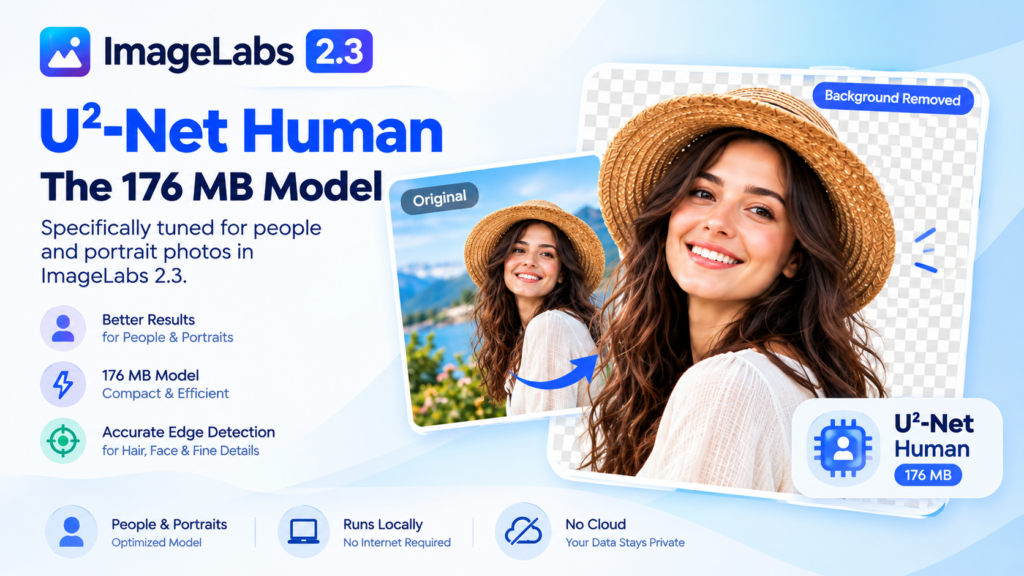
Removing a person from a photograph can be more demanding than separating a simple product from a plain background. Hair, clothing, overlapping objects, and busy surroundings can all make a clean cut-out challenging. U²-Net Human is the people-focused background-removal model in ImageLabs 2.3. At approximately 176 MB, it gives Windows users a dedicated alternative to general-purpose segmentation models when working with portraits and photographs featuring people. In this guide, we’ll explore how it fits into ImageLabs and how you can use it to create portrait cut-outs and background effects entirely on your own PC.
What Is U²-Net Human?
U²-Net Human is a model in the U²-Net family configured for human-focused segmentation. Rather than serving as the general-purpose option for any prominent subject, it is intended for photographs in which people are the main focus.
ImageLabs uses the model to identify a person and generate a mask that separates the foreground from the background. Once the mask is available, the editor can use it for background removal and other portrait effects.
The model is one of five automatic background-removal options in ImageLabs 2.3. It is downloaded on demand, so you do not need to include its approximately 176 MB model file when installing the application.
Why Use a Human-Focused AI Model?
Portrait photographs contain details that can make automatic background removal difficult. A person might have loose hair, dark clothing against a dark wall, or arms positioned close to other objects. A model designed for human-focused segmentation gives you another option to try when processing these images.
U²-Net Human is particularly relevant when your editing task centres on people rather than products, scenery, or miscellaneous objects.
- Portrait-oriented segmentation: Use a model specifically intended for photographs featuring people.
- Automatic background removal: Generate a subject mask without manually tracing around the person.
- Creative portrait effects: Use the mask for transparent cut-outs, background blur, color pop, and background replacement.
- Local processing: Run the model on your Windows PC without uploading your photographs to a cloud-based image editor.
- An alternative to general-purpose models: Compare its results with U²-Netp, Silueta, U²-Net, and ISNet when a portrait needs a better-fitting selection.
What Can You Create With U²-Net Human?
1. Remove the Background From Portraits
One of the most useful applications is separating a person from the original scene. You can create a transparent portrait cut-out for a presentation, profile graphic, poster, thumbnail, or other design.
After generating the selection, ImageLabs provides finishing options such as trimming the image to the subject, adding a sticker outline, and applying a drop shadow. These tools help you prepare the portrait for a new composition.
For example, you could isolate a person photographed in a room and use the resulting cut-out in a presentation with a completely different background.
2. Create a Portrait With a Blurred Background
Sometimes the original environment is worth keeping, but you want the person to stand out more clearly. ImageLabs includes a Background Blur mode that keeps the detected subject sharp while softening the surrounding scene.
This is useful for portraits, casual photographs, and images where a softer background helps direct attention toward the person.
The result depends on how accurately the model identifies the subject’s boundaries. Review areas such as hair, shoulders, and gaps between arms and the body before saving an important image.
3. Make a Color-Pop Portrait
Color pop creates a distinctive visual effect by retaining colour in the subject while converting the background to grayscale.
This can work well for profile photographs, creative portraits, social graphics, and promotional images. Because ImageLabs uses a subject mask, you can create the effect without manually selecting every part of the person.
4. Replace the Background Behind a Person
Background replacement lets you place the detected subject over another photograph. This can help when preparing a portrait for a presentation, creating a promotional graphic, or experimenting with a different visual setting.
For a convincing composite, consider the lighting, perspective, and colours of the original portrait and the replacement scene. Even a good segmentation mask cannot automatically make two photographs look as though they were captured in the same environment.
ImageLabs 2.3 — An Offline AI Photo Studio for Windows
ImageLabs 2.3 — An Offline AI Photo Studio for Windows
ImageLabs 2.3 brings five background-removal models, click-to-select object editing, face detection, depth estimation, AI 4× upscaling, photo colorization, and scratch repair into one Windows photo editor. It also includes crop, resize, watermark, OCR, redaction, batch processing, and more. AI processing runs locally on your PC with GPU acceleration and automatic CPU fallback. No account or cloud processing is required, and optional models can be downloaded on demand or imported for offline machines.
U²-Net Human vs. General-Purpose Background Removal
ImageLabs includes several models so you can choose an appropriate starting point for different photographs. U²-Net Human is the people-focused option, while the other models provide alternatives for general subjects and different segmentation requirements.
| Model | Primary role | Approx. size |
|---|---|---|
| U²-Netp | Fast, bundled background removal | 4.7 MB |
| Silueta | Balanced alternative for automatic segmentation | 43 MB |
| U²-Net | General-purpose background removal | 176 MB |
| U²-Net Human | People and portrait photographs | 176 MB |
| ISNet | An alternative for crisp cut-out edges and fine details | 176 MB |
These roles are useful guidelines, not guarantees that one model will always produce the best result. The quality of a cut-out depends on the photograph, lighting, background, subject position, and fine details.
If you’re editing a portrait, try U²-Net Human and compare the result with another available model if needed. For a photograph containing several different objects, MobileSAM may be more suitable when you need to select one particular object instead of relying on automatic subject detection.
Can U²-Net Human Process Portraits Offline?
Yes. Once the model is available on your computer, ImageLabs performs its AI processing locally. You don’t need to send portraits to an external server or use an online background-removal website.
This is useful when editing personal photographs, family pictures, or images used in business projects. Keeping processing local also means your workflow does not depend on a remote AI service being available.
ImageLabs verifies AI model integrity before use and supports GPU acceleration with automatic CPU fallback. U²-Net Human is an optional model download, so you can install it only if your editing work benefits from having this additional option.
How to Use U²-Net Human in ImageLabs
- Open ImageLabs on your Windows PC.
- Load the portrait or photograph containing the person you want to isolate.
- Open the Background task.
- Select U²-Net Human from the available background-removal models.
- If the model isn’t installed, download it through ImageLabs or import the model file using the AI Models manager.
- Choose Remove, Blur, Color pop, or Replace, depending on your intended result.
- Review the selection, check fine details around the subject, and adjust the available settings.
- Apply the edit and save the finished image.
For difficult photographs, compare the result with other segmentation models before settling on the final cut-out. For more precise editing of an individual object, use the MobileSAM-based Pick object workflow where appropriate.
Final Thoughts
U²-Net Human gives ImageLabs 2.3 users a dedicated option for background removal in photographs featuring people. Instead of relying exclusively on a general-purpose model, you can try a human-focused alternative and compare the results on your own portraits.
Combined with ImageLabs’ background blur, color-pop, transparent cut-out, and replacement modes, it provides a practical portrait-editing workflow inside a single Windows application. And because the model runs locally, you can work on your photographs without uploading them to a cloud-based editing service.
If you want a Windows photo editor with a choice of on-device AI models for portrait and general-purpose background removal, explore ImageLabs 2.3.
Learn more: ImageLabs for Windows — official product page
Leave a Reply