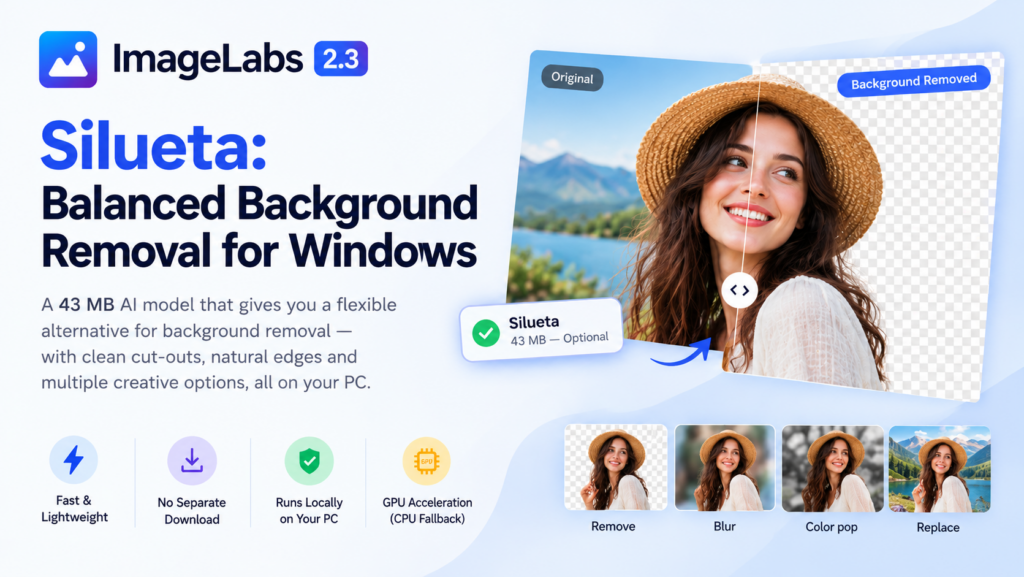
A lightweight AI model is a great starting point for background removal, but some photographs benefit from trying a different segmentation model. Silueta is the balanced background-removal option in ImageLabs 2.3. At approximately 43 MB, it offers an alternative to the tiny bundled model when you want to compare cut-out results without immediately moving to one of the larger models. Here’s how Silueta fits into ImageLabs and when it may be worth choosing.
What Is the Silueta AI Model?
Silueta is an image-segmentation model used to separate a foreground subject from its background. In ImageLabs, it powers automatic background removal by generating a mask that identifies the subject and the surrounding area.
That mask can be used to make a transparent cut-out, blur the background, create a color-pop effect, or place the subject over another photograph. Instead of manually outlining the subject, you let the model identify it and then choose how to use the result.
Silueta is part of ImageLabs’ collection of on-device AI models. It is an optional download of approximately 43 MB, making it larger than the bundled U²-Netp model but considerably smaller than the 176 MB U²-Net, U²-Net Human, and ISNet alternatives.
Why Choose Silueta for Background Removal?
ImageLabs offers several background-removal models because photographs vary widely. A clean product photograph, a portrait with loose hair, and an object against a busy background can all present different segmentation challenges.
Silueta provides another option when you want to compare results against the fast, bundled model.
- A balanced model size: At approximately 43 MB, Silueta is a middle option between the 4.7 MB bundled model and the larger background-removal models.
- Automatic subject detection: Let the AI identify the main subject rather than manually tracing its outline.
- Multiple background effects: Use the resulting subject mask for removal, blur, color pop, or background replacement.
- Local AI processing: Silueta runs on your Windows PC, without requiring a cloud-based image-processing service.
- A reusable editing workflow: After the subject mask has been generated, ImageLabs can reuse it when you switch between supported background modes or adjust their settings.
Four Ways to Use Silueta in ImageLabs
1. Remove the Background and Create a Transparent Cut-Out
The most direct use for Silueta is separating a subject from its original background. This is useful for product listings, presentation graphics, profile images, thumbnails, and other designs where you need the subject without its original surroundings.
ImageLabs’ Remove mode also offers finishing options, including trimming to the subject, adding a sticker outline, and applying a drop shadow. These features help you prepare a cut-out for use in another design.
2. Blur the Background Without Losing the Subject
Removing the background entirely is not always necessary. Sometimes you simply want to draw attention to the person or object in the foreground.
ImageLabs’ Background task includes a Blur mode that keeps the detected subject sharp while softening the background. Silueta can supply the subject mask used for this effect, giving you another way to transform an ordinary photograph.
For photographs where a cut-out-based blur produces an obvious boundary, ImageLabs also supports depth-based background blur. That is a separate feature powered by its depth-estimation model.
3. Create a Color-Pop Photograph
Color pop keeps the subject in colour while turning the background grayscale. The effect can make a portrait, product, or other prominent subject stand out without completely replacing the original scene.
Because the effect uses the subject mask, you can experiment with it using the same background-removal workflow rather than manually selecting the foreground.
4. Replace the Original Background
If you want to place a subject into a different scene, ImageLabs’ Replace mode lets you use another photograph as the background.
This can be useful when preparing a product image for a catalogue, creating a composite for a presentation, or experimenting with a different setting for a portrait. The final result depends on the quality of the subject mask and how naturally the foreground fits the replacement image.
ImageLabs 2.3 — An Offline AI Photo Studio for Windows
ImageLabs 2.3 — An Offline AI Photo Studio for Windows
ImageLabs 2.3 combines five background-removal models with click-to-select object editing, face detection, depth estimation, AI 4× upscaling, photo colorization, and scratch repair. Everyday tools include crop, resize, watermark, OCR, redaction, and batch processing. All AI processing happens locally on your PC, with GPU acceleration and automatic CPU fallback. No account or cloud processing is required; optional models download on demand and can be imported for offline machines.
Silueta vs. the Other Background-Removal Models
Silueta is one of five automatic background-removal options in ImageLabs. Each gives you another way to approach subject segmentation, depending on the photograph and the result you need.
| Model | Role in ImageLabs | Approx. size |
|---|---|---|
| U²-Netp | Fast, bundled background removal | 4.7 MB |
| Silueta | Balanced alternative for background removal | 43 MB |
| U²-Net | Higher-quality general-purpose option | 176 MB |
| U²-Net Human | Specialized for people and portraits | 176 MB |
| ISNet | Alternative focused on crisp cut-out edges | 176 MB |
Model size alone does not determine the quality of a cut-out. A larger model is not automatically better for every image, and the best result depends on the subject, background, and fine details that need to be separated.
If U²-Netp gives you a satisfactory result, there may be no reason to download another model. If you’re unhappy with the first cut-out, try Silueta and compare the result. For difficult portraits or challenging edges, you can also test the other available models.
Does Silueta Require an Internet Connection?
Silueta is downloaded when you first need it in ImageLabs, unless you import the model file yourself. After the model is available locally, its image processing runs on your computer.
ImageLabs verifies model integrity before use and supports GPU acceleration with automatic CPU fallback. The optional model download is the network-dependent part of this workflow; your photographs do not need to be uploaded to a remote service for background removal.
This makes the workflow suitable for people who prefer to edit personal photographs and business images locally, without relying on an online background-removal website.
How to Use Silueta in ImageLabs
- Open ImageLabs on your Windows PC.
- Load the photograph you want to edit.
- Open the Background task.
- Choose automatic subject detection and select Silueta from the model options.
- If Silueta is not already installed, allow ImageLabs to download the model, or import the model file through the AI Models manager.
- Choose Remove, Blur, Color pop, or Replace.
- Review the result, make any adjustments, and apply the edit.
- Save the finished image in your preferred format.
For a photograph containing several distinct objects, automatic subject detection may not select the object you actually want. In that situation, use ImageLabs’ MobileSAM-based Pick object feature to click the specific object and create a selection around it.
Final Thoughts
Silueta gives ImageLabs users an additional background-removal option between the tiny bundled model and the larger segmentation models. Its approximately 43 MB size makes it a practical alternative to test when you want to compare results on your own photographs.
More importantly, Silueta is part of a broader editing workflow. In ImageLabs 2.3, the generated subject mask can support transparent cut-outs, background blur, color pop, and background replacement, all within the same Windows application.
If you’re looking for an offline Windows photo editor with several AI background-removal options instead of a single fixed model, explore ImageLabs 2.3.
Learn more: ImageLabs for Windows — official product page
Leave a Reply