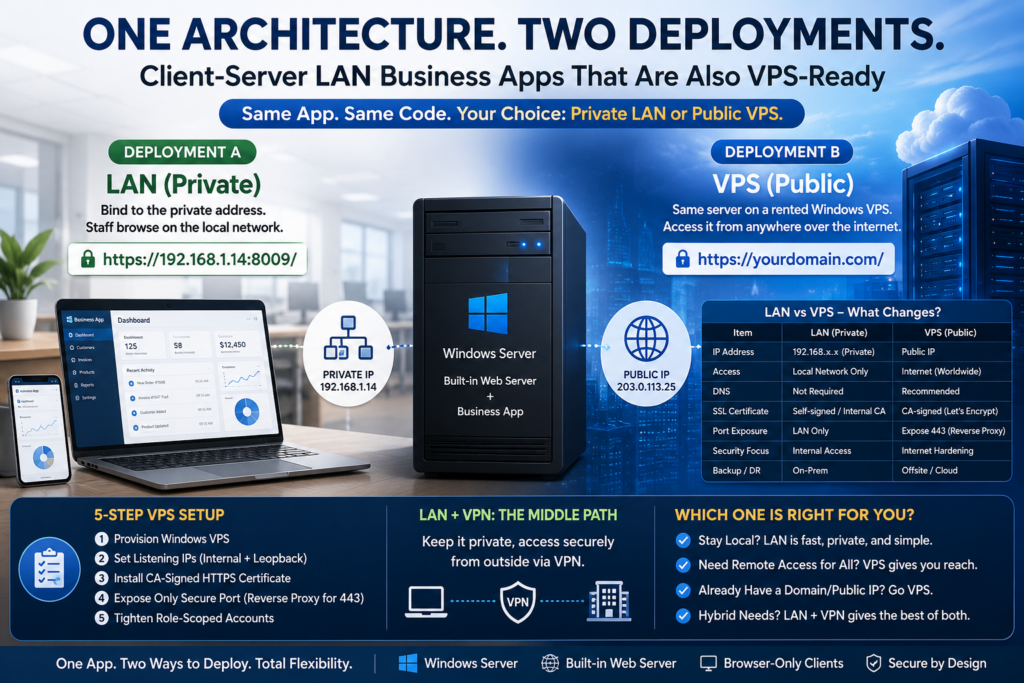
There is a persistent assumption that business software comes in exactly two flavours: a desktop program locked to one office, or a cloud subscription you rent forever. The client/server model that BackendSide’s business applications are built on quietly refuses that choice. The same installation that serves a shop floor over the local network can just as easily sit on a rented VPS and serve the same interface over a public IP, to staff anywhere. Nothing is recompiled, nothing is migrated, no separate “cloud edition” exists. It is one product with two deployment postures — and you can move between them.
The architecture in one paragraph
Each application — DailyAccounts, PharmaDesk, ClinicDesk, DistributorsDesk — ships as a server component that runs on Windows. That server holds the database and hosts a built-in web server: it serves both the application’s API and the browser-based user interface directly, with no separate web server, no external database engine, and nothing to install on the client side. Staff open a browser on a PC, tablet or phone, point it at the server’s address, and log in. That is the whole client stack.
Because the interface is delivered over HTTP, the only thing that determines who can reach it is the network the server sits on and the addresses it listens on. Put the server on an office PC bound to a private address, and you have a LAN system. Put the identical server on a VPS bound to its public address, and you have an internet-reachable system. The application logic, the database, the reports and the permissions are the same either way.
Deployment A: the office LAN
This is the default and, for most single-location businesses, the right one. You install the server on one reasonably reliable Windows machine in the premises — the back-office PC, a small tower in the stockroom, whatever is already on during working hours. It does not need to be powerful; it needs to be on.
Everyone else connects over the network you already have. In DailyAccounts, for example, the service listens on configurable TCP ports — 8008 for HTTP and 8009 for HTTPS by default — and you choose which IP addresses it binds to. Staff then browse to https://192.168.1.14:8009/ (substituting the server’s own LAN address) and they are in. PharmaDesk follows the same pattern: http://localhost:8008 on the server itself, http://192.168.1.10:8008 from any other machine on the network.
What you get from this shape:
- Nothing to install on clients. A new terminal, a borrowed laptop, the manager’s phone — all of them are one URL away from being a working workstation.
- Internet outages are irrelevant. The LAN keeps working when the line to the outside world does not, so billing and stock movements never stop.
- The data is physically yours. It lives on a machine you can point at, in a building you control.
- No per-seat monthly fee. You own the software; adding a fifth or fifteenth user does not change what you pay.
Four Business Systems, One Deployment Model
DailyAccounts (double-entry accounting), PharmaDesk (pharmacy retail & stock), ClinicDesk (appointments, patients & invoicing) and DistributorsDesk (order-to-cash for distributors) all share the same client/server design: one Windows machine runs the server, and everyone else works in a browser. Point that machine at your office LAN, or put it on a VPS and reach it over a public IP — the software does not change. All four are available on the Microsoft Store with a 30-day free trial.
Deployment B: the same software on a VPS
Now suppose the business outgrows one address. A pharmacy chain with three branches. A distributor whose salesmen are on the road all week. A clinic whose accountant works from home. An owner who wants to check the day’s figures from another city. The LAN model has a hard edge here — you cannot browse to 192.168.1.14 from a different building.
The answer is not a different product. It is the same server component installed on a Virtual Private Server — a Windows VPS rented from any hosting provider, with its own public IP address. From there, the built-in web server is reachable from anywhere with an internet connection. PharmaDesk’s own documentation puts it plainly: running on a VPS with a public IP, the interface can be accessed globally, which suits multi-location pharmacies and remote management. DailyAccounts documents the identical path — a public VPS or dedicated server, reached at https://your-domain-or-ip:8009/.
Your staff’s experience does not change at all. They still just open a browser. The only difference is that the address in the bar is a domain name or public IP instead of a private one.
What changes when you go public
| LAN deployment | VPS deployment | |
|---|---|---|
| Server location | A Windows PC on your premises | A rented Windows VPS in a data centre |
| Address staff use | Private IP, e.g. 192.168.1.14 |
Public IP or domain name |
| Who can reach it | Devices on your network (or VPN) | Anyone with the URL and a login |
| Encryption | Recommended (self-signed is fine) | Mandatory — CA-signed certificate |
| Survives internet outage | Yes | No — the link is the lifeline |
| Who runs backups | You | You (the VPS host is not your backup) |
| Ongoing cost | Electricity | VPS rental |
Setting up the VPS deployment
The mechanics are short, and largely the same across all four applications.
1. Provision a Windows VPS
Any provider offering Windows will do. The server components target Windows 7 through 11 and Windows Server, and the server side requires administrator privileges to install and network access to be useful. A modest instance is enough for a small team — these are not resource-hungry systems.
2. Install the server and bind it to the right addresses
Install as you would locally, then open the server’s configuration and set the listening IPs. On a LAN box you would list the machine’s private address; on a VPS you list its public one. DistributorsDesk exposes exactly this in its Web Service Configuration screen — listening IPs, HTTP and HTTPS ports, and the SSL certificate — alongside a control panel showing the client URLs to hand out.
3. Turn on HTTPS with a real certificate
This is the step that is optional on a LAN and non-negotiable on the internet. DailyAccounts lets you tick Enable SSL port and either generate a self-signed certificate in one click — fine inside an office, though browsers will warn on first visit — or point the certificate and key paths at a CA-signed pair from a trusted authority such as Let’s Encrypt. For any publicly reachable deployment, use the CA-signed route: no browser warnings, and the session cookies that carry your staff’s logins are protected in transit. Save the configuration, then stop and restart the service for it to take effect.
4. Open only the port you need
On the VPS firewall, expose the HTTPS port and nothing else. Leave the plain HTTP port closed to the outside world. If you would rather serve on the standard port 443 — so users can type a bare domain with no port number — DailyAccounts’ guide suggests placing the service behind a reverse proxy, which is a well-trodden pattern for exactly this.
5. Tighten the accounts before you hand out the URL
All four applications are built around role-based access: DistributorsDesk gives admins, office staff, salesmen and warehouse users each a tailored interface; PharmaDesk separates admin, pharmacist, salesman and cashier; ClinicDesk distinguishes doctors, secretaries and administrators, with permissions checked server-side on every action and a tamper-evident audit log behind them; DailyAccounts enforces server-side sessions where a session ID is required for every API call and every report page, and shows last-login information. On a public deployment, those controls stop being a convenience and start being your perimeter. Delete demo accounts, give every person their own login with the narrowest role that lets them do their job, and use passwords worthy of an internet-facing service.
LAN-First, VPS-Ready Business Software
- DailyAccounts — double-entry accounting: debit, credit and journal vouchers, trial balance, balance sheet, income statement, cash book and day book, all served as browser reports.
- PharmaDesk — pharmacy point of sale with batch and expiry tracking, stock valuation, margin reporting, and roles for admin, pharmacist, salesman and cashier.
- ClinicDesk — appointment scheduling with status tracking, patient profiles and clinical visit records, document attachments, invoicing and partial payments, plus a tamper-evident audit log.
- DistributorsDesk — the full order-to-cash cycle for wholesalers: orders, deliveries, invoicing, collections, purchases, returns and live inventory.
The middle path: LAN plus a VPN
There is a third option worth naming, because it is often the best answer for a business that needs remote access occasionally rather than constantly. Keep the server on the office LAN exactly as it is, and give remote staff a VPN into the office network. To the application, a VPN client looks like just another device on the LAN — the same private address works, no ports face the internet, and nothing about the deployment changes. DailyAccounts’ documentation lists LAN, VPN and public internet side by side for precisely this reason.
Rule of thumb: if remote access is the exception, use a VPN. If remote access is the normal working pattern — multiple branches, a mobile sales force, a genuinely distributed team — the VPS deployment is simpler to live with.
Choosing between them
A few honest trade-offs:
- Single location, everyone on site? LAN. It is faster, cheaper, resilient to internet outages, and keeps your data physically in the building.
- Multiple branches sharing one set of books, stock or patients? VPS. One central server that every branch reaches is far simpler than trying to reconcile separate installations.
- Staff who travel, or an owner who checks in from elsewhere? VPS if it is constant; LAN plus VPN if it is occasional.
- Worried about a public attack surface? LAN plus VPN gives you remote access with nothing exposed — a genuinely strong middle ground.
- Not sure yet? Start on the LAN. Because the architecture is identical, moving to a VPS later means installing the same server elsewhere and pointing staff at a new URL — not migrating to a different product or a different vendor.
What stays true in both modes
Whichever way you deploy, the properties that made this software attractive in the first place do not change. There is no cloud subscription and no per-user monthly fee — you own the licence and the machine, and DistributorsDesk makes the point explicitly: it runs entirely on your own server or private infrastructure, with your business data under your control. There is no third-party service in the data path; PharmaDesk describes itself as having zero reliance on external cloud services or third-party APIs. There is nothing to install on client devices in either mode. And the backups remain your responsibility in both — a VPS provider hosts your machine, it does not safeguard your books.
Key takeaways
- DailyAccounts, PharmaDesk, ClinicDesk and DistributorsDesk share one client/server architecture: a Windows server component with a built-in web server, and browser clients with nothing to install.
- The same installation serves an office LAN over a private IP or the whole internet from a VPS with a public IP — you change the listening addresses, not the software.
- Going public makes HTTPS with a CA-signed certificate mandatory, along with a firewall that exposes only the secure port and disciplined, role-scoped user accounts.
- LAN plus VPN is the sensible middle path when remote access is occasional rather than constant.
- Either way you keep no subscription, no per-seat fees, your data on infrastructure you control — and the responsibility for your own backups.
[…] covered the mechanics of that choice in detail in Client-Server LAN Business Apps That Are Also VPS-Ready, if you want the setup steps. The point here is simpler: you are never asked to choose a […]