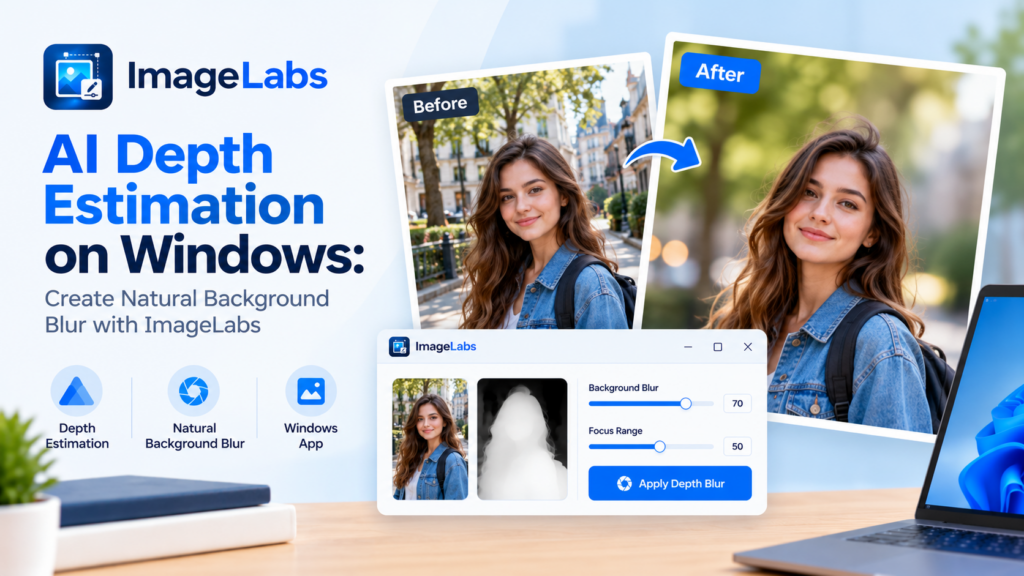
AI Depth Estimation on Windows: Create Natural Background Blur with ImageLabs
Have you ever taken a photograph where the subject looks good but the background is too distracting? A depth-aware blur can help draw attention to the main subject while making the surrounding scene less prominent.
ImageLabs 2.3 includes AI depth estimation to support natural-looking background blur with adjustable focus. Instead of applying the same blur strength indiscriminately across the entire photograph, depth estimation helps distinguish nearer and farther regions of a scene.
What Is AI Depth Estimation?
Depth estimation is a computer-vision technique that predicts relative distance information from an image. A depth map represents how near or far different parts of a scene appear to be, based on the model’s interpretation.
Unlike a photograph captured with a dedicated depth sensor, a depth map estimated from an ordinary image is a prediction. It can help distinguish a foreground subject from the background, but it does not provide guaranteed or perfectly accurate physical distances.
ImageLabs uses depth estimation to support depth-aware background blur, allowing you to adjust the focus and reduce distractions around the subject.
What Can You Do with Depth Estimation in ImageLabs?
1. Create Portrait-Style Background Blur
Portrait photographs often look more focused when the person stands out clearly from the background. Depth-aware blur can soften distracting surroundings while keeping the intended subject relatively sharp.
This can be useful for portraits, profile pictures, casual photography, and images where you want greater visual separation between the subject and the scene behind them.
2. Adjust the Focus of a Photograph
Not every photograph has the same subject or composition. Adjustable focus gives you control over how the depth-aware effect is applied, helping you emphasize the area that matters most.
Depending on the image and available settings, you can experiment with focus and blur strength to find a result that suits the photograph rather than applying one fixed effect to every image.
3. Reduce Background Distractions
A photograph may contain signs, objects, furniture, vegetation, or other visual elements that compete with the main subject. Softening background details can reduce those distractions without removing the background completely.
This approach is different from background removal: the scene remains visible, but the blur changes its visual prominence.
4. Enhance Everyday Photographs
Depth-aware blur can be useful even when you did not capture an image using a portrait mode. You can experiment with the effect on suitable photographs to create a stronger sense of subject separation during editing.
Results depend on the image composition and the model’s ability to distinguish the foreground from the background.
Depth Estimation vs. Ordinary Blur
An ordinary blur effect generally applies a chosen amount of softness to a selected region or to the image as a whole. This can be useful for simple effects, but it does not inherently understand which objects are nearer to the camera.
Depth-aware blur uses estimated depth information to guide the effect. This can help create a more convincing separation between the subject and background, although imperfect depth estimates may still produce visible errors.
- Uniform blur: Applies a similar blur treatment across the affected area.
- Selection-based blur: Depends on a manually or automatically selected region.
- Depth-aware blur: Uses estimated scene depth to help guide the blur and focus effect.
Why Depth Maps Matter for Background Blur
Objects at different apparent distances can require different treatment to create a convincing depth effect. A depth map gives the editing workflow additional information about the scene’s estimated spatial arrangement.
For example, a person standing in front of a distant landscape may be separated from the background using estimated depth. The blur can then emphasize the person while softening the more distant scenery.
However, depth estimation can struggle when the subject and background overlap, when transparent objects are present, or when foreground and background regions have similar visual characteristics.
Limitations of AI Depth Estimation
Depth estimation from a single image is inherently an approximation. The model infers depth from visual cues rather than measuring every object’s actual distance.
- Hair and fine edges: Thin strands may be difficult to separate cleanly from the background.
- Overlapping objects: The model may not distinguish boundaries correctly.
- Transparent surfaces: Glass and other transparent objects can produce challenging depth estimates.
- Complex scenes: Similar textures or unusual perspectives may lead to incorrect depth predictions.
For the best results, inspect the subject’s outline and nearby objects after applying blur. Reduce the effect or adjust the focus if the image develops halos or unnatural transitions.
Tips for More Natural Background Blur
- Start with a clear photograph. Good subject visibility can make the effect easier to evaluate.
- Adjust focus carefully. Make sure the intended subject remains sharp.
- Avoid excessive blur. Very strong blur can make an edited photograph look artificial.
- Check subject boundaries. Inspect hair, shoulders, and objects near the edge of the subject.
- Compare with the original. Keep a copy so you can judge whether the effect improves the composition.
AI Depth Estimation on Windows
ImageLabs 2.3 brings depth estimation into a Windows desktop image-editing workflow. It complements the application’s other AI models for background removal, object selection, photo upscaling, colorization, image inpainting, and face-aware editing.
Local processing can be useful when you prefer to work with photographs on your own computer instead of uploading them to an online service. Performance depends on your hardware, image dimensions, and application configuration.
Try Depth Estimation in ImageLabs 2.3
If you want more control over subject emphasis and background softness, ImageLabs 2.3 offers depth-aware background blur with adjustable focus alongside a broader collection of AI-assisted image-editing tools for Windows.
ImageLabs 2.3 — AI-Powered Image Editing for Windows
Create depth-aware background blur, remove backgrounds, select objects, upscale images, colorize photographs, repair selected areas, and explore other AI-powered editing tools in one Windows application.
Leave a Reply