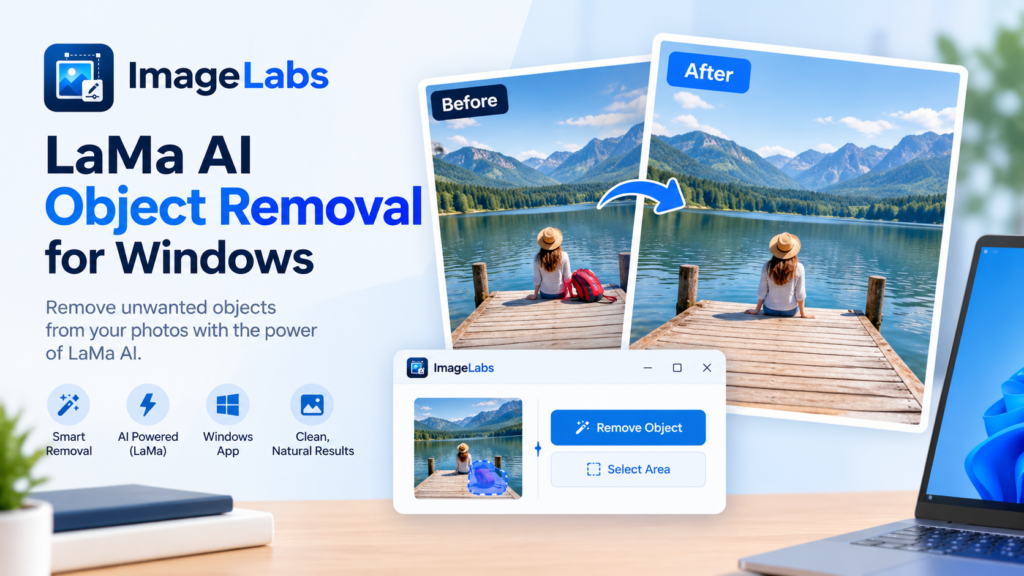
LaMa AI: Remove Unwanted Objects from Photos on Windows
Have you ever taken a good photograph only to discover an unwanted object in the background? It could be a distracting item, an object on a table, or a visual element that takes attention away from the subject. Removing it cleanly can be difficult with ordinary image-editing tools.
ImageLabs 2.3 includes LaMa, an AI image-inpainting model that can help fill selected regions of an image using surrounding visual information. This makes it useful for removing unwanted objects and repairing parts of photographs without manually recreating every pixel.
What Is LaMa AI Inpainting?
LaMa is an image-inpainting model designed to reconstruct missing or masked regions of an image. Instead of simply covering an unwanted object with a solid color, an inpainting model uses information from the surrounding image to estimate what could plausibly fill the selected area.
For example, if an object covers part of a wall, the model may generate a continuation of the wall’s texture. If the selected region is surrounded by grass or sky, it attempts to create a fill that fits the surrounding scene.
The generated content is an estimate, not a recovery of the exact pixels hidden behind the original object. Results depend on the size and shape of the selected area and the complexity of the scene.
What Can You Do with LaMa in ImageLabs?
1. Remove Distracting Objects
A photograph may contain an object that distracts from the main subject. AI inpainting can help remove selected objects and fill the resulting region with an estimated continuation of the surrounding image.
This can be useful for personal photography, product images, and creative compositions where an unwanted detail takes attention away from the subject.
2. Clean Up Product Photographs
Product photos sometimes include distracting background elements or small objects that are not part of the intended composition. Inpainting can help clean up suitable images by replacing selected areas with generated content.
For commercial listings, inspect the result carefully. Avoid using AI-generated edits to misrepresent a product’s condition, features, or included components.
3. Repair Selected Image Areas
Image inpainting can also be useful when part of an image needs to be filled or reconstructed. Depending on the surrounding content, LaMa may produce a plausible continuation of a background, surface, or texture.
For old or damaged photographs, results vary according to the damage. Complex missing details, faces, text, and distinctive objects may not be reconstructed accurately.
4. Improve Creative Compositions
When preparing an image for a design or presentation, you may want to remove an incidental detail that disrupts the composition. Inpainting can provide a starting point for this cleanup without requiring you to paint the entire area manually.
How AI Object Removal Works
AI object removal typically involves identifying the area to change and supplying that region to an inpainting model. The model then estimates replacement content using the visible portions of the image.
- Identify the unwanted area. Select the region that needs to be removed or reconstructed.
- Generate replacement content. The model analyzes the surrounding image and predicts what could fill the selected region.
- Inspect the result. Check textures, edges, shadows, and repeated patterns for visible artifacts.
- Refine if necessary. A smaller or more carefully defined selection may help when the first result is unsatisfactory.
The exact result depends on the editing workflow and the image itself. AI cannot reliably reconstruct information that is completely hidden or absent from the source.
LaMa vs. Cropping and Manual Retouching
Cropping is often the simplest way to remove an unwanted object near the edge of a photograph. However, it may not be practical when the object is near the center or when you need to preserve the original composition.
Manual retouching offers precise control but can require time and skill, especially when an area contains complicated textures or patterns. AI inpainting offers another option by automatically estimating replacement content.
- Cropping: Best when you can remove the distraction without losing important parts of the image.
- Manual retouching: Useful when precise control or detailed reconstruction is necessary.
- AI inpainting: Useful for generating a plausible fill for selected areas with less manual work.
What LaMa Cannot Guarantee
AI object removal is not a perfect eraser. The model generates replacement content based on learned patterns and the surrounding image, so the result may contain visual inconsistencies.
- Large objects may leave noticeable artifacts.
- Repeated patterns, straight lines, and complex backgrounds may be difficult to reconstruct.
- Faces, signs, text, and distinctive details may not be recreated accurately.
- Removing an object does not restore the exact scene that existed before the photograph was taken.
Keep the original image and review the edited version at full size before using it in a final project.
Why Use LaMa in ImageLabs 2.3?
ImageLabs brings several AI image-processing models together in one Windows application. LaMa adds image inpainting to a toolkit that also includes background removal, object selection, photo upscaling, colorization, and other editing capabilities.
This is useful when you want to handle different image-cleanup tasks within one desktop workflow rather than switching between separate online services.
AI Image Inpainting on Windows
ImageLabs 2.3 includes the LaMa model, which is approximately 88 MB. Local processing can be useful when you prefer to keep personal photographs on your own computer instead of uploading them to a remote editing service.
Processing performance depends on your computer, image dimensions, and application configuration. As with any AI editing tool, check the output before treating it as a finished result.
Try LaMa in ImageLabs 2.3
If you regularly clean up photographs or need to remove distracting objects from suitable images, LaMa provides an AI-assisted inpainting option within ImageLabs 2.3 for Windows.
ImageLabs 2.3 — AI-Powered Image Editing for Windows
Remove unwanted objects, repair selected image areas, remove backgrounds, upscale photographs, colorize black-and-white images, and explore more editing tools in one Windows application.
Leave a Reply