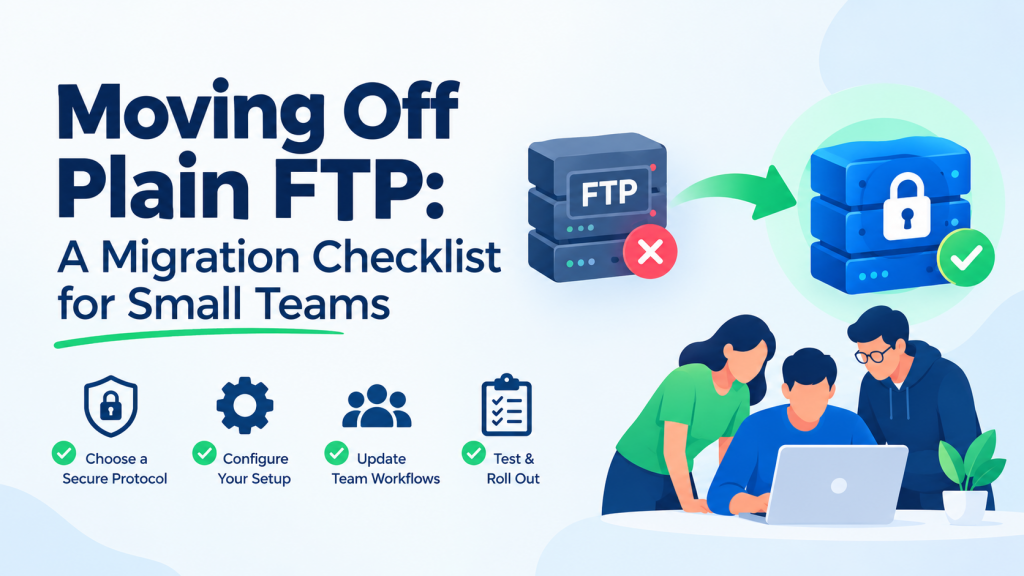
In a lot of small businesses, plain FTP is the system nobody chose and nobody wants to touch. It was set up years ago for the web designer, the scanner that drops PDFs on a server, or the supplier who uploads price lists every Monday — and it still sends every password in cleartext. Turning it off is rarely hard technically. What makes it stall is not knowing who depends on it. This checklist walks a small team through the whole move, from inventory to finally closing port 21.
If you need the background on why plain FTP is a risk and how the secure alternatives differ, read our overview of FTP, FTPS and SFTP in 2026 first. This post is purely the practical “how do we actually get off it” plan.
Phase 1: Inventory — find out who really uses FTP
The single biggest migration risk is the forgotten user: the device or partner that breaks silently on cutover day. Spend real time here.
- List every account on the FTP server, including ones that look unused.
- Read the logs for the last 60–90 days to see who actually logs in, from where, and how often. Monthly and quarterly jobs are easy to miss with a shorter window.
- Classify each user: a person with a desktop client, a script or scheduled job, a device (scanner, camera, CNC machine, backup appliance), or an external partner.
- Note what each one needs: upload only, download only, or both; which folders; any automation that must keep working.
A quick way to summarise logins on a Linux server running vsftpd:
# Successful logins per user and client IP (vsftpd default log format)
grep "OK LOGIN" /var/log/vsftpd.log
  | sed -E 's/.*[([^]]+)] OK LOGIN: Client "([^"]+)".*/1 2/'
  | sort | uniq -c | sort -rn
Write the results into a simple table — user, type, owner, protocol it can support, status — and keep it as your migration tracker.
Phase 2: Choose the destination protocol
| Situation | Recommended | Why |
|---|---|---|
| You control the server and it has SSH | SFTP | One port (22), key-based login, no data-channel firewall issues |
| Shared hosting with FTP accounts but no SSH | Explicit FTPS | Same accounts, now encrypted; insist on encrypted data too |
| A device that only supports FTP or FTPS | FTPS, or an isolated FTP drop | Keep it on a separate, firewalled account and network segment |
| External partners with their own automation | SFTP with keys | The most widely supported secure option in scripts and integration tools |
For most teams the answer is SFTP for people and scripts, with FTPS reserved for the odd device or host that cannot do SSH.
BackendsideFTP — One Free Client for Every Protocol You’re Migrating Between
During a migration you need the old server and the new one open at the same time. BackendsideFTP connects over plain FTP, FTPS (explicit or implicit TLS) and SFTP, with as many servers as you like in tabs, and drag-and-drop in both directions — drop a folder and the whole tree comes along. It is free on the Microsoft Store, with no subscription and no ads, so standardising the whole team on it costs nothing.
Phase 3: Build the new service properly
If you are setting up SFTP on a Linux server, OpenSSH already includes it. Lock file-transfer users into their own folder and deny them a shell:
# /etc/ssh/sshd_config
Subsystem sftp internal-sftp

Match Group sftpusers
    ChrootDirectory /srv/sftp/%u
    ForceCommand internal-sftp
    AllowTcpForwarding no
    X11Forwarding no
    PasswordAuthentication no      # keys only for this group
sudo groupadd sftpusers
sudo useradd -g sftpusers -s /usr/sbin/nologin supplier1
sudo mkdir -p /srv/sftp/supplier1/upload
sudo chown root:root /srv/sftp/supplier1 # chroot dir must be root-owned
sudo chown supplier1:sftpusers /srv/sftp/supplier1/upload
sudo sshd -t && sudo systemctl reload sshChecklist for this phase:
- One account per person or system, never a shared login — it is the only way to revoke access cleanly later.
- Keys over passwords wherever possible. Each user generates a key pair and sends you only the public half for
authorized_keys. - Least privilege: upload-only partners get an upload folder, nothing else.
- Publish the host key fingerprint to your users through a separate channel (your intranet, a signed email) so they can verify it on first connect.
- Back up first. Copy the existing FTP data before you start moving folders around.
Generating a key on a Windows 10 or 11 machine needs no extra software — the OpenSSH client is built in:
ssh-keygen -t ed25519 -C "anna@yourcompany"
# then send ONLY the .pub file to the server admin
type %USERPROFILE%.sshid_ed25519.pubBackendsideFTP — SSH Keys and Host-Key Trust Without the Terminal
Non-technical colleagues should not need a command line to use SFTP. In BackendsideFTP they log in with a password or an SSH private key (with passphrase), including servers that only allow keyboard-interactive login. The server’s host key is checked against a known-hosts store with a plain Trust once / Trust always / Reject prompt and a warning if it ever changes, and saved site passwords are encrypted with their Windows account — never written to disk in plain text.
Phase 4: Run both side by side
Do not do a “big bang” cutover. Keep the old FTP service running while you move users across in small groups:
- Pilot with your own team for a week. Fix the paper cuts — permissions, folder layout, key formats — before anyone external sees it.
- Move internal people next: give each one their new site details, help them connect once, and confirm they can see their files.
- Update scripts and scheduled jobs, testing each one against the new server and watching its next real run.
- Contact external partners with a clear date, the new host, port and fingerprint, and an offer to help test. Give them weeks, not days.
- Tick each row off in your inventory table only after you have seen that user succeed on the new service.
If files need copying from the old server to the new one, do it in passes: a bulk copy early, then a final catch-up of anything changed just before each group switches.
Phase 5: Cut over and switch FTP off
- Disable, don’t delete. Turn off each migrated FTP account individually as its owner moves, and watch the logs for failed logins — those are the users you missed.
- Announce a final date and stick to it. Leave the server running but with FTP stopped for a couple of weeks so you can roll back a single account if needed.
- Close the port once logs are quiet:
sudo systemctl disable --now vsftpd
sudo ufw delete allow 21/tcp
sudo ufw delete allow 50000:50100/tcp       # the old passive range
sudo ss -tlnp | grep ':21 ' # should print nothing- Rotate every password that was ever used over plain FTP. Assume it has been seen. If the same password was reused for email or a control panel, change those too.
- Update documentation — onboarding guides, supplier instructions, internal wikis — so nobody sets up a new FTP account out of habit.
Common snags
- The device that only speaks FTP. Put it on its own account, restricted to one folder and only reachable from the local network, and plan a hardware replacement.
- “Permission denied” on upload in a chroot. The chroot folder itself must be owned by root; give the user a writable sub-folder inside it.
- Partners with key format errors. Some older tools export keys in a different format; ask for the public key as a single
ssh-ed25519 …orssh-rsa …line. - Corporate firewalls blocking port 22 outbound. Rare, but it happens. Explicit FTPS on port 21 is the fallback.
BackendsideFTP — Big Copies You Can Trust
Moving a whole site or shared folder? BackendsideFTP puts every upload and download in one unified queue with live progress and speed, pause and resume that picks up where it left off, automatic retries (0–10 times, your choice), Retry all for every failure in one click, and a marker that tells you exactly why a file failed or was skipped. Choose whether existing files are overwritten, skipped or renamed, and use the visual CHMOD editor to fix permissions afterwards.
Key takeaways
- Inventory first. Two to three months of logs reveal the scripts, devices and partners that would otherwise break silently.
- Default to SFTP for people and scripts; use explicit FTPS only where SSH is not available.
- One account per user, keys over passwords, least privilege — and publish the host key fingerprint out of band.
- Migrate in groups with both services running, ticking users off only after you have seen them succeed.
- Disable accounts one by one, watch for failed logins, then close port 21 and rotate every password that ever crossed plain FTP.
Leave a Reply