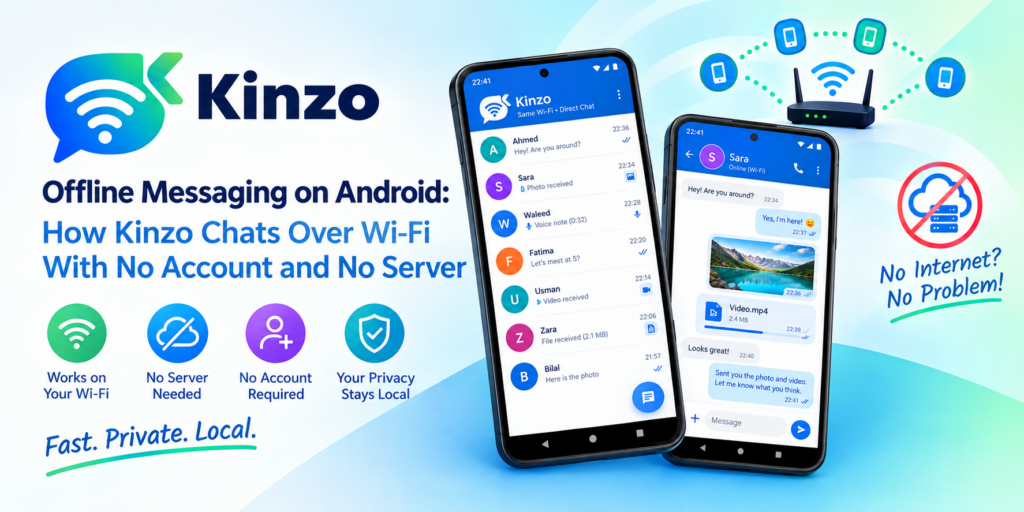
A normal messenger solves three problems by owning a server. Who are you? — your account says so. Where is the other person? — the server knows, because their phone is connected to it. What if they are offline? — the server keeps the message until they are not. Take the server away and all three questions are still there, waiting for an answer.
Kinzo is a messenger for Android that has no server and no accounts, and works on a Wi-Fi network with no internet behind it. This post walks through how it answers those three questions — finding, trusting and delivering — and where the approach runs out.
Step 1 — Finding each other
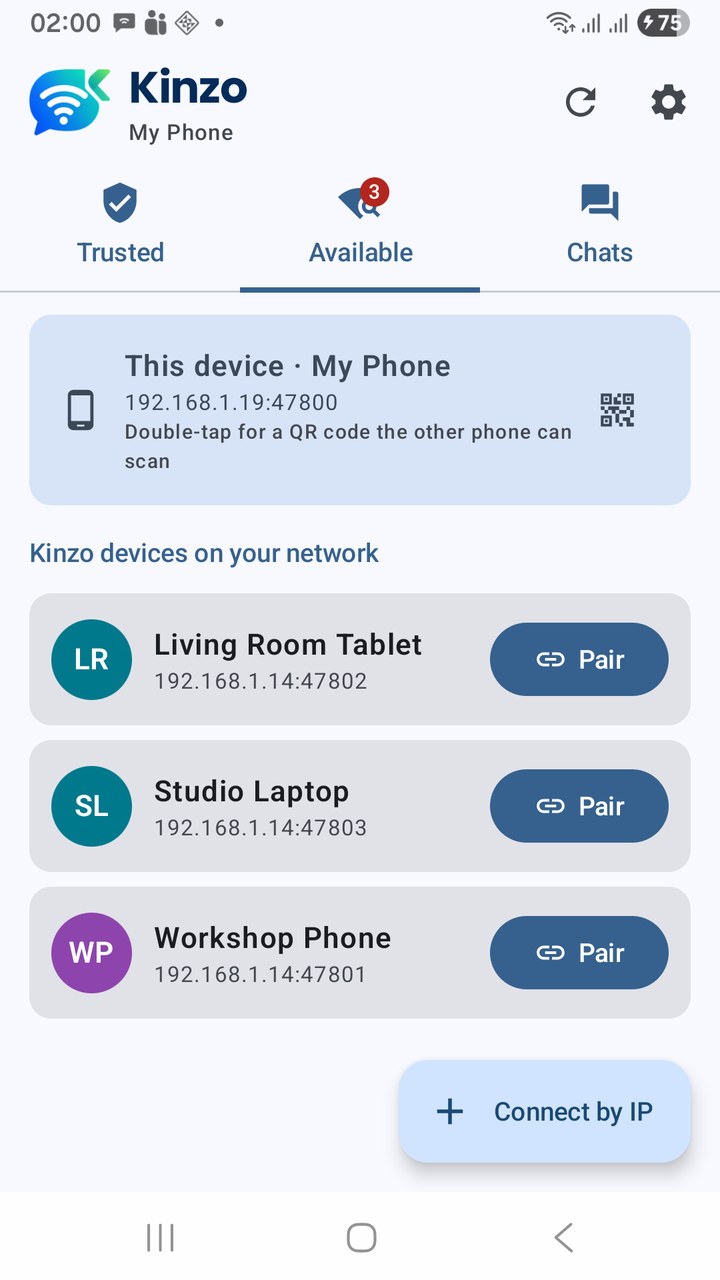
With no directory to look people up in, devices have to notice each other. On a local network that is possible because every device on it can hear announcements made to the whole network. Each phone running Kinzo announces itself — I am here, this is my name, this is where to reach me — and listens for the same from others. Open the Available tab and the devices that answered are listed, usually within a few seconds, with nothing to type.
The catch is that networks differ in what they let through. Some routers filter exactly the kind of traffic devices use to announce themselves. So Kinzo does not rely on one method:
| Method | When it is used | What you do |
|---|---|---|
| Automatic discovery | Always, in the background. Two independent ways of announcing, merged into one list | Nothing |
| Scan this network | When a router filters announcements. Kinzo asks each address on the network directly | Tap refresh or Scan this network |
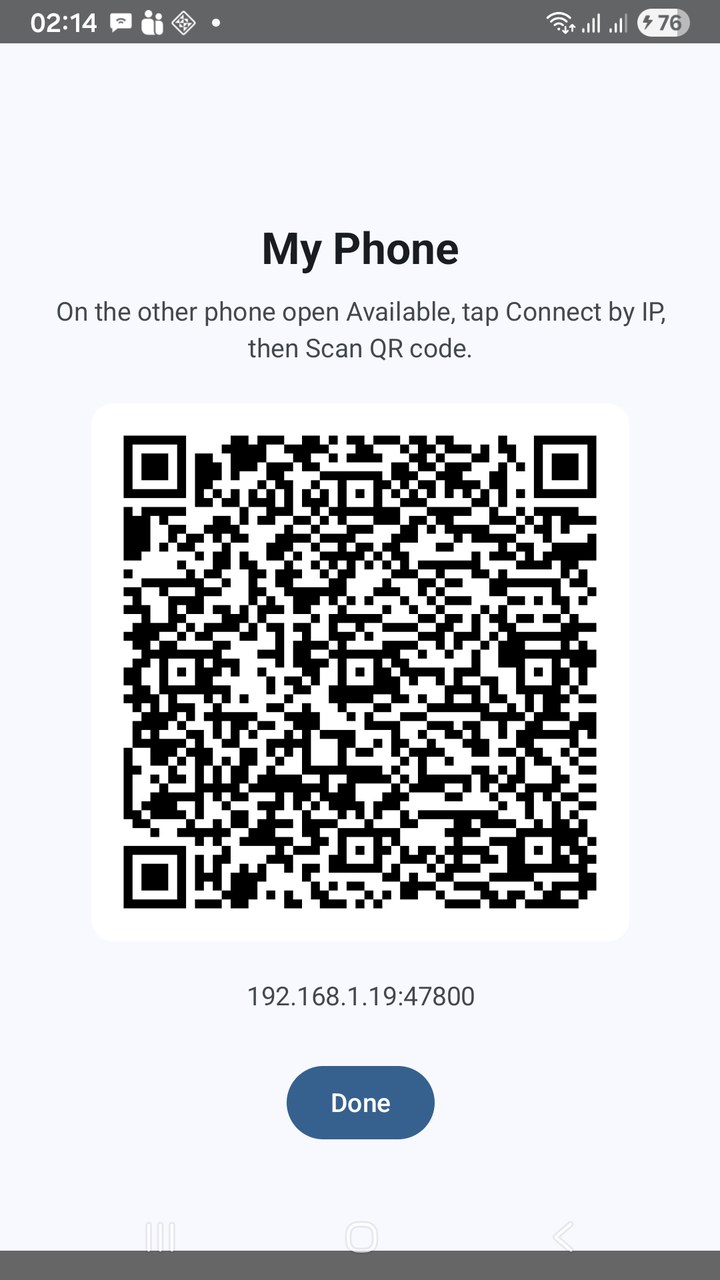
| QR code | When devices can reach each other but cannot see each other | Show the code on one phone, scan it with the other |
| Connect by IP | The manual fallback | Type the address shown on the other phone |
Just as important is the list being true. A phone that leaves without saying goodbye — out of range, flight mode, flat battery — should not sit under Available forever, inviting you to pair with something that is not there. Kinzo checks entries that have gone quiet and drops the ones that no longer answer.
And when nothing is found, the app says something useful instead of showing an empty screen: “This device is on 192.168.1.x.” Compare that with the other phone. If the numbers differ, the two are on separate networks — and you have found the problem without touching the router.
Step 2 — Pairing: deciding who to trust
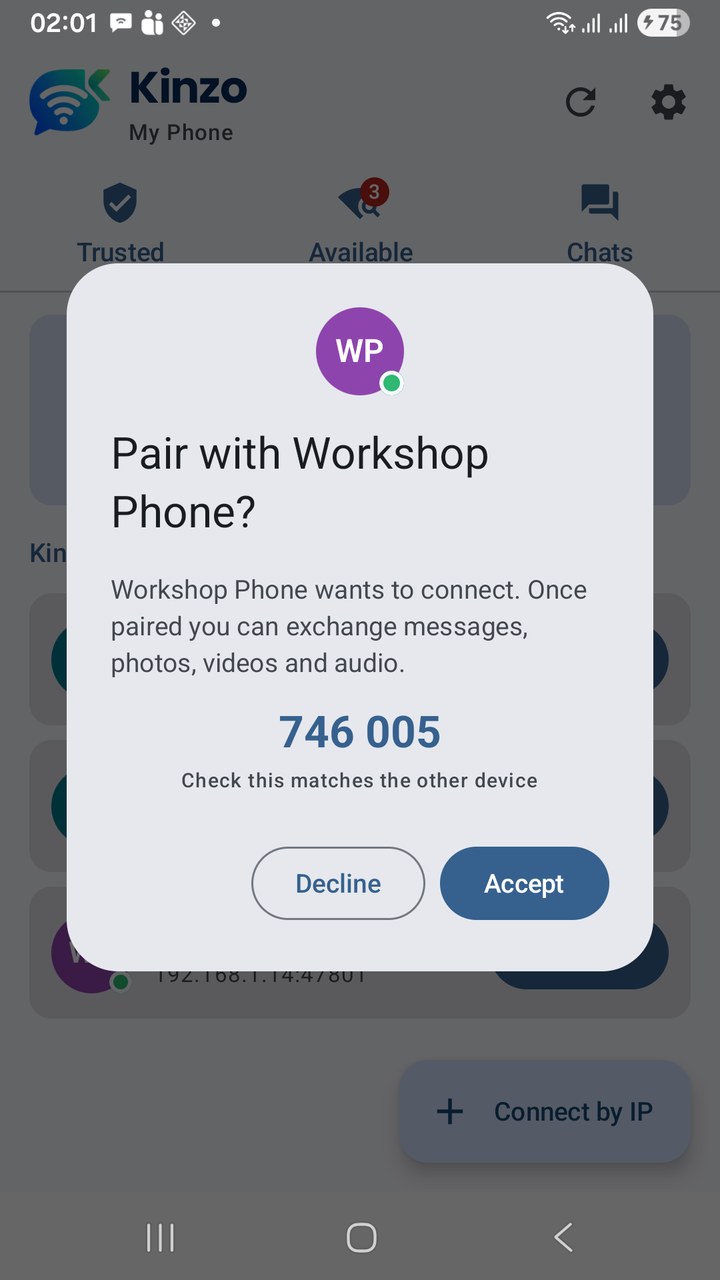
Seeing a device is not the same as trusting it. On a shared network — an office, a classroom, a café — plenty of devices can see yours. So nothing can be sent in either direction until two devices have paired: one taps Pair, the other is asked to Accept or Decline.
This is where the account question gets answered. Kinzo has no usernames to check, so identity is a key. Every device creates its own when Kinzo is installed, and it never leaves the device. When two devices pair, each one remembers the other’s key. From then on:
- Every connection has to present the remembered key. Only the device you paired with can reconnect as that contact.
- A device presenting a different key is refused — and Kinzo tells you, because that is exactly what an impersonation attempt would look like.
- A device cannot announce itself under a name you trust and be believed, because the name is bound to the key.
That leaves one moment to protect: the first one. How do you know the device you are pairing with is the one in front of you? Two ways.
The six-digit code. A pair request shows a number worked out from both devices’ keys. Both screens show the same number when they are genuinely talking to each other. Anything sitting in between, pretending to be each to the other, would have to show two different numbers. Glance at both screens; if they match, accept.
The QR code. The code one phone shows carries its key as well as its address. The phone that scans it checks the key before it connects, and if whatever answers is not the device whose code was scanned, nothing is connected.
Kinzo — Wi-Fi / LAN Messenger for Android
Kinzo is a messenger that works without the internet. Devices on the same Wi-Fi find each other and chat directly — text with sent and delivered receipts, photos, videos, audio files and voice notes, with an offline queue that delivers when a device comes back. Pair by tapping or by QR code; every connection is encrypted device to device. No account, no server, no ads. Free on Google Play.
Step 3 — The connection: why device to device is end to end
Once paired, the two devices hold a connection open between them, encrypted with TLS — the same family of encryption that protects a banking website.
“End-to-end encrypted” is a claim that usually needs careful reading, because in a server-based messenger there are two hops — you to the server, the server to your friend — and the question is whether the server can read what passes through. In Kinzo there is one hop. The two ends of the encrypted connection are the two devices. There is no third machine that could hold a copy, and no separate layer to add on top.
Step 4 — Delivery: receipts, and devices that walk away
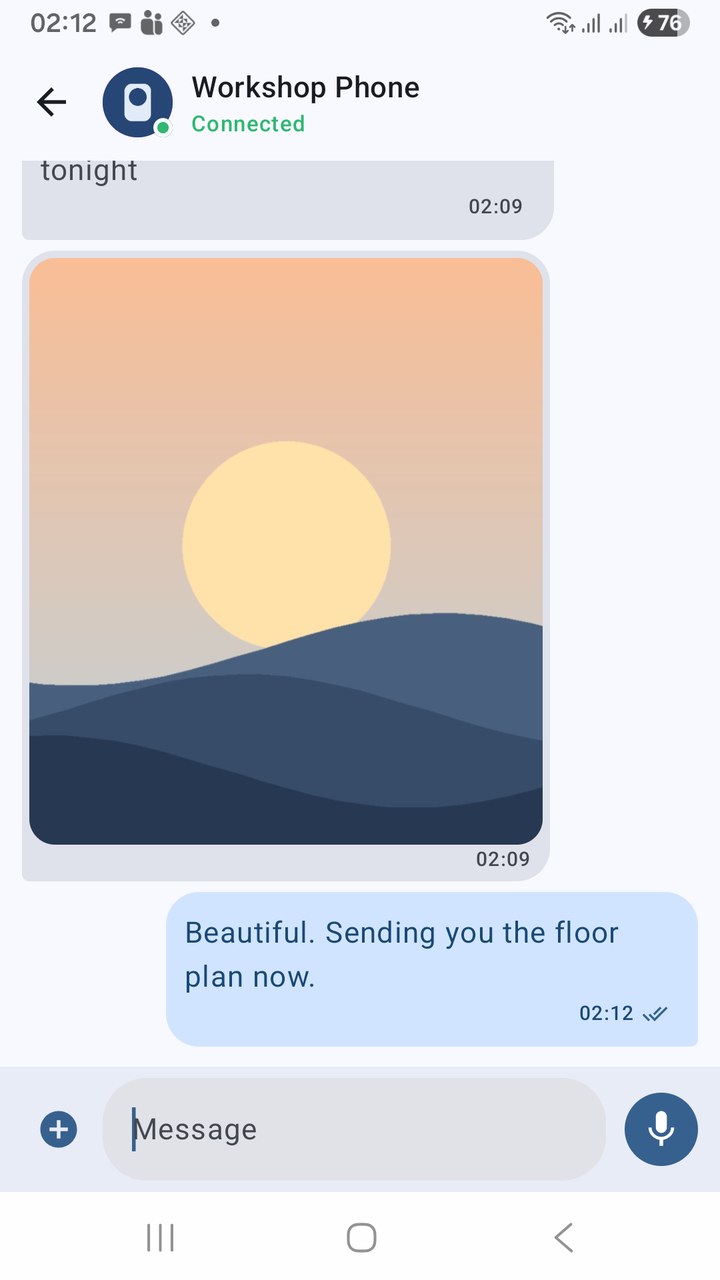
Every message carries its own identity, and the receiving device acknowledges each one. That acknowledgement is what the ticks mean: ✓ the message has left your device, ✓✓ the other device has confirmed it has it.
The third question — what if they are offline? — is answered by the sender. With no server to park a message on, your own device holds it. Anything written while the other device is away stays queued; the moment that device is back on the network, the two reconnect by themselves and the queue is delivered. Because each message has its own identity, one that was sent twice — say the connection dropped just before the acknowledgement came back — is recognised and kept only once.
Photos, videos and audio travel over the same connection, in pieces, which is what makes a progress bar possible and lets a large video go through without tying everything else up.
Step 5 — Staying reachable
A phone that only listens while an app is on screen is not much of a messenger. Kinzo can keep running in the background so that messages and pair requests still arrive, with a notification for each. Android requires an app that does this to show a permanent notification, so it is visible — and it is a switch in Settings. Turn it off and Kinzo receives only while open; anything sent to you in the meantime simply waits in the sender’s queue.
What Kinzo is allowed to touch
| Permission | Why |
|---|---|
| Camera | Photos and video you take to send, and scanning QR codes |
| Microphone | Voice notes and video recording |
| Notifications | New messages and pair requests |
| Running in the background | Staying reachable while the app is closed — optional |
Notice what is missing: no storage or photo permission, no contacts, no location. When you attach a photo, Android’s own picker opens and hands Kinzo only the file you chose. And mobile data is never used for messaging.
Where the approach runs out
Everything above depends on two devices being able to reach each other directly, and that is the honest limit of the design.
| What you see | What is going on | What to do |
|---|---|---|
| The other phone is not under Available, and its address starts with different numbers | Two networks. Usually a Wi-Fi extender running as its own router, or a guest network | Put both phones on the same network name |
| Same network, still not listed | The router filters announcements | Scan this network, a QR code, or Connect by IP |
| Even Connect by IP gets no answer | The router isolates devices from each other — common on guest, hotel and café Wi-Fi | Use a different network; one phone’s hotspot gives the two a network of their own |
| A trusted device is refused for presenting a different key | Kinzo was reinstalled on it, so it has a new key | Remove the device and pair again — the chat history is kept |
One more thing, stated plainly: the connection is encrypted, but messages are stored unencrypted on your own phone, protected by the Android app sandbox and the phone’s own encryption. A screen lock matters.
Key takeaways
- Finding: devices announce themselves on the network; a network scan, a QR code and Connect by IP cover the routers that get in the way.
- Trusting: identity is a key, remembered at pairing. Only the device you paired with can reconnect as that contact.
- Verifying: a six-digit code on both screens, or a QR scan that checks the key before connecting.
- Encrypting: one TLS connection between the two devices — with no server in the path, that is end to end.
- Delivering: every message is acknowledged; the sender’s device queues what cannot be delivered and sends it when the other returns.
- The limit: the two devices must be able to reach each other on the same network.
The user guide covers every screen step by step. Kinzo is free on Google Play, with no ads, for Android 8.0 and later.
Kinzo — Wi-Fi / LAN Messenger for Android
Kinzo is a messenger that works without the internet. Devices on the same Wi-Fi find each other and chat directly — text with sent and delivered receipts, photos, videos, audio files and voice notes, with an offline queue that delivers when a device comes back. Pair by tapping or by QR code; every connection is encrypted device to device. No account, no server, no ads. Free on Google Play.
Leave a Reply