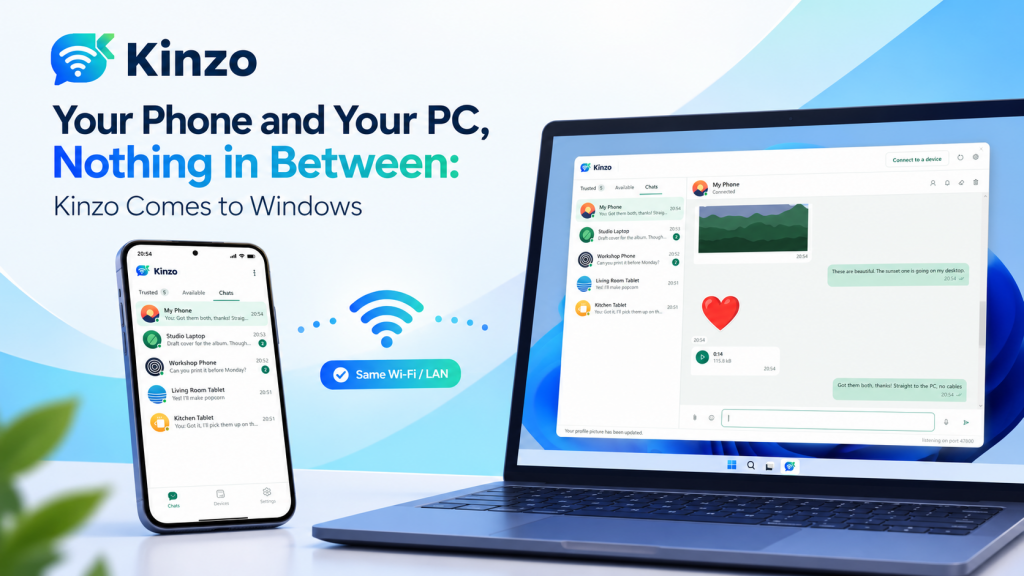
Getting a photo from your phone onto your PC is a strangely roundabout job. You email it to yourself, or wait for a cloud folder to sync, or go looking for a cable — even though the two devices are sitting on the same Wi-Fi, a few feet apart. Kinzo, our messenger that works without the internet, has until now lived on Android. Today it comes to the PC: Kinzo for Windows is on the Microsoft Store, and it pairs with the Kinzo already on your phone.
Same idea, now with a keyboard
Kinzo’s whole premise is that the router is enough. Two devices on the same network find each other and talk directly — there is no account to create, no server in the middle and nothing uploaded anywhere. Messages travel encrypted, straight from one device to the other, and because there is no server there is nothing in between to hold a copy.
Kinzo for Windows brings that to the desk. Open it, and your phone appears under Available, just as other phones do on Android. Click it, choose Pair, and both screens show the same six-digit code. Matching numbers mean nothing is sitting between the two; accept on both, and from then on the phone and the PC recognise each other by key. Pairing works just as well from the phone’s side — the PC is simply one more device on its list.
Drag it in, paste it, done
On a phone you pick files from a sheet. On a PC you have better tools, and Kinzo for Windows uses them:
- Drag photos, videos or voice notes straight onto a conversation.
- Paste with Ctrl+V — a copied file, or a screenshot you just took.
- Or use the paperclip, the way you would on the phone.
Large files move in pieces with a progress bar. Coming the other way, photos and videos from the phone open in Kinzo’s own viewer — zoom, pan, play and seek — with Save as… and Show in folder a right-click away. A file that arrived over the network does not get handed to another program just to be looked at, and anything Windows would run rather than open is shown in Explorer, never launched.
Text works the way it does on the phone: one tick when a message has left the PC, two when the phone has stored it. Write while the phone is away and the message is queued and sent the moment it comes back. And the 24-sticker Kinzo pack is on the PC too, behind the smiley beside the paperclip.
Kinzo for Windows — Wi-Fi / LAN Messenger for Your PC
Kinzo for Windows pairs your PC with Kinzo on your phone over your own network. Text with delivery receipts and an offline queue, photos, videos and voice notes by drag and drop or paste, a built-in viewer, stickers, a QR code for the phone to scan, and a Windows Firewall setup that asks rather than assumes. Encrypted device to device; no account, no server. On the Microsoft Store.
The hard part on Windows: being reachable
A phone that wants to start a conversation with your PC has to get past Windows Firewall, and this is where a lot of local-network apps either fail quietly or reach for the biggest hammer available. Kinzo does neither.
When the PC cannot be reached, a banner says so — and says why. Click Allow Kinzo and it names the network you are on and asks which kinds of network to allow, with a plain warning that a rule covers every network of that kind, not just this one. The rules it asks for are deliberately narrow: only Kinzo, only its own ports, and only from your local network, never from the internet. Windows asks for administrator approval once, through a small separate helper; Kinzo itself never runs as administrator. And it never changes your network’s category from public to private — that affects every program on the machine, and it is not an app’s decision to make.
Being reachable also means being running. Close the Kinzo window and it stays by the clock in the notification area, because a Kinzo that is not running looks, to the phone, like a PC that is switched off. Double-click the icon to bring it back, right-click to quit, and turn on start with Windows if you want it there after a restart.
Two apps, one conversation
The Android app and the Windows app speak exactly the same language, and the PC was built to fit the phones already out there — it works with Kinzo 1.2, the version on Google Play today. Here is how the two compare:
| Kinzo for Android | Kinzo for Windows | |
|---|---|---|
| Get it from | Google Play, free | Microsoft Store |
| Finds devices on the network | ✅ Automatically, plus Scan this network | ✅ Automatically, plus Search this network |
| Pairing | ✅ Six-digit code; shows and scans QR codes | ✅ Six-digit code; shows a QR code for the phone to scan |
| Text with receipts and an offline queue | ✅ | ✅ Plus right-click Try sending again |
| Photos, videos, voice notes | ✅ From the gallery, the camera or the microphone | ✅ By drag and drop, paste or the paperclip |
| Stickers | Arrive as pictures on 1.2 | ✅ The 24-sticker Kinzo pack |
| Staying reachable | Optional background service | Notification-area icon, optional start with Windows |
| Encrypted, device to device | ✅ TLS, with each device’s key remembered at pairing | |
| Account, server, ads | None, none and none | |
Kinzo for Windows adds a couple of extras of its own. Removing a device keeps the conversation: it stays open and readable, says who ended it, and offers a Pair again button. A saved address is treated as a hint, never as the device — if someone else has taken a paired phone’s old address, Kinzo sends them nothing. Both work with phones on 1.2.
Kinzo for Android — the Other Half
Kinzo for Android is where it started: a messenger that finds other devices on the same Wi-Fi and talks to them directly. Text, photos, videos, audio files and voice notes, QR code pairing, profile pictures and an optional background service. Free on Google Play, with no ads, no account and no sign-up — and the app your PC pairs with.
Honest about the edges
Kinzo has always been plain about what it does not do, and the Windows app follows suit:
- Same network only. The PC and the phone must share a router. Guest networks, Wi-Fi extenders running as their own router and client isolation can keep them apart; the QR code and Connect to a device get around most of it.
- Photos, videos and voice notes only. Documents are refused, because the phone app cannot show them — they would arrive as an empty bubble.
- Messages are stored unencrypted on your own PC, in your Windows user profile, just as they are inside the app sandbox on the phone. The connection between the devices is always encrypted.
- Emoji are black and white on Windows, and stickers need Microsoft’s free WebP Image Extensions, which Windows 11 normally has.
Key takeaways
- Kinzo for Windows 1.0 is out on the Microsoft Store — the PC side of Kinzo, the messenger that works without the internet.
- It pairs with Kinzo for Android (free on Google Play, 1.2 or newer) with a six-digit code, and talks to it directly over your own network — no account, no server, no cloud.
- Send photos, videos and voice notes by drag and drop or paste, view them in a built-in viewer, and chat with receipts, an offline queue and stickers.
- A Windows Firewall setup that asks rather than assumes, scoped to Kinzo, its ports and your local network, and a tray icon that keeps the PC reachable.
- Everything is encrypted device to device, and each device’s key is remembered at pairing so only that device can reconnect.
Get both halves from the Kinzo for Windows and Kinzo for Android product pages, where the user guides and changelogs live too.
Leave a Reply