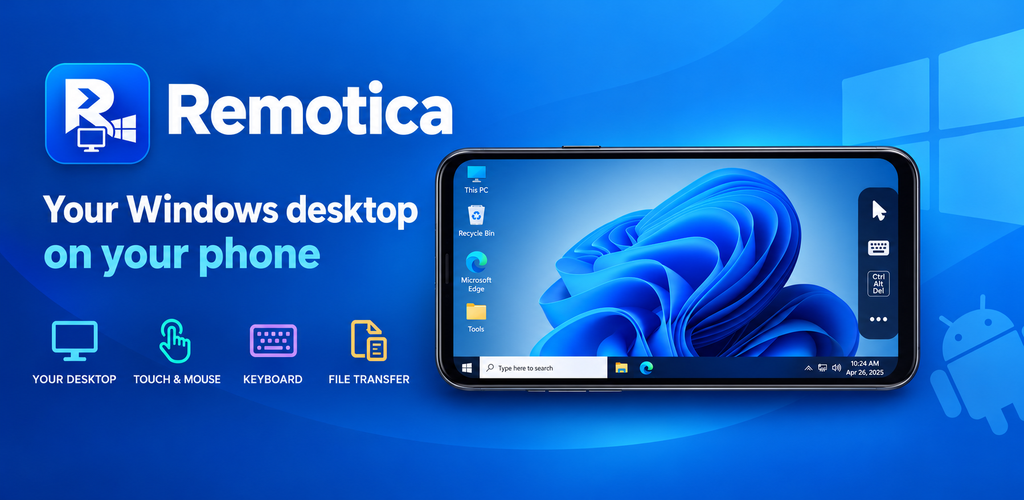
The server is fine until it isn’t, and it never picks a convenient moment. A service needs restarting, a user is locked out, an update is stuck on “Restart now”, a file is sitting on the office PC that you need at a client’s desk. Your laptop is at home. Your phone is in your pocket. Remotica is our remote desktop client for Android, built so that phone is enough — and it is now under review on Google Play.
The real Windows desktop, not a cut-down view
Remotica speaks RDP, the Remote Desktop protocol built into Windows and Windows Server, so there is nothing to install on the other end: turn on Remote Desktop, add the PC or server to Remotica and tap its card. The connection is secured with NLA and TLS, and every server certificate is checked — you choose Trust always or Just this time, and you get a clear warning if a certificate ever changes.
The desktop fits your phone’s screen in landscape by default, or you can pick 1280×720, 1600×900 or 1920×1080 per server. Pinch to zoom in on a tiny dialog and drag with two fingers to pan around it.
Fingers are not a mouse — so there are two ways to click
Most remote desktop apps on a phone get this wrong, because a fingertip is a lot bigger than a mouse pointer. Remotica gives you both approaches and a toolbar button to switch between them:
| Gesture | Direct touch | Touchpad mode |
|---|---|---|
| Tap | Click exactly where you tap | Click where the pointer is |
| Double tap | Double-click — open files and folders | Double-click |
| One-finger drag | Drag with the left button held | Move the pointer |
| Long press or two-finger tap | Right-click | |
| Pinch / two-finger drag | Zoom / scroll, or pan when zoomed in | |
Direct touch is quickest for big buttons and the taskbar; touchpad mode wins when you need to hit a scrollbar or a small checkbox precisely.
Every key you need, including the awkward ones
Server work is full of keys a phone keyboard doesn’t have. With the keyboard open, Remotica adds a key row with Esc, Tab, Ctrl, Alt and Win (they latch, so Ctrl then C is Ctrl+C), arrows, Del, Home, End and F1–F12, and Ctrl+Alt+Del is a single button on the toolbar. Text arrives exactly as you type it, whatever keyboard layout the server uses, and if you carry a Bluetooth or USB keyboard, plug it in and type — every key goes straight to Windows.
Remotica — Remote Desktop (RDP) Client for Android
Remotica opens your Windows PCs and servers on your phone over RDP with NLA and TLS. Click with direct touch or a touchpad pointer, type with Ctrl, Alt, Win and F1–F12 one tap away, send files both ways through the Remotica drive and copy and paste between phone and PC. Saved passwords are encrypted with a hardware-backed key. Free for one server; no ads, no tracking, no account.
Your phone, as a drive in Windows
Getting a file between a phone and a remote PC usually means emailing it to yourself or going through a cloud folder. Remotica skips both. While you are connected, your phone shows up in Windows Explorer under This PC as “Remotica on your phone” (or \tsclientRemotica).
- Phone to PC: tap Upload files in Remotica, pick photos, PDFs or anything else, and they appear in that drive, ready to copy wherever you need them on the server.
- PC to phone: copy a file to the Remotica drive in Windows, and it is listed in Remotica, where you can save it to your phone or share it to any app.
The clipboard is shared too: copy a log line or an error message on Windows and paste it into a chat on your phone, or copy a password reset link on the phone and paste it on the server.
A session that doesn’t drop when you look away
Android is aggressive about freezing apps that are not on screen, which is exactly what you don’t want halfway through a Windows update. While a session is open, Remotica shows a “Connected to” notification with a Disconnect button, and the connection stays alive while you pick a file, answer a message or check another app. Press Back and you can disconnect or keep the session running behind the server list; if the network does drop, Remotica reconnects.
Passwords that never leave your phone
A remote desktop app holds the keys to your servers, so Remotica treats saved passwords accordingly: they are encrypted with AES-256 under a hardware-backed key in the Android Keystore, the key cannot be exported, and the vault is never included in backups. You can also leave the password out and be asked for it on each connect. Turn on the app lock and opening a server asks for your fingerprint, face, pattern, PIN or password first. There are no ads, no tracking and no accounts: Remotica connects only to the servers you add.
Free, and what Pro adds
| Free | Remotica Pro | |
|---|---|---|
| Saved servers | One | ✅ Unlimited |
| Remote desktop with NLA, TLS and certificate checks | ✅ Included | ✅ Included |
| Direct touch, touchpad mode and the full key row | ✅ Included | ✅ Included |
| Remotica drive and shared clipboard | ✅ Included | ✅ Included |
| Encrypted passwords and app lock | ✅ Included | ✅ Included |
| Ads | ✅ None | ✅ None |
Pro is prepaid, monthly or yearly: you pay once for the time you choose and nothing renews automatically. The only thing it changes is the number of servers you can save.
Remotica — Remote Desktop (RDP) Client for Android
Remotica opens your Windows PCs and servers on your phone over RDP with NLA and TLS. Click with direct touch or a touchpad pointer, type with Ctrl, Alt, Win and F1–F12 one tap away, send files both ways through the Remotica drive and copy and paste between phone and PC. Saved passwords are encrypted with a hardware-backed key. Free for one server; no ads, no tracking, no account.
Key takeaways
- Remotica 0.2.0 is under review on Google Play — a remote desktop (RDP) client for Android, free for one server with every feature included.
- It opens the full Windows desktop of your PCs and servers, secured with NLA and TLS and certificate checks, and fits your phone’s screen or a size you choose.
- Direct touch and touchpad mode, a key row with Ctrl, Alt, Win, arrows and F1–F12, one-tap Ctrl+Alt+Del and hardware keyboard support make real work possible on a phone.
- Your phone becomes a drive in Windows for moving files both ways, and the clipboard is shared.
- Sessions stay connected in the background, and saved passwords are encrypted with a hardware-backed key that never leaves the device.
The download link will be on the Remotica product page as soon as Google Play publishes it.
Leave a Reply