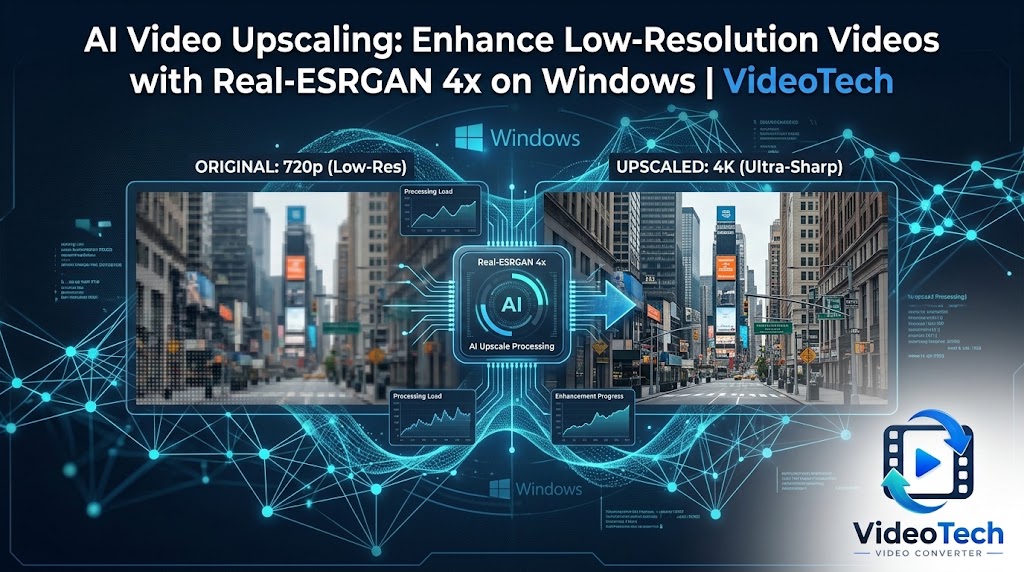
Low-resolution video can look soft or pixelated when viewed on a larger screen. Simply stretching a video to a higher resolution increases its dimensions, but it does not recreate details that were never clearly captured in the original image.
Real-ESRGAN 4x is an AI upscaling model included in VideoTech Video Converter for Windows. It increases video frame dimensions by four times, using AI to reconstruct edges, textures, and visual details rather than merely enlarging existing pixels.
What Is Real-ESRGAN 4x?
Real-ESRGAN is an AI image-restoration and upscaling model. VideoTech applies it frame by frame to suitable videos, producing an output with four times the original width and height.
For example, a video frame measuring 640 × 360 pixels can be upscaled to 2560 × 1440 pixels. The actual improvement in perceived quality depends on the source footage, but AI reconstruction can produce a more detailed result than ordinary resizing.
Real-ESRGAN 4x can be useful for:
- Upscaling suitable low-resolution video footage
- Improving the appearance of older, smaller video clips
- Preparing low-resolution recordings for larger displays
- Enhancing footage where edges and textures look soft
- Increasing resolution as part of a video conversion workflow
AI Reconstruction Instead of Simple Stretching
Traditional resizing calculates new pixels from the pixels already present in the source image. This can increase resolution, but it cannot reliably recover fine details lost through low resolution or compression.
AI upscaling takes a different approach. The model uses learned visual patterns to reconstruct plausible edges and textures while generating a larger image.
This can make suitable footage look sharper and more defined. However, AI reconstruction is not the same as recovering the exact original scene. The model may introduce details that were not present in the source, and results vary with the content and quality of the input video.
Why VideoTech Focuses on Low-Resolution Sources
VideoTech’s Real-ESRGAN 4x feature is intended for suitable low-resolution sources, generally around 480p or below. Four-times upscaling quickly produces very large output dimensions.
For example:
- 320 × 240: Upscales to 1280 × 960.
- 640 × 360: Upscales to 2560 × 1440.
- 854 × 480: Upscales to approximately 3416 × 1920.
Upscaling a higher-resolution source by four times can produce dimensions beyond 4K, increasing processing time, memory requirements, and output file size. VideoTech allows the output resolution to be capped so you can control the final dimensions when needed.
Local AI Processing on Your Windows PC
VideoTech downloads the Real-ESRGAN model when you first choose to use AI upscaling. The model is approximately 64 MB, and the application verifies its expected size and SHA-256 fingerprint before accepting the downloaded file.
Once the model is available, upscaling runs locally. Your video does not need to be uploaded to a cloud service for AI enhancement, and you do not need a recurring AI subscription.
- Model size: Approximately 64 MB.
- Four-times scaling: Increases both frame width and height by a factor of four before any output-resolution cap is applied.
- Offline operation: The feature can run without an ongoing internet connection after the model has been obtained.
- Included feature: AI upscaling is part of VideoTech’s purchase price.
If you are preparing an offline computer, VideoTech also supports importing model files from disk.
GPU Acceleration Is Strongly Recommended
AI upscaling processes video frame by frame, making it considerably more demanding than ordinary file conversion. VideoTech can use DirectML on a compatible DirectX 12 GPU, with CPU processing available when a suitable GPU is not available.
A GPU is strongly recommended for practical processing times. Depending on the hardware and source video, upscaling may take minutes per minute of footage with GPU acceleration, while CPU-only processing can take hours per minute.
Actual performance varies with the GPU, CPU, input resolution, video length, and other system resources. It is worth testing a short clip before committing to a long conversion.
How to Upscale a Video with Real-ESRGAN 4x
- Launch VideoTech: Open VideoTech Video Converter on Windows.
- Choose a suitable source: Add a low-resolution video you want to enhance.
- Enable AI upscaling: Turn on the Real-ESRGAN 4x feature.
- Download the model if required: VideoTech obtains the model the first time you use it.
- Set your output resolution: Use the available resolution cap if you need to limit the final dimensions.
- Convert the video: VideoTech processes the frames using AI upscaling.
- Compare the result: Review the output at the intended viewing size to decide whether the reconstruction improves the footage.
Keep the original video until you are satisfied with the result. AI upscaling can improve perceived detail, but it cannot guarantee that every source will look better.
Combine Upscaling with Other VideoTech AI Features
Video upscaling can be part of a larger preparation workflow. VideoTech also includes Whisper for subtitle generation, DeepFilterNet 3 for speech enhancement, Silero VAD for silence removal, and automatic face blurring.
For example, you can clean up spoken audio, remove unnecessary pauses, and generate subtitles while converting a video. If you enable face blurring alongside upscaling, VideoTech blurs detected faces before the upscaling stage so that the upscaler does not reconstruct blurred faces at higher detail.
All five AI features are included in the purchase price. Models are downloaded on demand, allowing you to install only the features you plan to use.
VideoTech Video Converter — AI Tools for Windows
Upscale suitable low-resolution videos with Real-ESRGAN 4x, generate subtitles, clean up speech, remove silence, blur detected faces, and convert media files locally on your PC. All five AI features are included in the purchase price.
Final Thoughts
AI upscaling offers a way to increase video resolution while reconstructing plausible visual details, rather than relying only on conventional resizing. Real-ESRGAN 4x brings this capability into VideoTech’s local Windows conversion workflow.
It is best suited to compatible low-resolution sources, and a capable GPU can make processing substantially more practical. Results depend on the original footage, so comparing the output with the source is the best way to judge whether upscaling is worthwhile.
Learn more about VideoTech Video Converter or visit the VideoTech changelog for product updates.
Leave a Reply