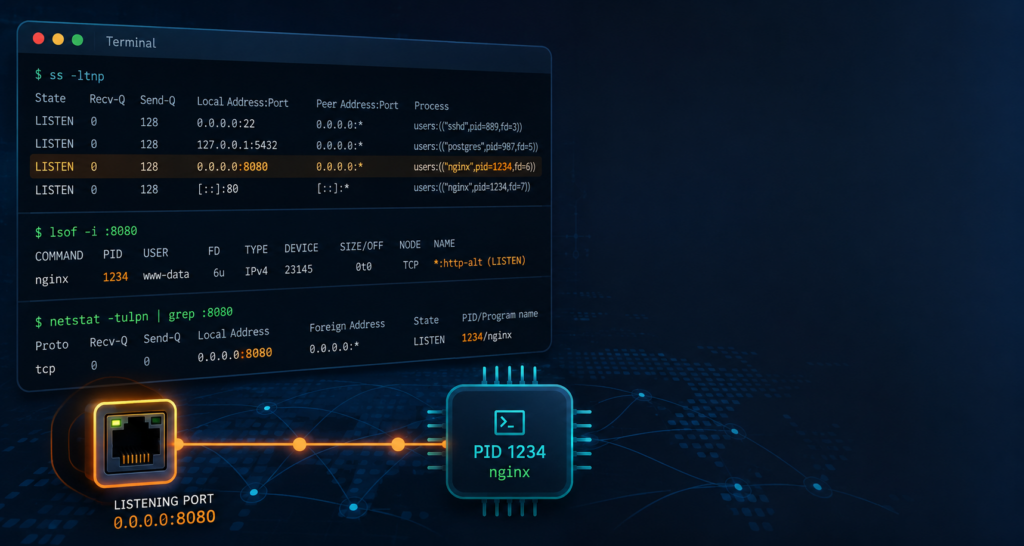
You restart a service and it refuses to come up: bind: Address already in use. Or you run a security scan and find port 9001 open on a box where nothing is supposed to be listening on 9001. Both problems reduce to the same question—which process owns this listening socket? Linux will tell you, and it takes one command. Here is that command, three alternatives for when it is not installed, and what to do in the awkward cases where a port seems to belong to nobody at all.
The short answer
On any reasonably modern distribution, this is the whole trick:
sudo ss -ltnpThat lists every TCP socket in the LISTEN state, without resolving names, with the owning process attached. Output looks like this:
State   Recv-Q  Send-Q   Local Address:Port   Peer Address:Port  Process
LISTEN  0       128            0.0.0.0:22          0.0.0.0:*      users:(("sshd",pid=811,fd=3))
LISTEN  0       511            0.0.0.0:80          0.0.0.0:*      users:(("nginx",pid=1187,fd=6),("nginx",pid=1186,fd=6))
LISTEN  0       4096         127.0.0.1:3306        0.0.0.0:*      users:(("mariadbd",pid=942,fd=25))
LISTEN  0       4096                  *:8080               *:*    users:(("backendsidemon",pid=1502,fd=9))
The last column is the answer. users:(("nginx",pid=1187,fd=6)) means: the process named nginx, PID 1187, is holding this socket on file descriptor 6. Port 80 shows two entries because a master process and a worker both hold the listening descriptor—that is normal for pre-forking servers.
To look at one port instead of all of them, use a filter rather than piping to grep—it avoids matching the port number in some other column:
sudo ss -ltnp 'sport = :8080'The flags, decoded
| Flag | What it does | Why you want it |
|---|---|---|
-t / -u |
TCP / UDP sockets | Filters out the pile of Unix domain sockets |
-l |
Listening sockets only | A server binding a port is what you are hunting |
-n |
Numeric — no name resolution | Shows :8080, not :http-alt; also much faster |
-p |
Show the owning process | The entire point — needs root for other users’ processes |
-a |
All sockets, not just listening | Use when chasing an established connection instead |
-e |
Extended info, including the socket inode | The escape hatch when -p gives you nothing |
Why you almost always need sudo
Run ss -ltnp without root and the Process column will be blank for everything you do not own. The kernel only lets you map a socket back to a PID if the process is yours or you have CAP_NET_ADMIN. This trips people up constantly: the port is clearly listed as LISTEN, the process field is empty, and it looks like a ghost. It is not a ghost—it is a permissions problem. Add sudo and try again before you go any further.
BackendSideMon — See Every Listener and Its Process in a Browser
Running ss -ltnp is fine when you have one server and an SSH session already open. BackendSideMon gives you the same answer as a live web dashboard: active listeners and connections with local and remote IPs, ports and states, alongside the running processes and their full executable paths. It installs as a systemd service on RHEL-based and Debian/Ubuntu-based distributions and serves the dashboard on port 8080.
When ss is not there: three fallbacks
1. lsof — the most readable output
lsof treats sockets as what they are on Linux: open files. Ask it which files match an internet address:
sudo lsof -i :8080 -sTCP:LISTEN -P -n

COMMAND          PID  USER   FD   TYPE DEVICE SIZE/OFF NODE NAME
backendsidemon  1502  root    9u  IPv6  28841      0t0  TCP *:8080 (LISTEN)
-P and -n keep ports and addresses numeric, and -sTCP:LISTEN drops established connections so you only see the binding process. For scripting, -t prints bare PIDs and nothing else:
sudo lsof -t -i :8080 -sTCP:LISTEN
1502
2. fuser — fastest when you only want the PID
sudo fuser 8080/tcp
8080/tcp:             1502

sudo fuser -v 8080/tcp
                     USER        PID ACCESS COMMAND
8080/tcp:            root       1502 F....  backendsidemon
fuser also has -k, which kills whatever it finds. It is genuinely useful and genuinely dangerous—sudo fuser -k 8080/tcp will happily terminate a production database if that is what answered. Always run it without -k first and read the output.
3. netstat — the one in every old runbook
sudo netstat -tulpn | grep ':8080'
tcp6  0  0 :::8080   :::*   LISTEN   1502/backendsidemon
netstat comes from the deprecated net-tools package and is not installed by default on most current distributions. It reads /proc/net/tcp by walking every process’s file descriptors, which is noticeably slow on a busy machine. Learn ss; keep netstat for the servers you inherited.
From PID to the whole story
A PID and a process name are rarely the end of the investigation—”python3″ or “java” tells you nothing. Once you have the number, /proc gives you everything else:
# Full command line, owner, parent, and how long it has been up
ps -p 1502 -o pid,ppid,user,etime,cmd

# The actual binary on disk (survives a renamed process)
sudo ls -l /proc/1502/exe

# Its working directory - often reveals which deployment it belongs to
sudo ls -l /proc/1502/cwd

# The raw argv, NUL-separated
sudo tr '' ' ' < /proc/1502/cmdline; echo

# Which systemd unit or container owns it
cat /proc/1502/cgroup
systemctl status 1502
That last one is the most useful and the least known: systemctl status <pid> resolves a PID to its owning unit, so you find out that port 8080 belongs to backendsidemon.service and can stop it properly instead of killing it.
The manual method: socket inodes
If -p gives you nothing and you have already ruled out permissions, you can do the mapping by hand. Every socket has an inode number, and every process holding it has a symlink to socket:[inode] in its file-descriptor directory:
$ sudo ss -ltne 'sport = :8080'
LISTEN 0 4096 *:8080 *:*  ino:28841 sk:3 cgroup:/system.slice/backendsidemon.service

$ sudo find /proc/[0-9]*/fd -lname 'socket:[28841]' 2>/dev/null
/proc/1502/fd/9
The path contains the PID. This is exactly what ss, lsof and netstat do internally—it is worth seeing once, because it explains why these tools need root and why they get slow on machines with tens of thousands of open descriptors.
The awkward cases
The port is listed but the process column is empty
In order of likelihood: you forgot sudo; the socket belongs to a process in a different network namespace (a container); or the listener is kernel-side—NFS and some tunnelling code bind ports with no userspace process behind them at all.
Nothing is listening, but the bind still fails
Check for lingering sockets in TIME_WAIT from the previous instance:
sudo ss -tan state time-wait '( sport = :8080 or dport = :8080 )'Also worth checking: the port may fall inside the ephemeral range and have been grabbed by an outbound connection. Compare against sysctl net.ipv4.ip_local_port_range—if your service wants a port inside that window, add it to net.ipv4.ip_local_reserved_ports so the kernel stops handing it out to clients.
You see an IPv6 line but no IPv4 line
A single socket bound to [::] serves both families on a dual-stack system, so one tcp6 row can absolutely be the thing answering your IPv4 requests. The reverse also matters: 127.0.0.1:3306 means loopback only, while 0.0.0.0:3306 means every interface on the box. When you are auditing exposure, the bind address matters more than the port number.
The listener is inside a container
Containers have their own network namespace, so a process listening inside one may be invisible to ss on the host—or show up as a proxy process rather than the real service. List the namespaces, then look inside the one you care about:
lsns -t net
sudo nsenter -t 4711 -n ss -ltnp   # 4711 = a PID inside the target namespace
The owner is systemd itself
With socket activation, systemd holds the listening socket and only starts the real service when the first connection arrives. Until then the port genuinely belongs to PID 1. systemctl list-sockets shows every such socket and the unit it will hand off to.
A repeatable troubleshooting order
sudo ss -ltnp 'sport = :PORT'— the answer, 90% of the time.- No process shown? Confirm you used
sudo, then checklsns -t netfor containers. - Got a PID? Run
systemctl status PIDto find the owning unit, andls -l /proc/PID/exeto see the real binary. - Stop it the right way —
systemctl stop <unit>beatskill, which beatsfuser -k. - Nothing listening but the bind fails? Look for
TIME_WAITand check the ephemeral port range.
Stop SSH-ing Into Servers Just to Run ss
Port audits get tedious once you have more than a couple of machines. BackendSideMon runs as a lightweight monitoring service on Windows Server and Linux and puts the whole picture in one dashboard — TCP/UDP/ICMP packet statistics, running processes with their executable paths, every active listener and connection, and failed SSH login tracking. There is an optional Android client too, so you can check a fleet of servers from your phone.
Key takeaways
sudo ss -ltnpis the command to memorise. Listening TCP sockets, numeric, with the owning process—everything else is a fallback.- Without root, the process column is empty. That is a permissions artefact, not a mystery process.
lsof -i :PORT -sTCP:LISTEN -P -nis the friendliest alternative,fuserthe quickest, andnetstat -tulpnthe one your old runbooks assume.- A PID is a starting point, not an answer.
/proc/PID/exe,/proc/PID/cwdandsystemctl status PIDturn “java” into a named service you can actually stop. - Read the bind address, not just the port.
127.0.0.1and0.0.0.0are completely different exposure stories. - Containers, socket activation and
TIME_WAITexplain nearly every case where the port appears to belong to nobody.
Leave a Reply