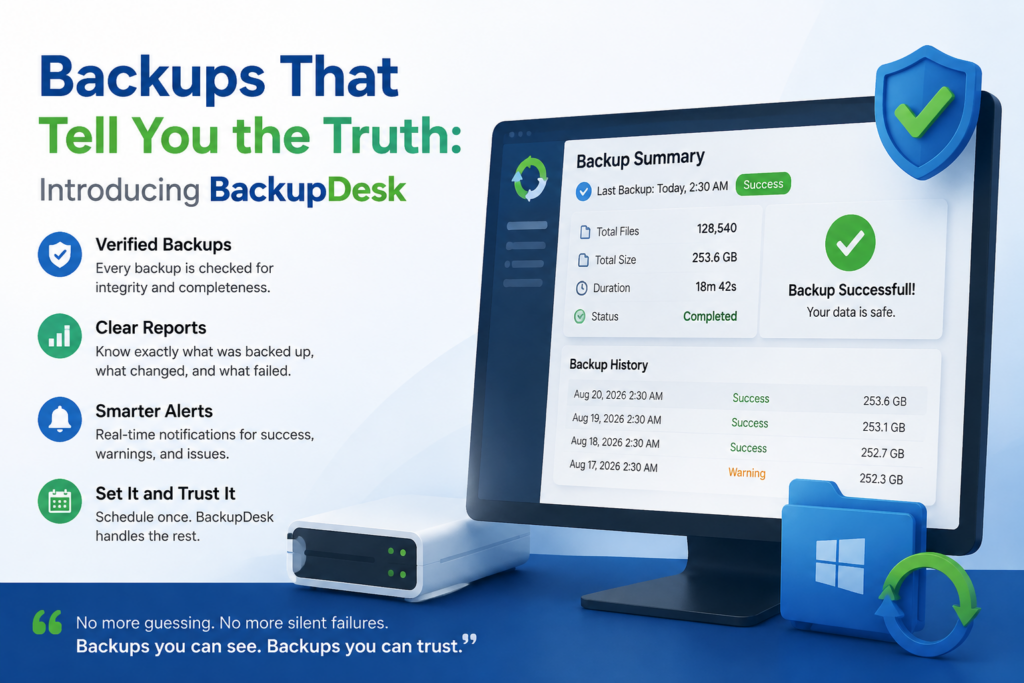
Almost nobody discovers their backup was broken at a convenient moment. They discover it the day the drive dies — and find that the nightly job had been failing for five months because an external disk was unplugged one Tuesday, or that the destination filled up and every run since has quietly errored out, or that the files are all there but one of them has been silently rotting on the disk since last year. The backup existed. It just wasn’t true.
BackupDesk is a scheduled backup tool for Windows, released this month, built around a single stubborn idea: a backup tool has one job, and lying about whether it did that job is worse than not existing. It backs up folders on a schedule, keeps a history you control, and tells you plainly what it did — including the parts you would rather not hear.
It is a job, not a mirror
If you have used File History, OneDrive or Google Drive, BackupDesk is a different kind of thing. Those continuously mirror a folder somewhere, which is useful, but a mirror faithfully reproduces your mistakes: delete a file, encrypt it with ransomware, or save a bad version over a good one, and the mirror dutifully copies that too.
BackupDesk instead takes deliberate backups at levels you choose and keeps a history of them. You describe what to protect, where it goes and when it runs, and a background service does the work — whether or not the window is open. That is what lets a backup happen at 2am while you are asleep.
Three levels, and the honest trade-off between them
Every scheduled run happens at a level you pick. The difference between them is the single most useful thing to understand about any backup tool:
| Level | What it stores | What it needs to restore |
|---|---|---|
| Full | Everything. | Nothing else. It stands alone. |
| Differential | Everything changed since the last full. | Its full, and nothing else. |
| Incremental | Everything changed since the previous backup of any level. | Its full and every incremental since. |
The trade-off is space against resilience. Differentials grow larger each day until the next full, but a damaged one only costs you that one backup. Incrementals stay small every day — but they form a chain, and a single damaged incremental spoils every backup made after it.
BackupDesk shows you this where you choose levels, and again where you delete backups. It is not trying to talk you out of incrementals; it is the information you need to make the choice deliberately rather than by accident. And if you would rather not think about it at all, there are presets — Standard, Most resilient, Smallest daily backups and Manual only — each of which you can edit afterwards, because they are starting points rather than locked modes.
Why the first backup is slow and the rest are fast
The first run copies everything, and takes as long as that sounds. After that, BackupDesk checks each file’s size and modification time and skips the unchanged ones without reading them. That is what makes later runs feel almost instant — not the speed of the copying, but the sheer amount of work avoided.
Files that have changed are read and hashed with SHA-256, which catches a case that trips up cruder tools: a file whose timestamp moved but whose contents did not is correctly recognised as unchanged, rather than copied again for nothing.
BackupDesk — Scheduled Backups for Windows
BackupDesk backs up your folders on a schedule and gets them back when you need them — full, differential and incremental levels, retention that prunes whole chains, snapshots of files that are open, FTP/FTPS/SFTP sources, and optional compression and encryption. Every restored file is checked against the hash recorded when it was backed up. Free for one backup job, with every feature unlocked.
The failure modes it refuses to have
Most of what distinguishes a backup tool is not what it does when everything works. It is what it does when something goes wrong. Four decisions in BackupDesk are worth calling out because each one is a direct answer to a way that backups usually fail:
- An unplugged drive is a wait, not a failure. If the destination is not there when a backup is due, the job waits and starts on its own the moment you reconnect the drive. A job that failed every night because a USB disk was disconnected would only train you to ignore failures — and then you would ignore the real one.
- It never deletes your only remaining chain. Even if the disk is full, you get a loud warning instead. A tool that deletes your last backup to make room for a new one is worse than useless.
- It tells you when it prunes. Silent deletion is not something a backup tool should do, so every prune is announced.
- A cancelled run never leaves a half-written backup that looks restorable. A set is only committed once it is complete.
Retention itself works in chains — a full backup plus everything that depends on it — and chains are always pruned as a whole. That means a full is never deleted out from under the differentials or incrementals that need it, which is the classic way a backup archive turns into a folder full of files that cannot actually restore anything. The default keeps the last three chains, and a chain you are currently restoring from is never pruned.
Files that are open, and files that are elsewhere
Two things routinely punch holes in a backup. The first is files that are locked because a program has them open — a running database, a document you left open on Friday. BackupDesk captures those through a Windows volume snapshot, and if a file genuinely could not be read it is listed in the run report rather than quietly dropped.
The second is data that does not live on this machine at all. A job’s source folders can sit on another machine over FTP, FTPS or SFTP, browsable from the job editor. Two details there matter more than they might appear:
- Test connection runs from the background service, not from the window — so a successful test is evidence that the 2am unattended run will connect, not merely proof that your signed-in account can reach the server.
- SSH host keys must be accepted before a job depends on the server. An unknown key is refused rather than trusted silently, which would otherwise produce the worst possible pattern: a job that works every time you are watching and fails every time you are not.
Getting things back — and proving they are still good
Restoring is the half of backup that most tools treat as an afterthought. In BackupDesk it is a job like any other: it queues, reports progress, and appears in History. You can browse a point in time, walking the folder tree as it looked at that moment, or search a filename across every set to see all its versions with dates — which is what you actually want when you know a file was fine last Wednesday but not what happened since.
Restore everything or tick just what you need, to a folder you choose or the original locations, with a choice of overwrite behaviours (including “only restore what is missing”, which never touches a file that is already there). Every restored file is checked against the hash recorded when it was backed up, so a file damaged in storage is reported rather than silently handed back.
And you do not have to wait for a restore to find out. Verify re-reads a stored backup set and checks every file against its recorded hash — the defence against bit-rot, where a disk quietly corrupts a file nothing has touched in a year. It is worth running occasionally on anything archival, especially a drive that spends most of its life in a drawer. Verify works on encrypted backups too, and does not need the password to do it.
Compression, encryption, and staying out of your way
Both are optional and set per job. Compression offers Faster, Balanced or Smaller, and skips content that is already compressed — JPEG, MP4, ZIP, Office documents — because squeezing those again costs processor time and produces a slightly larger file.
Encryption protects file contents and the filenames themselves with AES-256-GCM, so someone who finds the drive learns neither what your files contain nor what they are called. You choose a password and are shown a one-time recovery key — write it down, because it is displayed exactly once and is the only other way in. Scheduled runs never stop to ask for a password.
Meanwhile the default Low impact profile runs at background priority on half your cores, on the principle that a backup should never make the machine feel slow. Balanced and Full speed are there for a maintenance window, and throughput can be capped when you are pulling data across a network you share with other people.
Backups you can read without the app
This is the detail that earns the trust, so it is worth saying plainly. Each backup set is a plain, self-describing folder: a manifest saying what the backup is, a per-file list with hashes, a checksum of both, and your files stored whole — not chopped into a deduplicated blob store shared between backups.
Three consequences follow. There is no central database to lose: if a single backup folder survives a disaster, it can be read and restored on its own. You can open the data folder and copy a file out by hand if you ever want to. And uninstalling BackupDesk removes no backup — they live wherever the destination points, not inside the application.
Free for one job, with everything unlocked
The free version runs one backup job, and that job is not limited in any way: all three levels, schedules, retention, snapshots of open files, remote sources, compression, encryption, verify and restore all work fully. The limit is on how many jobs you can have, and nothing else. BackupDesk Pro is a one-time purchase that removes that limit and changes nothing else.
One thing worth stating, because it is the reasonable fear when you meet a paywall inside a backup product: if you ever stop owning Pro, every job you already have keeps working. It keeps running on its schedule, stays editable, and stays restorable. You simply cannot add another one.
Key takeaways
- BackupDesk takes scheduled, deliberate backups at full, differential or incremental level — a history you control, not a mirror that copies your mistakes.
- It is honest about failure: an unplugged drive waits instead of failing, prunes are announced, and it never deletes your last remaining chain.
- Retention works in chains, so a full is never orphaned from the backups that depend on it.
- Open files are captured with volume snapshots; sources can live on another machine over FTP, FTPS or SFTP.
- Restores are verified file-by-file against SHA-256, and Verify catches bit-rot before you need the backup.
- Backup sets are plain self-describing folders with your files stored whole — no central database to lose, and uninstalling deletes nothing.
- Free for one job with every feature unlocked; a one-time Pro purchase lifts only the job count.
Available now on the Microsoft Store for Windows 10 and 11. If your current backup arrangement is “I think it’s running”, it is worth ten minutes to find out.
BackupDesk — Scheduled Backups for Windows
BackupDesk backs up your folders on a schedule and gets them back when you need them — full, differential and incremental levels, retention that prunes whole chains, snapshots of files that are open, FTP/FTPS/SFTP sources, and optional compression and encryption. Every restored file is checked against the hash recorded when it was backed up. Free for one backup job, with every feature unlocked.
Leave a Reply