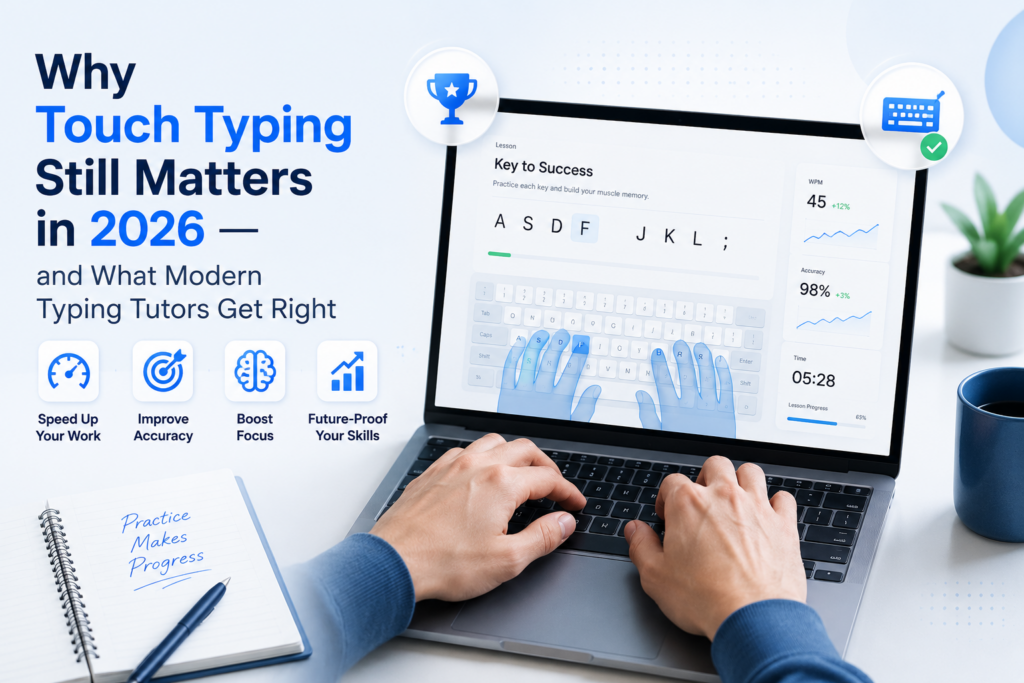
Voice input is everywhere. AI writes paragraphs on request. Most of the world’s reading is done on a phone with two thumbs. By any reasonable forecast, touch typing should be the calligraphy of our time — a quaint skill polished by enthusiasts. It isn’t. If you spend your working day at a keyboard — writing code, drafting documents, replying to email, navigating a CRM — the speed and accuracy with which your fingers find the keys is still one of the largest single levers on how much you get done, how tired you feel doing it, and how often you lose a thought mid-sentence.
The interesting thing is that the tools for getting better at this have changed almost completely in the last decade — quietly, and mostly outside the awareness of the people who would benefit most.
The skill that quietly underwrites everything else
Most knowledge workers type for four to six hours a day. A developer who types at 40 WPM, with a 6–8% error rate, spends a meaningful fraction of each commit re-doing characters and breaking flow to fix typos. The same developer at 80 WPM and 2% errors spends much less of their cognitive budget on the mechanics of input, and much more on the actual problem on screen. The gap isn’t talent. It’s habit.
The same principle applies to anyone whose job involves writing more than reading: customer-support agents, journalists, lawyers, accountants, sales reps in a CRM, students taking notes in class. Even in 2026, when AI can draft for you, the final prompt — the editing pass, the chat reply, the variable rename, the form field — still has to come out of your fingers. Touch typing is a force multiplier for every other skill in that list, and it pays back the investment every working day for the rest of your career.
Why most people plateau — and never come back to it
Almost everyone who can type was self-taught somewhere between the ages of 10 and 16. The internet had something to do with it; a school computer lab had something to do with it; a parent’s desktop had something to do with it. By the time anyone formally asked the question “are you using the right finger for that key?”, the answer had been locked in for years.
The result is that most adult typists hit a ceiling around 40–55 WPM with chronic homerow drift, a punctuation hand that floats, and three or four keys that they reliably mistype every day. They are perfectly functional. They are also nowhere near the speed they would naturally hit with a few weeks of deliberate practice on the right exercises. The barrier isn’t time. It’s that most of the typing tutors people remember — the ones with a Comic Sans interface and a bouncing apple — were aimed at children, and there hasn’t been an obvious place to go as an adult who wants to take the skill seriously.
What a modern typing tutor actually does differently
The mental model most people have of a typing tutor is “type this sentence, get a score, see if you can type the next one faster.” That hasn’t been state of the art for some time. A modern tutor does several things at once that older tools couldn’t.
Layout-aware finger guidance
Touch typing isn’t really about speed. It is about not looking at the keyboard — about the muscle memory that lets your right index finger find J without your visual cortex getting involved. A modern tutor shows a colour-coded on-screen keyboard with the home row, the F/J locator bumps, and the finger that should press each key — updated for whatever physical layout you actually have. QWERTY US, QWERTY UK, AZERTY, QWERTZ and Dvorak each get the right colouring.
A heatmap that tells you the truth
Generic “you typed 47 WPM with 92% accuracy” feedback is useless for improvement. Per-key feedback is everything. A modern tutor records every keystroke and every miss, then renders an error heatmap across your keyboard layout, so you can see at a glance which three or four keys are responsible for most of your mistakes. Almost everyone is surprised by this. Almost no one’s problem keys are the ones they think they are.
Tiered, deliberate practice — including for code
Practice that doesn’t target your weak spots doesn’t work. Tiered lessons that walk you from the home row through every letter, then capitals and punctuation, then prose, then symbol-heavy code — with the option to filter code lessons by language — let you spend more time on the keys you actually struggle with, less on the ones you already know.
Practice modes that match how you actually want to train
Some days you have ten minutes and want a hard timed run. Some days you want to type until you hit the day’s quota and stop. Some days you want a Zen mode with no pressure, just typing for its own sake. And the most underrated mode of all is repeat-until-perfect, which loops a passage until you can type it cleanly — the closest thing to deliberate practice in a typing tutor.
Gamification that actually keeps you coming back
Drills work. They’re also a chore. Five minutes of Letter Rain, Word Blaster, Speed Sprint against a ghost of your previous best, or a Typing Duel against a CPU opponent — with high scores and unlockable achievements — turn out to be exactly the right amount of dopamine to keep an adult typist practising on the days they would otherwise skip it. Daily streaks compound. So does measurable progress on the WPM trend line.
Our answer: TypingDesk
TypingDesk is our take on what a typing tutor for 2026 should be — on Windows, fully offline, with no account, no subscription and no internet required. It started with a simple observation: the typing-tutor market on Windows was either kids’ software with talking robots, or paid web apps that wanted your email address and a credit card. There was a gap for a focused, modern desktop app that respected an adult learner’s time.
TypingDesk — Typing Tutor, Drills & Games for Windows
TypingDesk teaches touch typing on Windows with a colour-coded finger-placement guide, tiered lessons (Beginner → Intermediate → Advanced → Code), four practice modes, five typing games, an error heatmap, a WPM trend graph and a day streak. Multiple local profiles, multiple keyboard layouts, English / French / German / Spanish UI. Free, fully offline, no account.
What it actually gives you, in the same shape as the “what a modern tutor does” checklist above:
- A smart typing engine — Unicode/grapheme-aware (accent-ready, no IME), with live WPM and accuracy, character-by-character highlighting, a smooth sliding caret and proper backspace correction.
- A layout-aware finger-placement guide — colour-coded keyboard, home row marked, F/J bumps shown, per-finger key assignment for QWERTY US/UK, AZERTY, QWERTZ and Dvorak.
- Tiered lessons — Beginner (home row first, then all letters), a capitals & punctuation bridge, Intermediate, Advanced, Code (filtered by language), and Custom (paste your own text). Star ratings, best-WPM tracking, and tier unlocks as you go.
- Four practice modes — Timed, Quota, Zen, and Repeat-until-perfect that loops the passage until you hit the target accuracy.
- Five typing games — Letter Rain, Word Blaster, Survival, Speed Sprint (race a ghost of your best run) and Typing Duel against a CPU at Easy / Medium / Hard, with high scores and a pause menu.
- Stats that actually help you improve — a WPM trend line graph, a layout-aware key-error heatmap, a day streak, a personal-bests board, and nine achievement badges for speed, accuracy, streaks and milestones.
- Local profiles — multiple password-less profiles, each with isolated stats, progress, achievements and settings. A whole family can share one PC. No account, no password.
- Languages, layouts and themes — UI in English, French, German and Spanish; keyboard layouts QWERTY (US / UK), AZERTY, QWERTZ and Dvorak; light and dark themes; synthesised keystroke and error sounds with a volume control.
- Fully offline — all progress lives on your PC. No account, no subscription, no telemetry, no internet required.
How to actually use it (15 minutes a day for a month)
If you decide to take touch typing seriously for the first time in years, an honest plan looks like this:
- Take an unwarmed baseline. Run one timed test in your normal style. Write the number down. This is what we’re going to beat.
- Reset to the home row. Spend the first week in Beginner lessons, even if it feels insultingly easy. The point is to retrain finger assignment — not to feel fast. Use the on-screen keyboard, not your eyes on the physical one.
- Read your heatmap once a week. Whichever three keys are darkest are your homework. Use Custom lessons to target them.
- Mix in one game a day. The dopamine is the point. The streak is the point.
- Re-take the timed test once a week. Don’t check daily. Speed gains feel discontinuous — you plateau for days, then jump.
A month at this is more or less the difference between a competent typist and a fast, accurate one. It is also more or less the difference between losing thoughts to typos every day and not losing them at all.
Key takeaways
- Touch typing is still a load-bearing skill in 2026 — AI drafting, voice input and mobile screens haven’t removed the need for fast, accurate keyboard input on a desktop.
- Most adults plateau around 40–55 WPM with self-taught habits and never come back to it — not because they can’t improve, but because the tools they remember were aimed at children.
- A modern typing tutor looks very different from the old ones: layout-aware finger guidance, a per-key error heatmap, tiered lessons including code, multiple practice modes including repeat-until-perfect, and gamification that actually sustains daily practice.
- TypingDesk is our take on all of that — for Windows, fully offline, with multiple local profiles, four UI languages and multiple keyboard layouts. Free, no account.
- Fifteen minutes a day for a month is enough to move from a self-taught typist to a fast and accurate one. The improvement compounds for the rest of your career.
If you’ve been quietly meaning to fix your typing for a few years, this is your sign.
TypingDesk — Typing Tutor, Drills & Games for Windows
TypingDesk teaches touch typing on Windows with a colour-coded finger-placement guide, tiered lessons (Beginner → Intermediate → Advanced → Code), four practice modes, five typing games, an error heatmap, a WPM trend graph and a day streak. Multiple local profiles, multiple keyboard layouts, English / French / German / Spanish UI. Free, fully offline, no account.
Leave a Reply