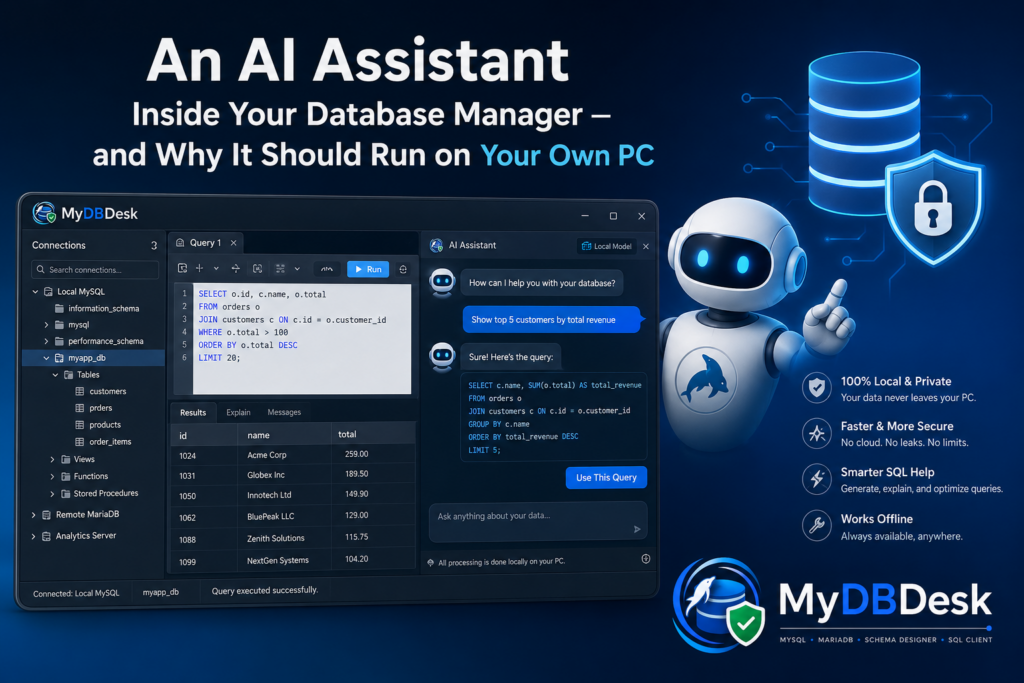
A database client is one of the few tools where an AI assistant has an unfair advantage: it is already sitting on top of the exact context the model needs. The table names, the column types, the primary keys, the foreign keys — the schema is right there in the navigation tree. Ask a general-purpose chatbot “how do I list customers who placed an order?” and it has to guess your table names. Ask the assistant built into your DB manager and it doesn’t have to guess at all.
The awkward part is what most tools do next: package that schema up and send it to someone else’s server. This post looks at what an AI assistant is genuinely useful for inside a database explorer, where it should be treated with suspicion, and how MyDBDesk 2.0 runs one on your own machine — including the full on-demand model download flow, step by step.
The three jobs an assistant actually does well in a DB tool
“AI in a database manager” sounds vague until you break it into concrete tasks. In practice it comes down to three, and they are not equally reliable:
| Job | What you ask for | How much to trust it |
|---|---|---|
| Explain a query | Take the SQL in the editor and say what it does in plain English — which tables it touches, what the JOINs mean, what the WHERE narrows down. | High. Reading and paraphrasing existing code is the safest thing a model does. Nothing runs. |
| Describe a table | Summarise a table’s columns and keys, and infer what it appears to store and how it relates to its neighbours. | High for structure, medium for intent. The columns are facts; “this looks like an order line” is an inference. |
| Help write SQL | Draft a SELECT with the right JOINs, or remind you of syntax you use twice a year. | Review before running. Useful as a first draft. It does not know your data volumes, your indexes, or which rows matter. |
Notice that the two most valuable jobs are comprehension, not generation. If you have ever inherited a 60-line reporting query from someone who left the company, or opened a database with 200 tables and no documentation, you already know why. The generation case gets the headlines, but the explain-and-describe cases are what you will use every week.
Why schema context is the whole game
An assistant that can see your schema is a categorically different tool from one that can’t. It can use your real table and column names instead of inventing users and orders. It can see that orders.customer_id is a foreign key to customers.id and write the JOIN accordingly. It can tell you that a column you assumed was a date is actually stored as a string.
In MyDBDesk, the assistant sees the tables in whichever database you have selected in the tree. Click a different database and the context follows you. That’s why the questions can be casual — “what does the orders table store?” or “how would I list customers who placed an order?” — without you first pasting a schema dump into a chat window.
And that is exactly what makes the privacy question sharp. A schema is not neutral metadata. Column names leak your business model, your pricing structure, your customer fields, and often which personal data you hold and where. For plenty of teams, pasting a production schema into a third-party API is a compliance conversation, not a convenience.
MyDBDesk 2.0 — A MySQL & MariaDB Manager With a Private AI Assistant
MyDBDesk is a full visual workbench for MySQL and MariaDB on Windows — multi-server connections, a browse-and-edit grid, a visual ER designer, a SQL console with history, and import/export for CSV, JSON and SQL. Version 2.0 adds an AI assistant that runs entirely on your own PC and a built-in local MariaDB server for when you don’t have one yet. Free trial on the Microsoft Store.
The on-demand model flow, step by step
MyDBDesk ships without an AI model. The app download stays small, and if you never open the AI tab, nothing is ever fetched. Here is the whole flow the first time you use it:
- Open the AI tab. If no model is present yet, the tab shows a single ⬇ Download button, labelled with the model it would fetch and how big it is. Nothing has been downloaded at this point, and nothing happens until you click.
- Pick a model first, if you want. A drop-down lets you choose before committing to the download — a lighter, faster model or a larger, higher-quality one (see the table below).
- Consent, then download. Clicking Download starts the one-time fetch with a progress bar. You can press Stop mid-way; nothing is left half-configured.
- That’s the last download. From then on the model loads from your own disk. There is no per-request call to any server, no API key to paste, and no account to create.
- Ask. Type a question and replies stream in as they are written, so you can start reading before the answer finishes.
One honest caveat about the feel of it: the first request after you open the app takes a little longer — around half a minute — while the model is loaded into memory. Every request after that is noticeably quicker. It’s worth knowing so the first slow answer doesn’t read as a bug.
The two models
| Model | Size | Best for |
|---|---|---|
| Qwen2.5-Coder 1.5B (default) | ~1.8 GB | Lighter and faster. The right starting point on most machines, and code-oriented by design. |
| Phi-4-mini | ~4.7 GB | Larger and a little slower, for when you want extra quality on longer explanations. |
Downloading on demand rather than bundling is a deliberate trade. It keeps the installer small for the many people who want a database manager and nothing else; it lets you choose the model that suits your hardware instead of accepting whatever was baked in; and it means the AI is genuinely optional rather than a feature you paid for in disk space whether you wanted it or not.
Using it day to day
Beyond free-form chat, two buttons cover the most common cases without you typing a prompt at all:
- Explain query in editor — takes whatever SQL is currently in the SQL tab and explains it in plain language. This is the inherited-reporting-query rescue button.
- Describe this table — select a table in the tree and get a summary of its columns, its keys, and what it appears to store. Useful the first time you open an unfamiliar database.
Stop cancels a reply that is running long, and Clear empties the conversation.
Where to keep your guard up
An assistant that can read your schema is still an assistant, not an oracle. The failure mode worth planning for is a query that looks plausible and is subtly wrong — a JOIN that silently drops rows, a WHERE that matches more than you meant.
Two habits, and one safety net:
- Read generated SQL before you run it. MyDBDesk puts generated statements in a code block for you to copy rather than executing anything on your behalf — the review step is built into the workflow by design.
- Be extra careful with anything that writes. Explanations are low-risk. An UPDATE or DELETE drafted from a one-line description is not.
- The console has a backstop. Independently of the AI, MyDBDesk’s SQL console asks you to confirm before running a destructive statement — a
DROP, aTRUNCATE, or aDELETE/UPDATEwith noWHERE. It’s the last line of defence against an accidental “delete everything,” whoever wrote the query.
No database server yet? There’s one in the box
Worth mentioning alongside the AI, because the two pair well when you are learning: MyDBDesk 2.0 can download and run a portable MariaDB on your own PC in a couple of clicks, bound to 127.0.0.1. It adds the connection and connects automatically, so you can create a database, ask the assistant how to model it, and try the SQL — without installing a server yourself or touching anything that matters. Your data folder is a normal folder that stays put even if you uninstall the app.
Key takeaways
- A DB manager is the natural home for an AI assistant because it already has your schema as context — no pasting schema dumps into a chat window.
- The most reliable jobs are comprehension: explaining an inherited query and describing an unfamiliar table. Generation is a useful first draft, not a finished answer.
- Your schema is sensitive — column names leak business structure and often reveal what personal data you hold. That’s the case for keeping it on your own machine.
- MyDBDesk ships no model by default. You open the AI tab, pick Qwen2.5-Coder 1.5B (~1.8 GB) or Phi-4-mini (~4.7 GB), and consent to a one-time download with a progress bar you can stop.
- After that it runs entirely on your PC — no cloud, no API keys, no accounts. Expect a ~30-second warm-up on the first request after launch.
- Always review generated SQL before running it; the console’s destructive-statement confirmation is there as a backstop.
MyDBDesk 2.0 — A MySQL & MariaDB Manager With a Private AI Assistant
MyDBDesk is a full visual workbench for MySQL and MariaDB on Windows — multi-server connections, a browse-and-edit grid, a visual ER designer, a SQL console with history, and import/export for CSV, JSON and SQL. Version 2.0 adds an AI assistant that runs entirely on your own PC and a built-in local MariaDB server for when you don’t have one yet. Free trial on the Microsoft Store.
Leave a Reply