Encryption is one of the best ways to protect confidential files. Whether you’re storing financial records, legal documents, customer information, research, or personal data, encrypting files ensures that unauthorized users cannot read them.
However, many people overlook a common problem in their daily workflow.
To read an encrypted file, they first decrypt it, open it in another application, and then remember to encrypt or delete the unprotected copy afterwards.
While this approach works, it introduces unnecessary security risks that can expose sensitive information long before anyone notices.
The Traditional Workflow
For most encrypted files, the process looks like this:
- Locate the encrypted file.
- Decrypt it.
- Open it with another application.
- Read or edit the contents.
- Save the file.
- Delete the decrypted copy.
- Keep only the encrypted version.
Although simple, every step after decryption creates opportunities for mistakes.

Securely Browse Your Encrypted Files with SafeViewer
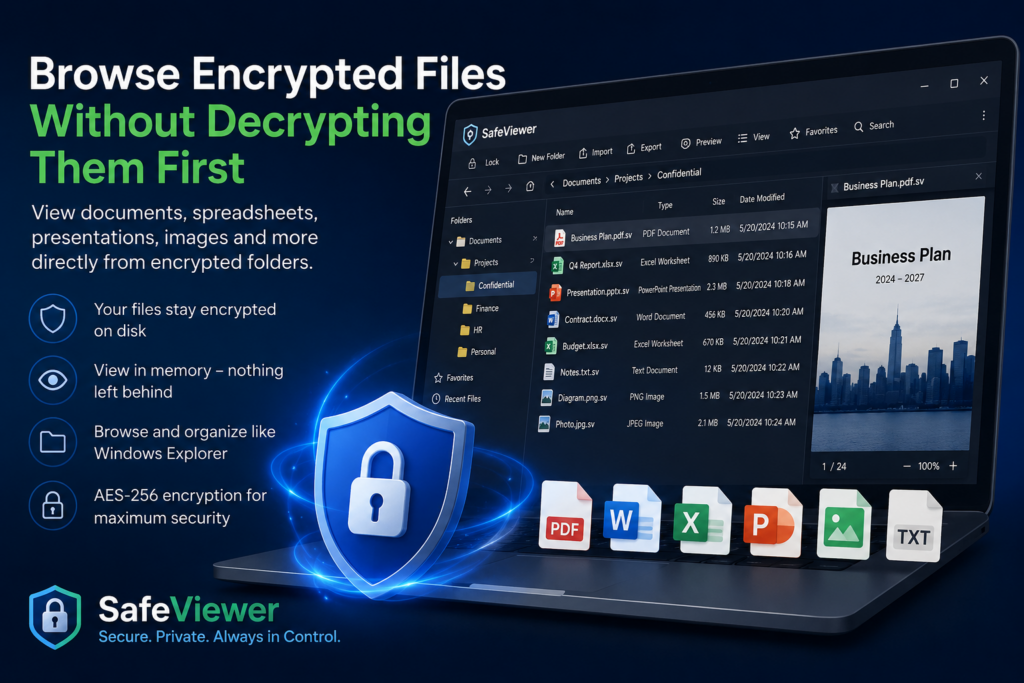
SafeViewer is a secure encrypted-file explorer for Windows that lets you browse, preview, and view encrypted documents without creating unnecessary decrypted copies on your disk. Supported files are decrypted only in memory while viewing, helping reduce the risk of leaving confidential information behind.
- 🔒 AES-256 encrypted file storage
- 🗂 Browse encrypted folders like Windows Explorer
- 👁 Preview PDF, Word, Excel, PowerPoint, images and text files
- ⚡ In-memory viewing without writing decrypted data back to disk
- 📁 Export decrypted copies only when you choose
A decrypted copy may remain in your Downloads folder, Documents folder, Desktop, or another location. It might be backed up automatically, synced to cloud storage, or simply forgotten after you’re finished using it.
Even if the encrypted version remains secure, the temporary unencrypted copy may still contain all of your confidential information.
The Problem with Temporary Decrypted Files
Temporary decrypted files are often created simply because you want to read a document for a few minutes.
Unfortunately, those few minutes can leave behind files that remain accessible indefinitely.
Some common examples include:
- Confidential contracts
- Medical records
- Financial statements
- Password documentation
- Legal documents
- Personal photographs
- Company reports
- Research material
Once decrypted, these files behave like any other document on your computer.
If you forget to remove them, anyone with access to your PC can open them without needing the encryption password.
Encryption Should Protect the Entire Workflow
Encryption is most effective when it protects not only stored files but also the way you access them.
Instead of repeatedly creating decrypted copies, a safer approach is to keep files encrypted while browsing your folders and decrypt them only in memory when you actually need to view them.
This minimizes the amount of time sensitive information exists in an unprotected form.
A Better Way to Browse Encrypted Files
This is exactly the workflow that SafeViewer was designed to provide.
Rather than acting as a traditional encryption utility, SafeViewer functions as a secure encrypted-file explorer for Windows.
After unlocking your secure session with your password, you can browse folders that contain encrypted files just like you would in Windows Explorer. The application intentionally displays encrypted files and folders, allowing you to organize and navigate your secure data without constantly switching between encryption and decryption tools.
When you open a supported file, SafeViewer decrypts its contents only in memory. The readable document is never written back to your disk during viewing, reducing the risk of leaving behind accidental unencrypted copies.
View Common File Types Securely
SafeViewer includes built-in support for viewing many commonly used document formats directly from their encrypted versions.
Supported file types include:
- PDF documents
- Microsoft Word documents
- Microsoft Excel spreadsheets
- Microsoft PowerPoint presentations
- Images
- Text and source code files
Instead of exporting each file before reading it, you can preview it inside the application or open it in a dedicated viewer window while the decrypted content remains in memory.
Organize Your Secure Documents
Working with encrypted files shouldn’t feel complicated.
SafeViewer includes features that make managing secure files much more practical, including:
- Familiar folder navigation
- Breadcrumb navigation
- List and grid views
- Search
- Favorites
- Recent Files
- File previews
- Secure session management
These features make encrypted files just as easy to browse as ordinary files while maintaining a security-focused workflow.
When You Need an Unencrypted Copy
There are situations where another application needs access to the original file.
SafeViewer allows you to export a decrypted copy whenever necessary.
This gives you complete control over where the unencrypted version is saved instead of automatically creating temporary files every time you want to view a document.
Security Beyond Strong Encryption
Strong encryption algorithms such as AES-256 provide excellent protection for stored data, but security also depends on how files are handled after they are decrypted.
Reducing unnecessary decrypted copies, keeping sensitive content in memory during viewing, and giving users better control over their confidential documents all contribute to a more secure workflow.
Final Thoughts
Encryption shouldn’t become less secure simply because you need to read one of your own documents.
Browsing encrypted files directly, previewing supported documents without permanently decrypting them, and exporting unencrypted copies only when required can significantly reduce the chances of exposing sensitive information through everyday mistakes.
If you regularly work with confidential files on Windows, adopting a workflow that minimizes decrypted copies is a practical step toward better security. SafeViewer was built with exactly that goal in mind, combining encrypted file management, secure browsing, and in-memory document viewing into a single desktop application.
Hi
Great app.
Wondering if, at any future point. you intend to include encrypting and viewing (in memory) common video files in the list of allowed file types?
Kind regards
Andrew
we are already working on it. Thanks