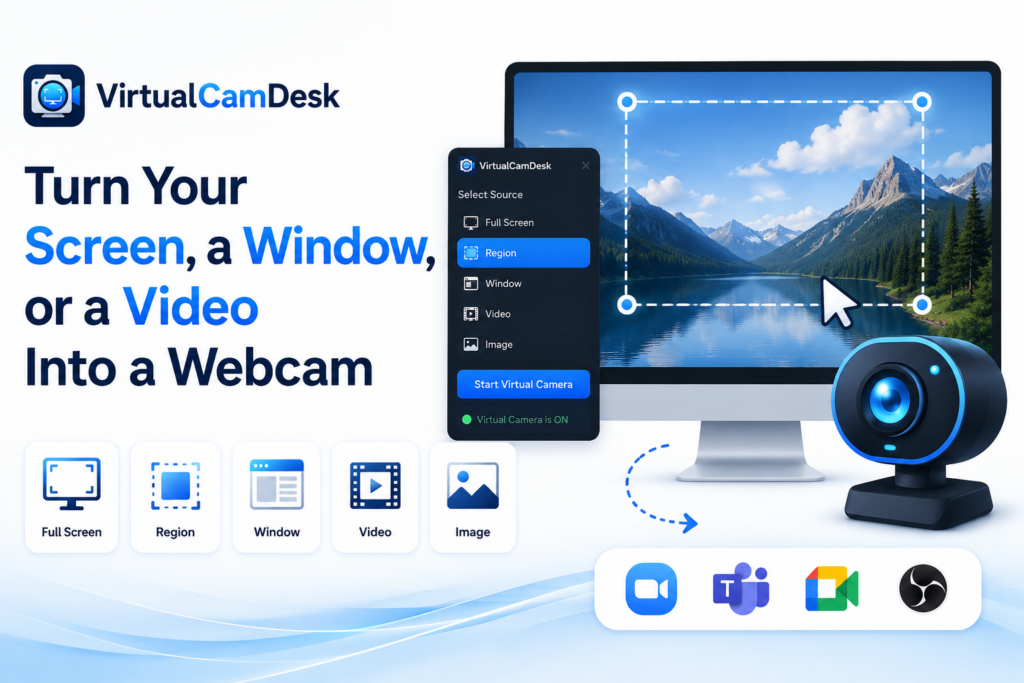
Your real webcam works fine — until you want to do something with it other than show your face. Share a single app window in a meeting without sharing your whole screen. Run a polished looping demo as your camera while you talk. Drop a logo and a scrolling ticker on top of your feed. VirtualCamDesk is our answer: a virtual webcam for Windows 11 that lets you use your screen, a screen region, a specific window, an image or a video file as a camera in Microsoft Teams, Google Meet, Edge, Chrome and the Windows Camera app.
It is available now on the Microsoft Store: free with every feature included, plus a one-time Pro upgrade that removes a small watermark.
VirtualCamDesk — A Virtual Webcam for Windows 11
VirtualCamDesk turns your screen, a screen region, a specific window, an image or a video file into a webcam that Teams, Meet, Edge, Chrome and the Windows Camera app can select like a real camera. Live preview, color adjustments, mirror / flip and logo / text / scrolling-ticker overlays included. Free with every feature, optional one-time Pro upgrade removes the watermark.
What a virtual webcam actually is
Apps that use your camera — Teams, Google Meet, the Windows Camera app — ask Windows for a list of available cameras and let you pick one. A virtual webcam is a piece of software that registers itself with Windows as a camera, so it shows up in that list alongside your built-in laptop camera. When the meeting app selects it, the “frames” the camera produces are actually whatever VirtualCamDesk decides to send — your screen, a window, an image, or a video.
The result is that nothing changes in the meeting app: you join the call the way you always do, but in the camera dropdown you pick VirtualCamDesk instead of your real camera. Your colleagues see whatever you set as your source.
Five sources, one webcam
On the dashboard you choose one of five source cards. Switching is instant — click another card and the feed changes mid-call.
- Screen — your entire screen. If you have more than one monitor, you choose which one (or “All displays”).
- Region — drag-select any rectangular area of your screen. Great for showing just the part of a document or app that matters.
- Window — a specific app window, captured directly. Works even when the window is behind others, so you can keep notes, chat or your meeting app on top while a different window stays on camera.
- Image — a still image (PNG, JPG…) shown centered and fit to the frame. Use a branded background, a holding slide, or a product shot.
- Video file — an MP4, MKV or MOV that plays on a loop, muted. A polished pre-recorded demo or B-roll that stays on camera while you talk over it.
Recent sources are pinned for one-click switching, and the last source you used is restored automatically next time you open the app.
A live preview, instant controls and global hotkeys
The preview panel shows exactly what your viewers see — including overlays, adjustments and (on the free tier) the watermark. You can frame and check before going live and toggle the preview off with a single key.
Three global hotkeys work even when VirtualCamDesk isn’t the active window — handy mid-call when your meeting app has focus:
- F9 — start or stop the camera.
- F10 — pause and resume the feed. Pause freezes the feed on the current frame — useful when you need a moment off camera without leaving an empty seat.
- F11 — show or hide the preview window.
A status dot on the camera card tells you the current state: off, on, live (in use by an app), or paused.
Color, mirror, flip — and overlays your viewers actually see
The right-hand panel has the things you would normally reach for in OBS, only simpler:
- Color adjustments — brightness, contrast and saturation sliders, with a one-click reset.
- Mirror — flip horizontally, the way your real webcam does for selfie-style framing.
- Flip — flip vertically.
- Logo overlay — pick any image, drop it in any corner, and size it with a slider.
- Text overlay — type any on-screen text and pin it to a corner. Useful for your name, title, or a URL.
- Scrolling ticker — enable a news-style banner that scrolls across the top or bottom of your feed at the speed you set.
Everything is composited into the actual camera output — not just the preview — so your viewers see it too.
Quiet by design: tray, startup, single instance
VirtualCamDesk runs in the system tray. Closing the window doesn’t quit the app — it keeps the camera available during a call. From Settings you can have it launch at Windows startup and start minimized, so your virtual camera is always there when a meeting app looks for it. It is also single-instance: launching it again just brings the existing window forward.
Where it works (and where it doesn’t)
VirtualCamDesk plugs into Windows’ modern camera system (Media Foundation), which is what current versions of these apps use:
- Microsoft Teams
- Google Meet, and any other video app running in Microsoft Edge or Google Chrome
- The Windows Camera app
One honest caveat: the Microsoft Store edition does not appear in apps that still use the older DirectShow camera system — the Zoom desktop client and OBS are the two you’re most likely to notice. If you use Zoom, the easiest workaround is to join meetings via Zoom in your browser — that goes through the modern system and VirtualCamDesk shows up normally.
Output is fixed at 1280 × 720 at 30 FPS — the resolution and frame rate the modern Windows virtual-camera API supports, and what every supported meeting app expects.
System requirements
- Windows 11, version 24H2 (build 26100) or newer — the virtual camera relies on newer Windows features and won’t work on older builds.
- A one-time administrator approval the first time you start the camera, so Windows can register VirtualCamDesk as a camera at the system level. After that, starting the camera is instant.
Free vs Pro
VirtualCamDesk is free and fully functional — every source, every adjustment, every overlay, every hotkey. The free version adds a small VirtualCamDesk watermark in the center of your camera feed.
The one-time Pro upgrade removes the watermark. It is a single purchase through the Microsoft Store — no subscription — and re-unlocks on your other Windows devices signed in to the same store account.
Key takeaways
- Use your screen, a region, a specific window, an image or a video as a webcam — switched with a click.
- Composes color adjustments, mirror / flip, a logo, on-screen text and a scrolling ticker into the actual camera output.
- Works in Teams, Google Meet, Edge, Chrome and the Windows Camera app. Zoom desktop and OBS use the legacy camera system — use Zoom in your browser instead.
- Quiet tray app with global hotkeys (F9 / F10 / F11) so you never have to leave your meeting window.
- Free with every feature, with an optional one-time Pro upgrade that removes the watermark. Available on the Microsoft Store now.
If you’ve ever wished your webcam could show something other than your face — a window, an image, a video, a polished branded feed — give VirtualCamDesk a try.
VirtualCamDesk — A Virtual Webcam for Windows 11
VirtualCamDesk turns your screen, a screen region, a specific window, an image or a video file into a webcam that Teams, Meet, Edge, Chrome and the Windows Camera app can select like a real camera. Live preview, color adjustments, mirror / flip and logo / text / scrolling-ticker overlays included. Free with every feature, optional one-time Pro upgrade removes the watermark.
Leave a Reply