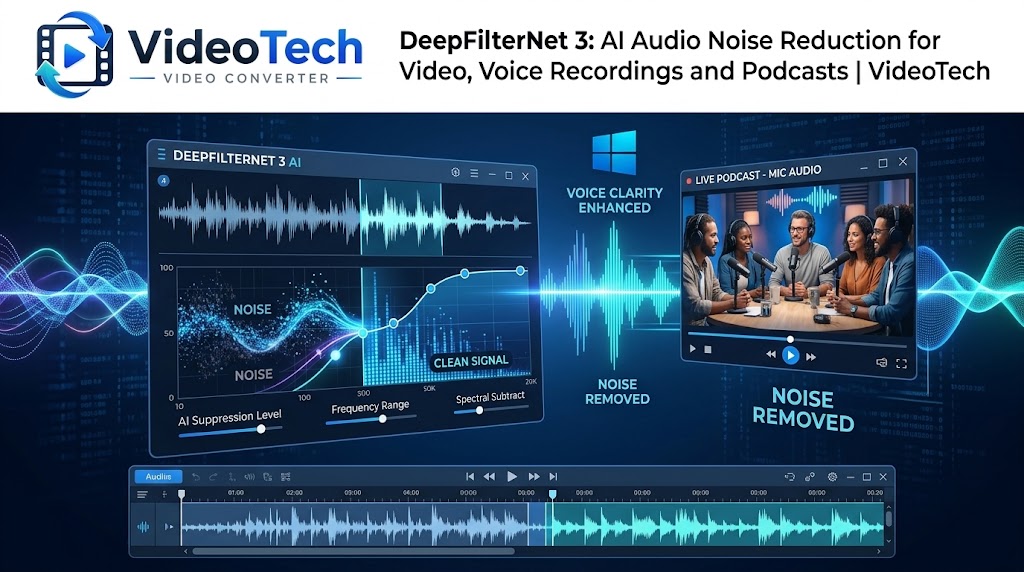
Background noise can make a perfectly useful video difficult to watch. A fan running near the microphone, traffic outside, air conditioning, electrical hum, or constant hiss can distract viewers from what someone is saying. Basic volume controls cannot solve this problem, and making speech louder often makes the background noise more noticeable too.
VideoTech Video Converter includes DeepFilterNet 3, a compact AI speech-enhancement model that helps reduce unwanted background noise in video audio. It runs locally on your Windows PC, so you can clean up speech without uploading recordings to an online service or paying for a separate AI subscription.
What Is DeepFilterNet 3?
DeepFilterNet 3 is an AI-based speech-enhancement model designed to make spoken audio clearer in noisy environments. Instead of simply lowering the volume of quiet sounds, it analyzes the audio to distinguish speech from unwanted background noise and suppress noise while preserving the voice as much as possible.
It can help with recordings affected by sounds such as:
- Traffic and other environmental noise
- Computer fans and air-conditioning systems
- Steady background hum
- Hiss and room noise
- Other continuous background sounds that compete with speech
This makes speech enhancement useful for tutorial videos, screen recordings with narration, interviews, presentations, voice recordings, and other footage where spoken content matters.
AI Noise Reduction Without an Online Upload
Many online audio-cleanup tools require you to upload a recording before processing it. That may be inconvenient when working with private meetings, internal training videos, unreleased content, or large video files.
VideoTech takes a different approach. Its DeepFilterNet 3 model is downloaded into the application when you choose to use the feature. Once the model is available, audio enhancement runs on your own computer.
- Local processing: Your video and audio remain on your PC during enhancement.
- No AI subscription: DeepFilterNet 3 is included in VideoTech’s purchase price.
- Compact model: The model is approximately 8 MB.
- Offline use: After the required model has been downloaded, you can use the feature without an ongoing internet connection.
The application verifies downloaded model files against their expected size and SHA-256 fingerprint before accepting them. You can also import a model from disk when preparing an offline machine.
Choose the Right Noise-Reduction Strength
Not every recording needs the same amount of processing. A quiet office recording with a little fan noise is different from a voice recorded in a much noisier environment.
VideoTech provides three DeepFilterNet 3 strength settings:
- Light: A more conservative cleanup for recordings that are already reasonably clear.
- Medium: A balanced starting point for many recordings with noticeable background noise.
- Full: More aggressive enhancement for recordings that need stronger noise suppression.
Stronger processing is not automatically better. Excessive noise reduction can change the character of a voice or introduce audio artifacts. If natural-sounding speech is important, compare the available strengths and listen to the resulting audio before using it in your final video.
Keep Stereo Audio Stereo
VideoTech preserves stereo output when processing stereo audio. The left and right channels are enhanced separately rather than being combined into a single mono channel.
This is useful when the original recording uses stereo audio and you want to retain that channel arrangement in the converted file.
Noise Reduction Before Silence Removal and Subtitles
VideoTech combines several AI-assisted features in a single conversion workflow. When DeepFilterNet 3 is enabled alongside other supported features, audio cleanup takes place before silence removal and speech transcription.
This order is useful because cleaner speech can make the subsequent processing steps more practical. For example, Whisper subtitle generation can work with the enhanced audio, while Silero VAD can identify speech and remove unwanted gaps. If silence removal changes the video’s duration, VideoTech remaps generated subtitles to the shortened timeline.
You can therefore prepare speech audio, remove pauses, and generate subtitles within the same conversion process rather than manually moving between separate applications for every step.
How to Reduce Background Noise in VideoTech
- Open VideoTech: Start VideoTech Video Converter on your Windows PC.
- Select your video: Add the source video you want to convert.
- Enable audio cleanup: Turn on the DeepFilterNet 3 speech-enhancement feature.
- Choose a strength: Start with Medium, then try Light or Full if the result needs adjustment.
- Download the model if needed: VideoTech obtains the model when you first choose to use the feature.
- Convert and review: Process the video, then listen to the result to check speech clarity and naturalness.
Once the model is installed, you can use it again without downloading it for every video. You can also include multiple files in VideoTech’s conversion queue for batch processing.
AI Speech Enhancement Is Not a Guarantee of Perfect Audio
DeepFilterNet 3 is designed to enhance speech, not to make every recording sound like it was captured in a professional studio. Results depend on the source material, the type and level of noise, microphone quality, and how clearly the speaker was recorded.
It may reduce steady background sounds effectively, but it will not necessarily eliminate every sound, repair severely distorted speech, or separate every overlapping speaker perfectly. Always review important recordings after processing, especially when the audio will be published or used professionally.
Clean Up Audio While Converting Your Videos
VideoTech is a Windows video converter with built-in tools for practical media workflows. Alongside DeepFilterNet 3, it offers Whisper subtitle generation, Silero VAD silence removal, automatic face blurring, and Real-ESRGAN video upscaling. All five AI features are included in the purchase price.
The application also supports a range of video and audio output formats, batch conversion, and remuxing when a compatible format change does not require re-encoding.
VideoTech Video Converter — AI Tools for Windows
Reduce background noise with DeepFilterNet 3, generate subtitles, remove silent gaps, blur faces, upscale suitable low-resolution videos, and convert media files locally on your PC. All five AI features are included in the purchase price.
Final Thoughts
Background noise can reduce the usefulness of otherwise good video footage, particularly when viewers need to understand the speaker. DeepFilterNet 3 gives VideoTech users a convenient way to reduce common background noise as part of their existing conversion workflow.
With a model size of approximately 8 MB, three processing strengths, local execution, and no separate AI subscription, it is a practical option for Windows users who want to improve speech clarity without relying on an online audio-enhancement service.
Learn more about VideoTech Video Converter or check the VideoTech changelog for product updates.
Leave a Reply